Every web design, graphic creation, and branding project relies on accurate color coding. HEX and RGB codes are the universal language of digital design, telling software exactly which shades to display on screens.
Even the most visually stunning design mockups fail if color codes are slightly off. Mismatched HEX or RGB values cause inconsistent website themes, distorted brand graphics, and unpolished digital assets.
Most casual design tools generate incorrect or incomplete color codes. They often skip key formats, round off values, or fail to match on-screen shades precisely. This forces creators to waste time reworking flawed color setups.
A dedicated color picker to get HEX RGB codes eliminates these issues entirely. Built for precise code extraction, this tool delivers industry-standard color values for every digital design and development task.
This full tutorial explains why accurate HEX and RGB code extraction matters, flaws of basic color tools, core tool features, common use cases, and a detailed workflow to master a color picker to get HEX RGB codes with perfect accuracy.
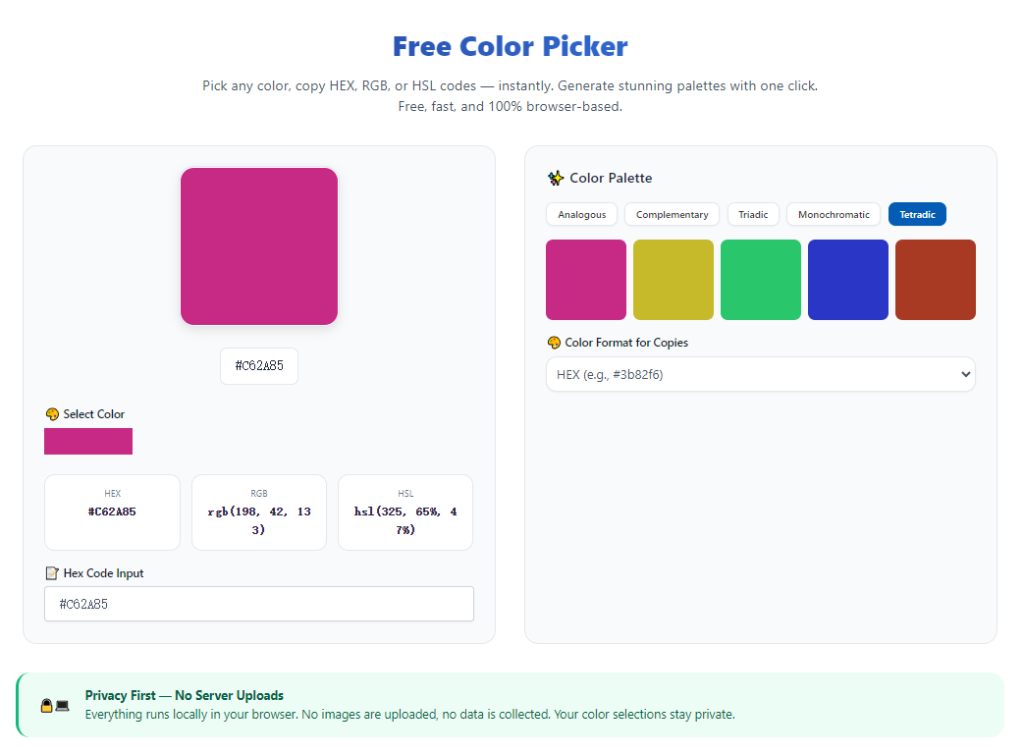
Why Accurate HEX and RGB Codes Matter for Design
Digital design depends entirely on standardized color values. Unlike visual color guessing, HEX and RGB codes create fixed, replicable shades across all devices and platforms.
Guarantees cross-device color consistency
Screens display colors differently based on resolution and calibration. Fixed HEX and RGB codes lock shades in place, ensuring uniform visuals on desktops, laptops, and mobile screens.
Standardizes brand identity
Brands rely on specific color tones for logos, banners, and marketing materials. Accurate codes prevent color fading or shifting across different design assets.
Ensures error-free web development
Web developers use HEX and RGB codes for CSS styling. Incorrect values lead to broken theme consistency, mismatched buttons, backgrounds, and text tones on live websites.
Saves hours of revision work
Inaccurate color codes require repeated design adjustments. Precise code extraction eliminates rework and speeds up entire project workflows.
Problems With Basic Color Code Tools
Default system color pickers and generic free tools are not built for professional code extraction. They create consistent issues for designers and developers.
Inaccurate rounded color values
Basic tools often round up RGB numbers or simplify HEX codes. These small alterations change the final shade and ruin design uniformity.
Missing dual-format support
Many casual pickers only generate one format. Some output only HEX codes, while others only show RGB values, forcing users to manually convert codes.
No pixel-perfect sampling
Generic tools average multiple surrounding pixels instead of sampling single points. This creates blurred, imprecise color codes for detailed design work.
No transparency code support
Standard tools ignore alpha channel values. They cannot generate RGBA codes needed for modern transparent UI elements and overlays.
No code preview or verification
Basic pickers display raw numbers without visual previews. Users cannot confirm if the extracted code matches the original color before application.
Key Features of a Quality Color Picker to Get HEX RGB Codes
A professional color picker to get HEX RGB codes includes specialized features tailored for design and development precision, outperforming generic tools entirely.
Dual HEX and RGB instant generation
The core feature delivers accurate, unrounded HEX and RGB codes simultaneously. Users get both standard digital formats in one click without manual conversion.
Precision single-pixel sampling
The eyedropper tool targets individual screen pixels. It captures exact color data without averaging adjacent shades, ensuring pure, accurate code results.
Extended format support
Top tools generate RGBA and HSLA values alongside basic codes. This supports advanced UI design, transparent elements, and custom color grading.
Real-time visual color preview
A live preview panel displays the sampled color side-by-side with code values. Users verify shade accuracy instantly before copying codes.
One-click code copying
Built-in copy functions let users save HEX or RGB codes directly to the clipboard. This eliminates typing errors and speeds up workflow.
Color history storage
The tool logs all recently sampled codes. Designers reuse consistent shades across long-term projects without resampling visuals repeatedly.
Simple manual color adjustment
Intuitive sliders tweak hue, saturation, and brightness. Users refine sampled colors and generate updated HEX RGB codes instantly.
Top Use Cases for Extracting HEX RGB Codes
A reliable color picker to get HEX RGB codes serves countless digital creation and development scenarios for beginners and professionals.
Website CSS and frontend styling
Web developers extract precise HEX and RGB codes for page backgrounds, navigation bars, buttons, and text styling. Accurate codes ensure consistent site appearance across all browsers.
Brand logo and identity design
Designers capture official brand shades and generate standardized codes. These values define brand guides and unify all marketing visual assets.
Social media graphic creation
Content creators sample template colors and custom graphics. Matching HEX RGB codes maintain cohesive feed aesthetics and branded content styles.
UI/UX app interface design
Interface designers use exact color codes for icons, overlays, cards, and interactive elements. Precise coding creates clean, professional app layouts.
Digital illustration and editing
Artists sample reference images to replicate exact tones in artwork. Consistent HEX RGB values improve visual harmony across entire pieces.
Custom theme development
Theme creators build uniform color schemes for websites and apps. Saved color codes ensure theme consistency across every layout component.
Step-by-Step Guide: Use Color Picker to Get HEX RGB Codes
Follow this simple, precise workflow to extract flawless HEX and RGB codes for any design or development project.
Step 1: Prepare Your Target Visual Asset
Open the image, webpage, graphic, or design mockup containing your target color. Display the asset in high resolution to avoid blurry or distorted pixel data.
Reset your screen brightness to default settings to ensure true-to-life color display before sampling.
Step 2: Open the Professional Color Picker Tool
Launch a dedicated color picker to get HEX RGB codes. Confirm the tool supports dual-format code generation and pixel-perfect sampling features.
Step 3: Activate the Precision Eyedropper
Enable the tool’s eyedropper sampling function. Your cursor will convert into a precision selector built for accurate single-pixel color detection.
Hover over your desired color area to trigger the real-time preview display.
Step 4: Sample Color and Generate Codes
Click once on the target shade to lock the color. The tool will instantly display matching HEX codes and full RGB numerical values.
Check the live preview panel to confirm the sampled color matches your original visual asset perfectly.
Step 5: Refine Color Values (If Needed)
Use the built-in adjustment sliders to tweak saturation, brightness, or hue. Any modification will automatically update the HEX and RGB code values in real time.
Adjust alpha channels if you need transparent RGBA codes for layered design elements.
Step 6: Copy and Save Codes for Use
Select your required code format and copy it to your clipboard. Save important color values to the tool’s history library for future project consistency.
Paste the codes directly into your design software or CSS editor for immediate application.
Common Code Extraction Mistakes to Avoid
These simple errors can create flawed color codes and ruin design consistency, even with quality tools.
Sampling low-resolution visuals
Compressed images contain inconsistent pixel data. Sampling blurry assets generates inaccurate HEX RGB codes that disrupt design uniformity.
Relying on rounded generic values
Basic tools round off RGB integers. Always use a professional tool for exact, unmodified color code outputs.
Mixing up web and print formats
HEX and RGB are for digital screens only. Avoid using these codes for print projects to prevent color shifting issues.
Skipping preview verification
Failing to check the live color preview can lead to mismatched shades. Always confirm visual accuracy before copying final codes.
Expert Tips for Accurate HEX RGB Code Picking
Use these professional tips to maximize precision and efficiency with your color code extraction workflow.
- Use a dedicated color picker to get HEX RGB codes for all digital projects to maintain perfect cross-asset color consistency.
- Always sample high-resolution visuals to ensure pure, undistorted pixel data for accurate code generation.
- Save all brand color codes in your tool history to build reusable, standardized design palettes.
- Verify both HEX and RGB values simultaneously to confirm format matching across design platforms.
- Adjust screen calibration before professional sampling to avoid tone distortion from display errors.
- Use RGBA code outputs for modern UI overlays to add accurate transparency effects to your designs.
Final Thoughts
Accurate color codes are the foundation of every polished digital design and website. Generic color tools produce inconsistent, rounded, or incomplete values that compromise visual quality and brand uniformity.
A professional color picker to get HEX RGB codes solves these challenges by delivering precise, dual-format color values, pixel-perfect sampling, and convenient code management features.
Whether you are developing websites, designing brand assets, creating social media graphics, or building app interfaces, this tool ensures every color code aligns with professional design standards.
By following this complete tutorial, you can effortlessly extract reliable HEX and RGB codes, eliminate color mismatches, and produce clean, consistent visual work for every creative project.
After learning the operation method, click the link below to enter the tool page for immediate use.