Working with scanned PDFs brings one extremely frustrating roadblock most users hit every week: permanent printed page numbers stamped across every page. Unlike editable native PDFs, scanned files exist as flat image layers. Standard PDF editors cannot highlight, select, or delete embedded page digits with basic text tools.
If you’ve wasted hours trying to erase page numbers from scanned reports, scanned books, or scanned official forms, a dedicated PDF page number remover for scanned files solves this unique problem entirely. This complete tutorial breaks down every detail around how to use PDF page number remover for scanned files, covering core pain points of manual editing, tool advantages, must-have features, real-world use cases, a full 10-step operation walkthrough, common user mistakes, and expert optimization tips.
Every section stays concise, easy to scan, and avoids overly technical jargon for casual bloggers, office workers, students, and small business owners who regularly handle scanned PDF archives.
Why Manual Edits Fail to Remove Page Numbers on Scanned PDFs
Before learning how to use PDF page number remover for scanned files, it’s critical to understand why regular editing tricks never work for scanned document page numbers. Scanned PDFs convert every page into a static image file, eliminating separate text layers for page markers. Manual workarounds create messy, unprofessional results with major drawbacks.
Static image-based document structure
Scanned PDFs store every page as a single merged graphic. Printed page numbers blend directly into the background text and imagery. Basic text eraser or delete functions built into standard PDF software only target editable text layers, which do not exist inside scanned files. You cannot click, highlight, or backspace over stamped page digits manually.
Blurry, low-quality white-out fixes
Many users try covering page numbers with white shape overlays or digital white-out tools. This creates obvious white blocks that ruin document readability. White patches clash with faded scan backgrounds, uneven paper tones, and lined template paper. Recipients instantly spot the edited sections, making the scanned PDF look unpolished or untrustworthy for professional sharing.
Time-consuming page-by-page cropping
Cropping page corners to cut off printed numbers works for simple single-page scans, but it destroys valuable margin content, headers, or footnotes across multi-page files. Cropping every page individually takes hours for long scanned books, research papers, or batch-scanned archives. This method also ruins consistent page sizing across your full document set.
No uniform cleanup for batch scanned files
Most office teams handle dozens of scanned PDFs daily. Manual editing only lets you adjust one page at a time. There is no way to apply consistent page number removal rules across an entire batch of scanned documents without a specialized PDF page number remover for scanned files.
Uneven scan contrast blocks basic editing
Old, faded scans, low-light document photos, and printed documents with grey ink create inconsistent contrast around page numbers. Generic photo editors cannot detect thin grey digit lines against textured paper backgrounds, leaving faint number outlines visible after basic retouching.
Core Benefits of a PDF Page Number Remover for Scanned Files
Once you master how to use PDF page number remover for scanned files, you eliminate all the messy, slow manual workarounds listed above. Purpose-built tools deliver targeted, clean results designed exclusively for image-based scanned PDF content, with tangible advantages for every user type.
Intelligent pixel-level page number detection
Top-tier PDF page number remover for scanned files scans every page’s pixel layout to automatically locate stamped page digits in headers, footers, side margins, or centered page bottoms. The tool distinguishes page numbers from regular body text, headers, footnotes, and graphic elements without manual marking. You do not need to circle or highlight every number before processing.
Natural background restoration (no ugly white blocks)
Unlike basic overlay tools, professional remover software rebuilds the original paper background texture after erasing page numbers. The tool fills the space where digits sat with matching paper grain, ink tone, and line patterns. Finished scanned pages show zero visible editing marks, keeping documents crisp and suitable for client, academic, or official submission.
Full batch processing for multi-file scanned archives
If you manage large scanned libraries, the biggest time-saver comes from bulk processing. Upload dozens of scanned PDFs simultaneously, set your page number removal parameters once, and let the tool process every file automatically. This cuts multi-hour manual editing sessions down to a few minutes of waiting time.
Compatibility with all scan quality levels
Whether you work with crisp high-resolution office scans, faded old book scans, phone-captured document photos, or low-DPI archive PDFs, the PDF page number remover for scanned files adapts its detection algorithm to match contrast levels. Even faint grey printed page digits get fully erased without leftover ghost outlines.
Preserve original document formatting and sizing
Cropping and white-out edits distort page margins, template lines, and layout proportions. Using a dedicated remover tool keeps every page’s original dimensions, header content, table formatting, and margin spacing intact. The only change is the permanent removal of unwanted page number pixels.
Free lightweight versions for casual single-file use
Entry-level PDF page number remover for scanned files tools offer full core functionality with zero mandatory paid upgrades. Students, freelancers, and occasional PDF users can process individual scanned documents without hidden fees, watermarks, or strict page limits for basic removal tasks.
Export fully optimized, shareable scanned PDFs
After erasing page numbers, the tool exports polished scanned PDFs with standard compression settings. Files retain small file sizes for email sharing, cloud storage uploads, and website upload without losing scan clarity. Exported files maintain full PDF compatibility with all mainstream readers and editing software.
Key Features to Prioritize When Picking a PDF Page Number Remover for Scanned Files
Not all PDF editing tools handle scanned image-based content equally well. When selecting software to learn how to use PDF page number remover for scanned files, filter your options using these blogger, student, and office-focused core features to avoid underpowered tools.
Auto-detect page number zones
Look for tools that automatically target common page number placement zones: bottom-center footers, top-right headers, left/right side margins. Manual zone drawing wastes time, while auto-detection cuts down your editing steps significantly. Premium tools let you toggle zone detection on or off for custom scanned layouts.
Manual brush retouch mode for odd-placed digits
Some scanned documents place page numbers in unusual spots, such as page middle blocks or folded document creases. A built-in retouch brush lets you paint over stray page numbers the auto-detection missed. This hybrid auto + manual system delivers complete cleanup for irregular scan layouts.
Batch upload and bulk processing controls
For anyone managing scanned archives, batch upload functionality is non-negotiable. Confirm the tool supports simultaneous upload of multiple scanned PDFs, plus uniform removal rules applied across the entire file batch. Advanced tools also let you save custom batch settings for repeated archive cleanup tasks.
Background texture repair algorithm
Skip any PDF remover that only covers numbers with flat white overlays. The background repair feature reconstructs original paper texture, lined notebook paper, aged yellowed paper, and printed grid lines to hide edited areas seamlessly. This feature separates professional-grade PDF page number remover for scanned files from basic free editing tools.
Multi-format scan support
The tool must process all common scanned PDF variants: black-and-white office scans, color document photos, sepia-toned archive scans, compressed low-size mobile scans, and high-DPI textbook scans. Avoid limited tools that only work with single scan color modes.
Simple export customization
Quality remover software lets you adjust output PDF compression, DPI resolution, and page size before exporting finished files. You can shrink file sizes for cloud storage or boost resolution for printed hard copies after removing page numbers.
Ad-free minimal operation interface
Cluttered screens, constant pop-up ads, and layered navigation menus slow down daily PDF editing workflows. A clean, streamlined interface lets you focus on scanned PDF cleanup instead of navigating unnecessary menus or closing promotional windows mid-process.
Common Real-World Use Cases for PDF Page Number Remover for Scanned Files
This tool fits nearly every niche that regularly creates and shares scanned PDF documents. Below are the most frequent scenarios where learning how to use PDF page number remover for scanned files delivers immediate value to your daily workflow.
Academic research and textbook scans
College students and researchers scan textbook chapters, journal articles, and old thesis archives. Printed page numbers from original publication pages disrupt citation formatting and clean digital reading. Removing these digits creates unmarked, easy-to-read scanned study materials for note-taking and assignment submission.
Small business scanned client documents
Accountants, consultants, and freelancers scan physical invoices, contracts, and client records. Original printed page numbers often reference internal filing systems irrelevant to shared client copies. A PDF page number remover for scanned files strips internal page markers to deliver clean, professional scanned documents to customers without confusing extra digits.
Library and archive digitalization projects
Librarians and archive staff digitize vintage books, newspaper clippings, and historical paper records. Original printed page numbers clash with new digital catalog page markers. Bulk removal streamlines large-scale archive scanning projects to create uniform digital document libraries.
Personal book and recipe scan collections
Home users scan cookbooks, novels, and hobby guidebooks for personal digital libraries. Permanent printed page numbers clutter e-reader viewing and printable digital copies. Quick removal creates clean, aesthetic scanned PDFs for personal offline reading.
Guest post and collaborative content scanning
Bloggers and content creators scan physical source materials for written articles. Unwanted page numbers distract readers and break the polished visual flow of embedded PDF resources on blog pages. Clean scanned documents with erased digits improve overall page engagement metrics for content sites.
Old website archive PDF updates
Content creators refresh outdated digital archives hosted online. Scanned legacy PDFs with outdated printed page numbers look unprofessional to site visitors. Running the remover tool during content refresh updates all scanned files to match modern clean document standards.
Step-by-Step Full Tutorial: How to Use PDF Page Number Remover for Scanned Files
Follow this straightforward, beginner-friendly workflow to erase printed digits from any scanned PDF with a reliable PDF page number remover for scanned files. Every step uses simple, intuitive actions with no advanced technical knowledge required.
Step 1: Finalize your full scanned PDF file
Complete your full scan before opening the remover tool. Double-check page rotation, blurry page retouching, and missing page inserts in your scanning software first. Do not attempt page number removal on partially scanned or misaligned document files. Fix all scan quality issues upfront to avoid rework later in the process.
Step 2: Save your scanned PDF to local device storage
Store the finished scanned document on your desktop, laptop, or mobile local folder. Cloud-only files require extra download steps that disrupt your workflow. Keep the original unedited scanned PDF copy saved separately as a backup in case you need to revert changes later.
Step 3: Launch your selected PDF page number remover for scanned files
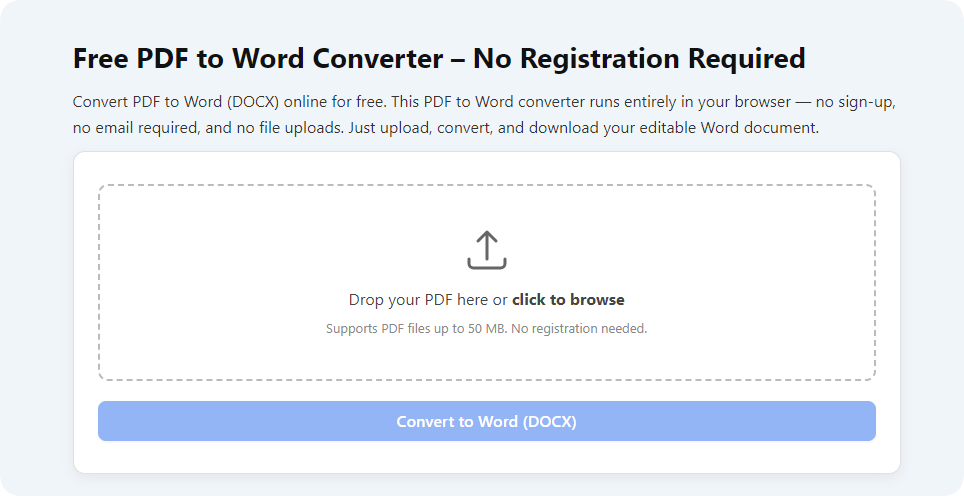
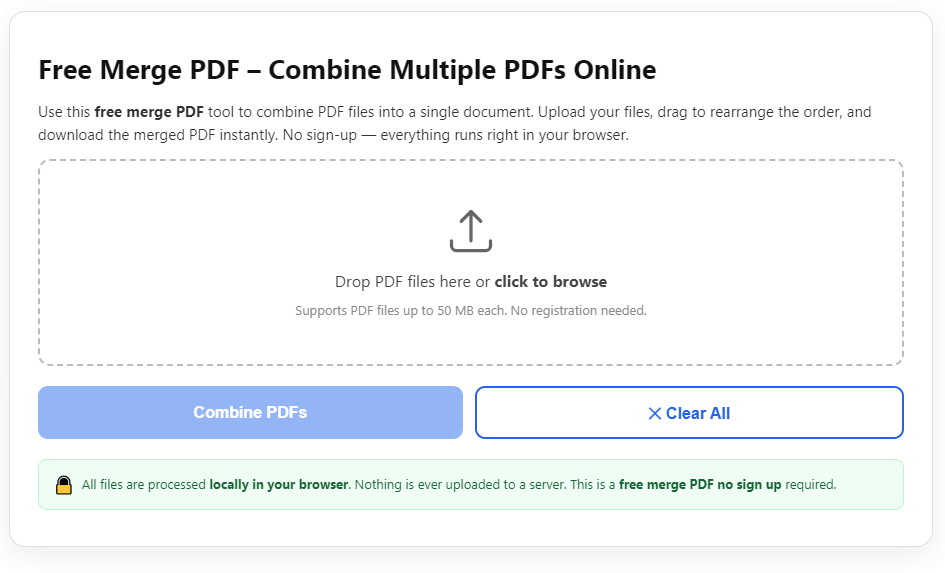
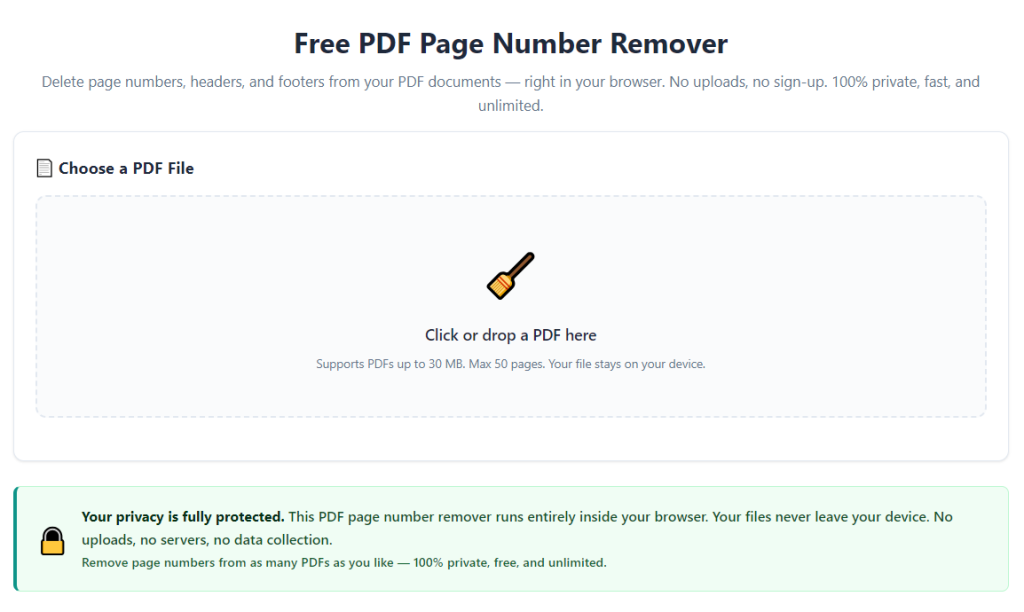
Open the desktop application or browser-based online tool. The primary landing page will display a central upload panel built specifically for PDF document imports. Spend ten seconds reviewing core function labels: auto-detect zones, retouch brush, batch upload, export settings. Familiarize yourself with basic navigation before uploading files.
Step 4: Upload scanned PDF files to the tool workspace
Drag-and-drop your scanned PDF directly into the upload box, or select the manual file upload button to browse local storage. If processing multiple scanned documents at once, upload all files in one batch instead of processing them individually. Confirm all pages fully load in the preview panel before moving forward.
Step 5: Activate scanned page number auto-detection feature
Locate the “Detect Scanned Page Numbers” toggle and switch the function on. The software will scan every page’s pixel layout over two to ten seconds, depending on file length. Once complete, faint highlighted overlays will mark every printed page number the algorithm identified across headers, footers, and margins.
Step 6: Adjust detection zones for irregular scanned layouts
Review the highlighted markers page by page. If the tool missed any off-center page numbers, expand the detection zone sliders to cover additional page areas. For documents with page numbers only in the bottom footer, narrow the detection zone to speed up processing time and avoid false text highlights.
Step 7: Use manual retouch brush for undetected stray digits
Scroll through the full document preview to spot any unmarked page numbers the auto-detection missed. Select the retouch brush tool, adjust brush size to match the digit height, and paint directly over leftover printed numbers. The tool will instantly repair the background texture beneath each brushed section for seamless coverage.
Step 8: Preview edited pages to verify clean results
Open the side-by-side before/after preview mode built into the PDF page number remover for scanned files. Flip through every scanned page to confirm zero faint digit outlines, no white block marks, and intact original paper texture around edited areas. Zoom into page corners and margins to catch tiny leftover number fragments auto-detection missed.
Step 9: Apply bulk processing rules for multi-file batches (if applicable)
If uploading multiple scanned PDFs, set universal removal rules to apply identical detection zones and background repair settings to every file in your upload batch. Run a quick single-page test edit on one document first to confirm your settings work correctly before launching full bulk processing.
Step 10: Export finished cleaned scanned PDF files
Once all previews meet your standards, open the export settings panel. Adjust compression and resolution based on your intended use: low compression for email/cloud sharing, high DPI for printed hard copies. Select your local save folder, click export, and wait for the tool to generate edited PDF copies. Store your original unedited scanned files separately for future reference.
Common Mistakes to Avoid While Using a PDF Page Number Remover for Scanned Files
Even with high-quality remover software, these frequent user errors create messy, unprofessional scanned PDF outputs and waste extra editing time. Watch for these pitfalls while learning how to use PDF page number remover for scanned files.
Over-relying solely on auto-detection without manual review
Automatic detection works well for standard footer page numbers, but irregular scan layouts with creased pages, folded margins, or centered digits often slip past the algorithm. Skipping full manual page previews leaves faint page number outlines hidden in your finished document. Always zoom through every page post-processing.
Choosing flat white overlay tools instead of texture repair removers
Many generic PDF editors only cover page numbers with solid white rectangles. This quick fix creates obvious edited patches that ruin document professionalism. Always prioritize a dedicated PDF page number remover for scanned files with native background texture restoration functionality.
Processing unedited blurry scanned PDFs first
If your original scan has heavy blurring, faded ink, or uneven lighting, run scan retouching software to boost contrast before removing page numbers. Blurry scans reduce the tool’s detection accuracy, leaving partial digit fragments visible after cleanup. Fix scan quality prior to uploading to the remover tool.
Ignoring batch setting consistency for multi-file archives
When processing dozens of scanned PDFs at once, users often adjust detection zones for one file and forget to apply matching rules to the full batch. This creates inconsistent cleanup results across your document library, with some files retaining partial page numbers. Double-check bulk processing settings before launching batch exports.
Over-simplifying export compression for print-ready files
Heavy compression during export washes out subtle paper texture repairs the remover tool generated. If you plan to print cleaned scanned PDFs, avoid maximum compression presets. Select medium or high-resolution export profiles to preserve seamless background edits on physical printed copies.
Deleting original unedited scanned PDF backups
After exporting cleaned documents, many users immediately erase their raw scanned source files. If you spot missed page numbers weeks later, you cannot reprocess the original scan without re-scanning the entire physical document. Always archive unedited scanned PDF copies long-term.
Expert Optimization Tips for Perfect Results With PDF Page Number Remover for Scanned Files
Use these actionable workflow hacks to maximize the output quality of every scanned PDF cleanup task, cutting editing time and eliminating repeat revision work entirely.
- Create a dedicated scan pre-processing folder to store all raw scanned PDFs before opening the remover tool. Separating source files and edited outputs prevents accidental file overwrites.
- Save custom detection zone presets for your most frequent scanned document layouts, such as textbook footers, business contract headers, and archive centered page numbers. Reuse presets for every matching file batch to skip repeated zone adjustments.
- Run page number removal halfway through multi-page scanning projects, instead of waiting to finish an entire archive. Early cleanup catches consistent scan layout flaws before you finish scanning hundreds of physical pages.
- Pair page number removal with light PDF compression post-export for cloud-hosted blog and archive documents. Smaller file sizes speed up page load times for online shared scanned PDFs without losing edit quality.
- Share your saved remover tool preset settings with team members handling shared scanned archives. Uniform detection rules guarantee consistent clean document formatting across all collaborative staff uploads.
- Schedule monthly bulk cleanup sessions for archived scanned PDFs on your cloud storage. Outdated scanned files with printed page numbers drag down content professionalism; regular remover tool runs refresh your full digital library.
- Adjust scan resolution to 300 DPI before digitizing physical documents. Higher-quality raw scans boost the PDF page number remover for scanned files’ pixel detection accuracy, cutting down manual retouch brush work significantly.
Final Thoughts
Readable, unmarked scanned PDFs form the backbone of academic, business, and personal digital archives. Printed page numbers embedded into flat image-based scans create avoidable visual clutter that harms document professionalism and reading experience.
Manual editing tricks like white-out overlays, cropping, and one-by-one retouching waste hours of valuable work time while producing visibly altered, low-quality scanned files. Learning how to use PDF page number remover for scanned files eliminates all these outdated workarounds with automated, pixel-perfect cleanup built exclusively for image-based PDF scans.
A reliable PDF page number remover for scanned files delivers auto-detection, natural background repair, batch processing, and simple export controls for every user type—from casual student scanner users to full-time archive and content creators. Whether you process single textbook scans or hundreds of business contract PDFs each week, this tool streamlines your entire scanned document editing workflow.
By following the complete step-by-step tutorial, avoiding common editing mistakes, and applying the expert optimization tips shared above, you can consistently generate clean, polished scanned PDFs free of unwanted printed page numbers. Your digital document library will stay uniform, professional, and easy to share with clients, readers, collaborators, and academic instructors long-term.
After learning the operation method, click the link below to enter the tool page for immediate use.