If you regularly create content for social media, community feeds, online blogs or public sharing platforms, you have likely run into one common visual problem: mismatched image shapes. Most posts perform best with unified square visuals, yet raw photos taken on phones or cameras come in vertical or horizontal rectangles.
When you upload non-square images directly, platforms will auto-crop randomly, cut off important subjects, add awkward blank borders or stretch the picture out of proportion. This messy look makes your posts appear unpolished, lowers engagement and breaks the consistent visual style you want to build. Learning how to properly crop image to square size for posts is one of the simplest yet most impactful skills for every content creator, casual poster and small business operator.
Cropping image to square size for posts is not just about trimming edges randomly. It is about following standard square aspect ratios, balancing visual composition, keeping key subjects centered and ensuring every picture fits the layout rules of popular posting platforms. Many new users rely on built-in platform croppers, which offer limited control and often produce unsatisfying results.
A dedicated cropping tool lets you take full charge of framing, preserve image quality and create uniform square photos for every type of online post. In this detailed, beginner-friendly guide, we will explain why square images work best for online posts, the downsides of auto-cropping, key features to look for in a reliable square cropper, real-world use cases, a full step-by-step workflow, common mistakes to avoid and professional tricks to master how to crop image to square size for posts like an experienced content creator.
Why Square Images Are the Standard for Online Posts
Before you learn how to crop image to square size for posts, it helps to understand why square visuals have become the universal standard across nearly all sharing platforms. Unlike vertical or rectangular photos, square images display evenly in grid layouts, feed streams, post galleries and recommendation sections. When you scroll through a social feed or a blog post list, square pictures line up neatly side by side, creating a clean, organized browsing experience for viewers. Rectangular images create uneven row heights, broken grids and a chaotic look that distracts from your content.
From an engagement perspective, square crops draw more consistent attention. They fill the preview area completely on mobile and desktop screens, so no part of your subject gets hidden behind layout elements. For lifestyle photos, product shots, quote graphics and creative artwork, a square frame keeps the focus fully on your content. Viewers do not have to adjust their gaze or scroll extra to see the full picture, which encourages them to stop, read your caption and interact with your post.
Branding is another major reason to crop image to square size for posts. If you run a personal brand, small shop or creative account, using identical square dimensions for every post builds strong visual recognition. Your audience will instantly recognize your content as they scroll, which builds trust and loyal followership over time. Mixing different image shapes makes your profile or page look disjointed and unprofessional, even if your individual photos are high quality.
Finally, square images are universally compatible. Almost every major posting platform uses a 1:1 square aspect ratio for main feed posts, thumbnails and grid displays. A single square-cropped image can be reused across multiple accounts and platforms without extra editing. This saves you hours of repeated resizing and re-cropping, making your entire content workflow far more efficient. For all these reasons, taking the time to crop image to square size for posts is a worthwhile habit for anyone who shares visuals online.
Risks of Using Platform Auto-Cropping for Post Images
Many people skip manual cropping and let posting platforms handle square conversion automatically. While this option seems convenient, it comes with several noticeable drawbacks that hurt your post quality. Understanding these risks will show you why it is essential to crop image to square size for posts manually with a dedicated tool.
The biggest issue with auto-cropping is poor subject framing. Platform algorithms use basic rules to select the center area of a photo, but they cannot tell which part of the image is your main subject. For a portrait photo, the auto-crop may cut off the top of someone’s head or their shoulders. For product images, it might slice off part of an item or important branding details. You end up with a square image that looks incomplete and awkward, no matter how good the original photo is.
Second, auto-cropping often creates uneven spacing. Algorithms do not understand visual balance. They may leave large empty spaces on one side of the frame while crowding the subject on the other. This unbalanced composition makes your post look rushed and unpolished, which drives down overall visual appeal.
Third, some platforms add blurred or solid colored borders instead of true cropping. When your original image does not match the square ratio, the system will place your rectangle in the middle and fill empty space with borders. This reduces the impact of your photo and makes it blend in with generic content on the feed.
Fourth, auto-tools sometimes compress image quality. To speed up loading times, many platforms lower resolution during automatic resizing. Your once-sharp photo becomes blurry, especially when viewed on high-definition mobile screens.
When you choose to crop image to square size for posts using a dedicated tool, you avoid all these problems. You control exactly what stays inside the frame, balance the composition manually, keep full image quality and produce clean, border-free square photos optimized for every post.
Key Features of a Great Tool to Crop Image to Square Size for Posts
To get the best results, you need a reliable tool built specifically to crop image to square size for posts. Not all basic photo editors offer accurate square cropping, so learn these key features to pick the right tool for your daily content work.
First, a fixed 1:1 square aspect ratio lock is non-negotiable. The tool must let you lock the crop frame to a perfect square, so you do not accidentally create uneven rectangles while adjusting framing. This is the core feature for anyone who needs to crop image to square size for posts consistently.
Second, free frame repositioning. Once the square ratio is locked, you should be able to drag the entire crop box across your original photo. This lets you center people, products, logos or scenery exactly where you want inside the square frame, instead of being stuck with the default center selection.
Third, lossless quality output. A top tool keeps the original resolution, sharpness and color clarity after cropping. Your square post images stay crisp on mobile, desktop and large previews, with no blurriness or color distortion.
Fourth, simple, beginner-friendly interface. Content creators need fast editing. The best square cropping tools have large, clear buttons, no complicated menus and no confusing settings. You can upload, crop and save a square image in just a few seconds.
Fifth, multi-format support. It should work with all common image types including JPG, PNG and WebP, so you never need to convert files before you crop image to square size for posts. You can upload any photo straight from your device and start editing immediately.
Sixth, no hidden restrictions. Reliable tools do not add watermarks, require account sign-ups or limit daily usage. You can crop unlimited images for your posts without extra fees or annoying pop-ups.
Seventh, grid overlay guides. A built-in rule-of-thirds grid helps you balance subjects inside the square frame. This simple feature drastically improves composition and makes your post images look more professional.
Top Use Cases to Crop Image to Square Size for Posts
The ability to crop image to square size for posts applies to nearly every type of online content sharing. From personal daily updates to professional marketing campaigns, square cropping is a staple task across countless scenarios.
Social Media Feed Posts
This is the most common use case. Every major social platform uses square layouts for main feed posts, grid profiles and carousel content. Whether you share travel photos, lifestyle snapshots, food pictures or daily moments, you need to crop image to square size for posts to fit the standard feed format. Uniform square crops keep your profile grid neat and visually cohesive for all visitors.
E-Commerce & Product Showcase Posts
Online sellers use posts to showcase products, announce new items and share customer photos. Square product images look clean in catalog-style posts and grid listings. When you crop image to square size for posts, every product photo has equal presence on the feed, making your shop look organized and trustworthy for potential buyers.
Blog & Website Featured Posts
Bloggers and website owners use image thumbnails for article previews, related post sections and homepage highlights. Square thumbnails line up perfectly in website grids and sidebar widgets. Cropping your featured images to square ensures your page layout stays intact and every post preview looks consistent.
Community & Group Posts
Online groups, forums and community pages favor square images for shared posts. Square visuals load faster, display evenly across different device sizes and are easy to view while scrolling group discussions. Regularly using square crops keeps group contributions looking uniform and easy to browse.
Creative & Artistic Content Posts
Artists, designers and craft creators share artwork, illustrations and design samples via online posts. A square frame is a classic choice for creative visuals, as it draws full attention to colors, details and design work. To present your art professionally, always crop image to square size for posts before publishing.
Event & Announcement Posts
Event photos, flyers, celebration pictures and official announcements perform better as square posts. Square frames highlight key information, event visuals and text elements without awkward cropping from platform systems. It is the ideal format for sharing news and updates with your audience.
Step-by-Step Tutorial: How to Crop Image to Square Size for Posts
This universal workflow works for all quality tools designed to crop image to square size for posts. The process is quick, easy and requires zero professional editing skills. Follow these steps to create perfect square images for all your online posts every time.
Step 1: Prepare and Upload Your Original Image
Start with a high-quality original photo. Avoid heavily compressed screenshots or tiny low-resolution files, as they will look blurry after cropping. Open your chosen square cropping tool and upload the image you plan to use for your post. You can click the upload button or drag and drop the file directly into the tool area. Wait for the full image to load and check the preview to confirm it displays clearly before moving forward.
Step 2: Enable the 1:1 Square Aspect Ratio
Locate the aspect ratio settings inside the tool. Select the 1:1 square ratio and turn on the ratio lock. Once enabled, the crop frame will instantly turn into a perfect square. Locking the ratio is critical here, because it prevents you from stretching or widening the frame by mistake. This step sets the foundation to crop image to square size for posts correctly.
Step 3: Adjust the Square Frame for Perfect Framing
Click and drag the entire square crop frame across your original image. Use the on-screen grid lines if available to balance your subject. For portraits and people photos, center the face and leave a small buffer of space around the head and shoulders to avoid cutoffs. For products, logos and artwork, position the main subject right in the middle of the square frame. Take your time to adjust until the composition looks clean and balanced. This is the most important step to make your post image look intentional and professional.
Step 4: Preview the Square Cropped Result
Use the tool’s preview feature to view the final square image. Look closely for any cut-off details, awkward empty spaces or unbalanced framing. If something looks off, reposition the square frame slightly and preview again. A quick preview catches small mistakes before you save the file and publish your post.
Step 5: Apply the Square Crop
Once you are happy with the framing, click the apply or crop button to finalize the edit. The tool will trim the outer parts of the original photo and keep only the selected square section. At this point, your image is fully converted to square size and ready for posting.
Step 6: Save and Export the Final Image
Choose your preferred output format — JPG works best for standard posts, while PNG is ideal for graphics and transparent designs. Save the file to your device. The finished square image retains all original quality and will fit perfectly on any posting platform. You can now upload it directly to create clean, professional-looking posts.
Common Mistakes When You Crop Image to Square Size for Posts (And Fixes)
Even with a simple tool, many users make small mistakes that ruin their square post images. Learn these frequent errors and easy solutions to get flawless results every time you crop image to square size for posts.
The first mistake is forgetting to lock the square aspect ratio. Without the lock enabled, dragging the crop frame will create uneven rectangles. Always double-check that 1:1 ratio lock is active before adjusting the frame. This single check prevents most sizing errors.
The second mistake is cropping too tightly around the subject. If you place the main person or object right at the edge of the square frame, platform minor adjustments during upload will cut off parts of your image. Always leave a small margin of empty space inside the square to act as a safety buffer.
Third, using low-quality source images. Cropping cannot fix blurry or pixelated photos. Starting with a clear, full-size original ensures your square post image stays sharp on all devices.
Fourth, ignoring composition rules. Simply centering a subject is not enough. Use the built-in grid to balance visual weight. Busy backgrounds or off-center subjects can make even a perfect square crop look messy. Simplify framing to keep focus on your main content.
Fifth, reusing square images across platforms without checking. While square is universal, some platforms add subtle rounded corners. Always preview your square image on the target platform once to confirm no key details are hidden.
Professional Tips to Elevate Square Images for Your Posts
Use these simple expert tips to get the most out of your work when you crop image to square size for posts. These small adjustments will make your content stand out and build a stronger visual brand.
First, create a consistent framing style. Decide on how much space you leave around subjects and stick to that style for all posts. Uniform framing makes your entire feed look polished and recognizable to regular followers.
Second, prioritize high contrast between subject and background. Square frames draw full attention to the content, so clear contrast makes your post pop while users scroll quickly.
Third, batch crop multiple images at once. If you create a set of related posts, use the same square crop settings for every photo. Batch cropping saves time and keeps your content set visually unified.
Fourth, save a master square template. Once you find your ideal framing style, use it as a standard for all future posts. This builds a steady visual identity across all your online content.
Fifth, avoid overcrowding the square frame. A square has limited space. Keep one main subject per post image, and avoid adding too many small details that clutter the frame. Clean, simple square posts always perform better.
Final Thoughts
Square images remain the gold standard for online posts for one clear reason: they are clean, compatible and visually pleasing across every sharing platform. Relying on automatic platform cropping leads to cut-off subjects, poor composition and low-quality visuals that hold your content back. Taking a few extra minutes to manually crop image to square size for posts transforms ordinary photos into professional, engaging content that boosts interaction and builds your personal or business brand.
Learning to crop image to square size for posts is a basic skill that pays off every single day. The process is fast, simple and does not require expensive software or advanced editing talent. With a reliable square cropping tool, locked 1:1 aspect ratio and careful framing, you can turn any photo into a perfect square image ready for feeds, grids, blogs and group posts.
Whether you share personal moments, sell products, run a blog or post creative work, standardized square crops will elevate your entire online presence. Stop settling for randomly auto-cropped images. Master how to crop image to square size for posts, create neat, balanced visuals consistently, and let your content shine on every platform you use. This small editing habit will make a huge difference in how your audience views and engages with everything you post online.
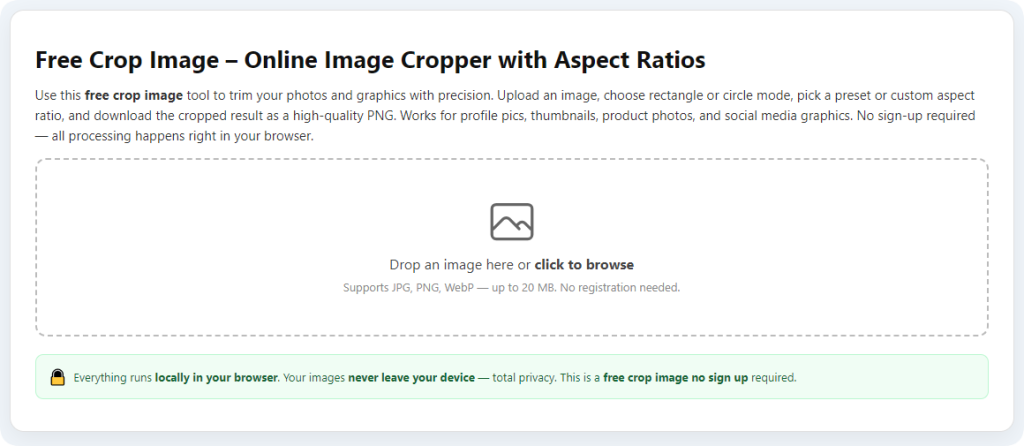
After learning the operation method, click the link below to enter the tool page for immediate use.