JPG images are the most common format for scanned documents, screenshots, photos and handwritten notes. They are lightweight, easy to capture and compatible with nearly every device. However, standalone JPG files are not ideal for formal use. They are messy to organize, difficult to batch share, and unreliable for consistent printing.
Combining and exporting JPGs as PDFs solves these everyday problems. PDFs unify multiple images into a single structured file with fixed layout alignment. They look the same on phones, computers and printers, making them perfect for school submissions, business paperwork and long-term archiving.
The biggest issue users face during conversion is quality degradation. Most basic tools apply heavy compression to shrink file sizes fast. This results in fuzzy text, washed-out colors and pixelated graphics that destroy the value of your original images. To avoid this common mistake, you need to learn how to convert JPG to PDF without losing quality.
This detailed, user-friendly tutorial breaks down everything you need to know about lossless JPG to PDF conversion. We cover why quality loss happens, key tool features, real use cases, and a complete step-by-step workflow to help you produce professional, sharp PDFs every single time.
Why Quality Loss Happens During JPG to PDF Conversion
Before mastering how to convert JPG to PDF without losing quality, it helps to understand why generic tools ruin your original image clarity in the first place.
Automatic aggressive compression
Standard converters prioritize fast processing and small file sizes. They compress image data drastically during conversion. This strips fine details, softens sharp text edges and reduces overall image resolution.
Low default DPI settings
Most basic tools use low-resolution presets by default. Lower DPI values speed up exports but create pixelated PDFs that look blurry when zoomed or printed on paper.
Color profile distortion
Cheap conversion software often mismatches original color tones. Bright hues fade, contrast drops, and subtle gradients disappear, making scanned forms and creative visuals look dull and inaccurate.
Stretched or misaligned image scaling
Many tools force JPGs to fit standard PDF page sizes without proper scaling. This stretches images, creates uneven margins, and distorts proportions, ruining the original composition.
Batch processing quality inconsistencies
When converting multiple JPGs at once, low-tier tools often process images unevenly. Some pages stay clear while others turn blurry, creating inconsistent, unprofessional final files.
Why You Must Convert JPG to PDF Without Losing Quality
Knowing how to convert JPG to PDF without losing quality transforms your basic document workflow and delivers tangible benefits for personal, academic and professional tasks.
Preserves readable small text
Scanned notes, forms and receipts often feature tiny text. Lossless conversion keeps every word sharp and legible, while compressed outputs turn text into unreadable blurs.
Creates print-ready documents
Low-quality PDFs look fine on screen but fail during printing. High-fidelity conversion ensures crisp lines, accurate colors and clear details for physical copies and official paperwork.
Maintains professional credibility
Blurry, faded PDFs appear unpolished and unprofessional. Sharp, high-quality files build trust during client presentations, school submissions and team file sharing.
Supports future editing and repurposing
High-quality PDFs can be cropped, zoomed and edited later without further degradation. Compressed files lose more quality with every edit, making them nearly unusable long-term.
Improves long-term file archiving
Lossless PDFs retain full original image quality for years. They stay clear and usable for future reference, unlike compressed files that appear progressively worse over time.
Key Features for Lossless JPG to PDF Conversion
To successfully convert JPG to PDF without losing quality, you need a tool equipped with specific quality-focused features that generic converters lack.
Customizable high DPI resolution controls
Top tools let users adjust resolution manually. Higher DPI settings preserve fine details, ensuring text, lines and graphics stay identical to the original JPG files.
Adjustable compression levels
Premium converters do not force maximum compression. You can lower compression intensity to protect quality or tweak settings to balance clarity and file size based on your needs.
Original color profile preservation
Quality-focused tools lock in original JPG color tones, contrast and saturation. Charts, photos and scanned visuals retain accurate, natural coloring in the final PDF.
Smart image scaling and alignment
Instead of stretching images, professional tools scale JPGs proportionally to fit PDF pages. This eliminates distortion and maintains perfect original image proportions.
Consistent batch quality processing
Reliable tools apply identical high-quality settings to every image in a batch. All PDF pages maintain uniform clarity with no random blurriness or fading.
No post-conversion quality degradation
Trusted converters export stable PDF files. The final output does not lose clarity after saving, downloading or reopening on different devices.
Common Use Cases for Lossless JPG to PDF Conversion
Learning how to convert JPG to PDF without losing quality supports a wide range of daily scenarios where clear, precise documents are non-negotiable.
Academic study materials and homework
Students compile scanned textbook pages, lecture screenshots and handwritten notes into organized PDFs. Lossless conversion ensures text remains readable for studying, reviewing and online submissions.
Official forms and scanned paperwork
Tax documents, applications, receipts and government forms require perfect clarity. High-quality conversion preserves every official detail for filing, verification and record keeping.
Business reports and data visuals
Professionals merge chart screenshots, analytics graphs and meeting visuals into clean PDFs. Sharp outputs ensure accurate data interpretation during client meetings and team reviews.
Creative portfolios and design work
Designers compile artwork drafts, layout samples and creative screenshots into portfolio PDFs. Lossless conversion protects fine design details and vibrant original colors.
Personal photo and document archiving
Users organize personal photos, travel documents and scanned memories into compact PDFs. Preserved quality keeps archives vivid and detailed for long-term storage.
Step-by-Step Guide: How to Convert JPG to PDF Without Losing Quality
Follow this optimized workflow to convert JPG to PDF without losing quality and produce flawless, high-resolution PDF files every time.
Step 1: Prepare and Organize Your JPG Files
Sort your JPG images in the exact page order you want for your final PDF. Remove blurry, duplicate or low-quality images to avoid weakening your final document.
Save a backup of your original JPGs so you can re-convert anytime with adjusted settings.
Step 2: Open a Quality-Focused Conversion Tool
Launch a dedicated tool designed to convert JPG to PDF without losing quality. Avoid generic tools known for heavy compression and automatic quality reduction.
Step 3: Upload Your Batch of JPG Images
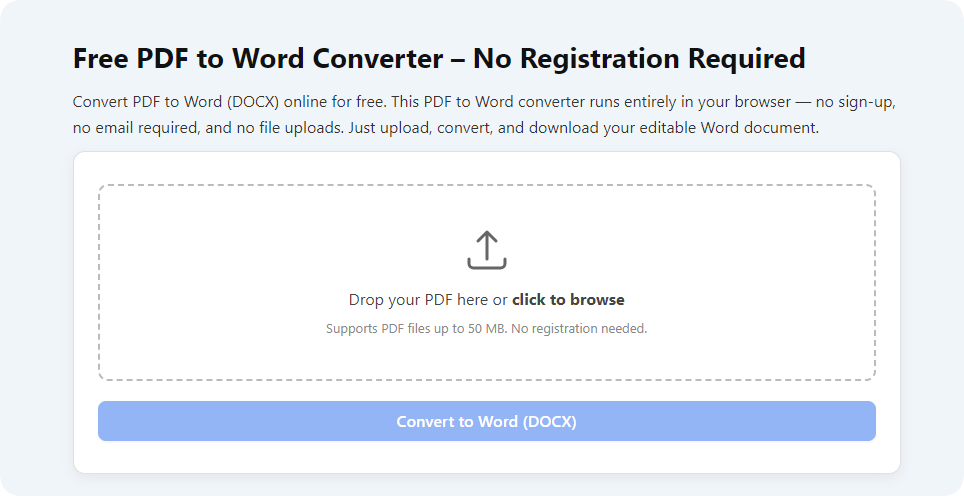
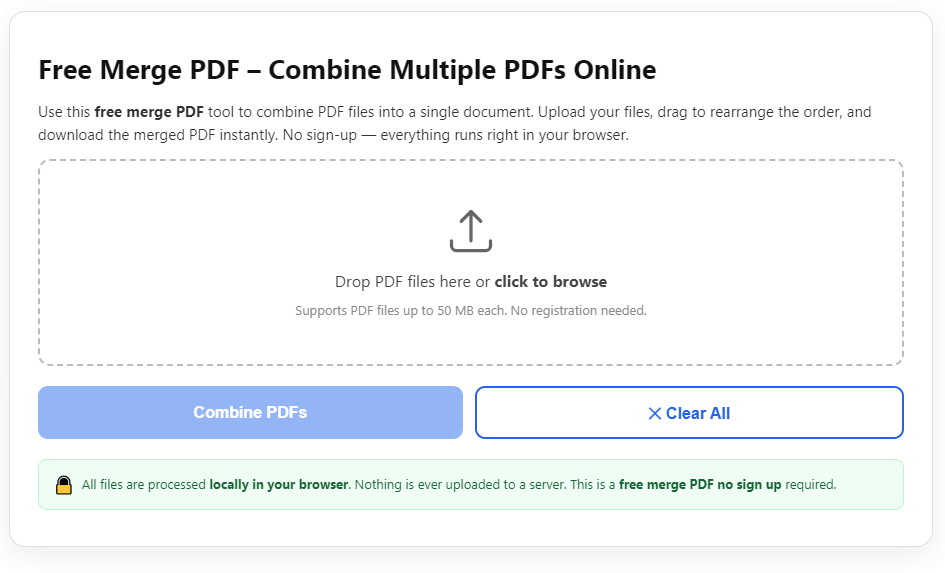
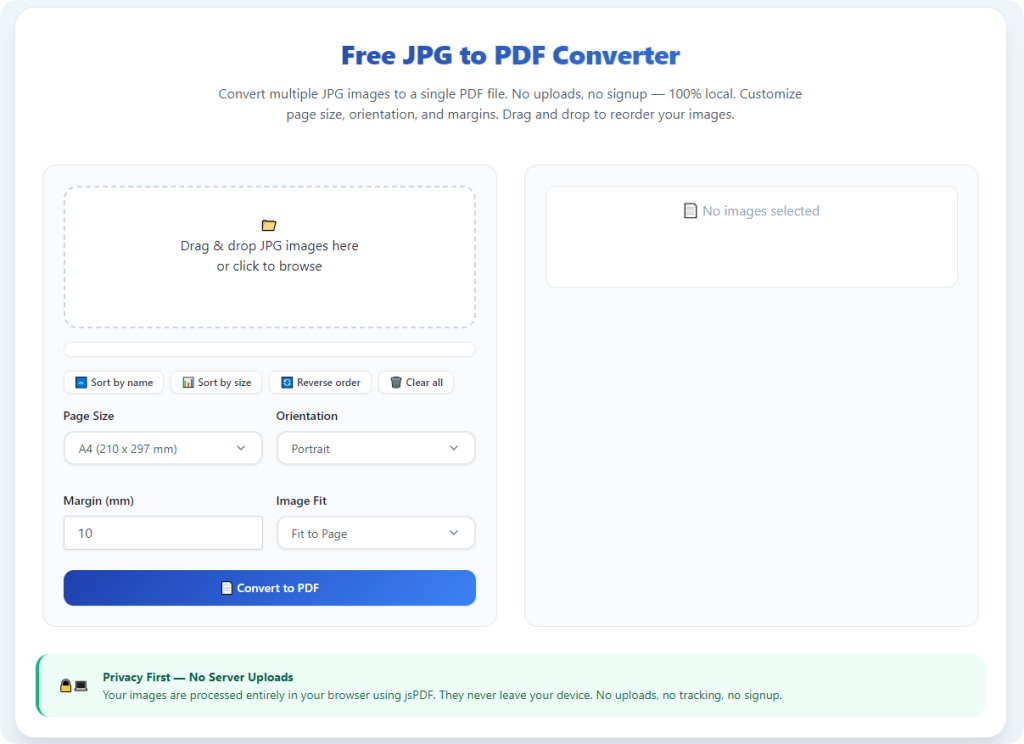
Upload your sorted JPG files via drag-and-drop or file selection. You can work with single images or large batches for multi-page documents.
Allow the tool to fully process uploads before adjusting any conversion settings.
Step 4: Adjust Resolution and Compression Settings
This is the most critical step for lossless results. Increase DPI resolution for maximum sharpness and reduce compression strength to preserve original detail.
Enable proportional scaling to prevent image stretching and maintain natural aspect ratios.
Step 5: Customize Layout Parameters
Set standard page sizes and adjust margins to create a clean, uniform layout. Align all images evenly to avoid lopsided or awkward page formatting.
Double-check color preservation settings to lock in original JPG tones and brightness.
Step 6: Preview Every Page for Quality Control
Scan the full preview carefully. Zoom in on text sections, lines and graphics to confirm no blurriness, fading or distortion has occurred.
Reorder or reupload any images that fail quality checks before final conversion.
Step 7: Convert and Download Lossless PDF
Once your preview meets your quality standards, initiate the final conversion. The tool will generate a fully optimized, high-quality PDF with zero quality loss.
Download the finished file and open it to verify consistent clarity across all pages.
Common Quality Issues & Quick Fixes
Even when you convert JPG to PDF without losing quality, minor issues can appear. Use these simple solutions to perfect your outputs.
Text appears slightly blurry
Raise the DPI setting and lower compression levels. Low resolution and over-compression are the top causes of fuzzy text in converted PDFs.
Colors look dull or washed out
Enable original color profile preservation. This restores natural brightness, contrast and saturation from your source JPG files.
Images look stretched or distorted
Turn on proportional scaling and auto-fit settings. This ensures JPGs resize naturally without losing original proportions.
File size is too large after conversion
Make minor compression adjustments instead of lowering resolution. This balances clean quality and manageable file size effectively.
Expert Tips for Perfect Lossless Conversion
Use these professional tips every time you convert JPG to PDF without losing quality to maintain consistent, premium results.
- Always preview zoomed-in sections to catch tiny pixelation issues invisible at normal view.
- Use maximum resolution settings for PDFs intended for printing or formal professional use.
- Avoid heavy compression on files containing small text, charts and detailed graphics.
- Process large image batches in smaller groups to ensure uniform quality across all pages.
- Keep original JPG files backed up for future re-conversion with updated layout settings.
- Test a sample print of your finished PDF to confirm real-world quality performance.
Final Thoughts
Basic JPG to PDF conversion often sacrifices image clarity for speed and smaller file sizes. This leaves users with blurry, low-grade PDFs unsuitable for printing, sharing or official documentation.
Learning how to convert JPG to PDF without losing quality completely upgrades your document workflow. With the right tool and correct settings, you preserve every original detail, color and sharp edge from your JPG images.
Lossless conversion ensures your PDFs remain professional, readable and usable for academic submissions, business meetings, creative projects and long-term archiving. You avoid frustrating rework, wasted time and low-quality final outputs.
By following this structured guide, you can consistently create crisp, clean, high-resolution PDFs from any JPG batch. Prioritizing quality conversion guarantees your documents always look polished and professional for every use case.
After learning the operation method, click the link below to enter the tool page for immediate use.