If you own a website, run a blog, manage an online store, or consistently create digital content, slow page load speeds are one of the most overlooked causes of lost traffic. A lot of new site owners don’t realize just how much unoptimized JPG images drag down website performance. Standard JPG files are bulky, bloated, and simply not built for today’s web standards. They load slowly on both desktop and mobile devices, chase away impatient site visitors, and even hold back your organic search rankings.
The best part? You don’t need coding knowledge or pricey professional software to fix this issue. Learning how to convert JPG to WebP for faster website load is the easiest, most reliable way to instantly boost your site’s speed. Created by Google, WebP is a modern web-first image format built exclusively for online performance. It cuts file sizes by up to 70% compared to traditional JPGs while keeping product shots, blog graphics, and custom imagery crisp and clear. This beginner-friendly guide walks you through every step to swap JPGs for WebP and speed up your site permanently.
Why Unoptimized JPGs Slow Down Your Website
Before diving into the step-by-step conversion process, let’s break down why raw JPG files slow your site down. The JPG format was designed decades ago for personal photo storage, not fast web delivery. Every time someone visits your page, their browser has to fully load every JPG file before rendering the complete page. Large, uncompressed JPGs add excess page weight, which creates noticeable lag—especially for mobile users on unstable or slower network connections.
A common mistake new web creators make is uploading full-resolution, camera-origin JPGs straight to their sites. A single high-quality JPG can sit between 3MB and 8MB, and stacking multiple images on one page quickly piles on load time. Online visitors have zero patience for slow-loading pages; most will leave within just a few seconds if content doesn’t pop up right away. This raises your site’s bounce rate, lowers user engagement, and hurts your overall search performance over time.
Switching to WebP fixes this issue entirely. Unlike outdated JPG files, WebP images are lightweight, streamlined, and purpose-built for fast browser loading. If you’re wondering how to convert JPG to WebP for faster website load, batch converting your entire image library is the fastest way to cut down page weight and deliver a seamless browsing experience for every visitor.
Key Benefits: Convert JPG to WebP for Website Speed
Mastering how to convert JPG to WebP for faster website load delivers way more benefits than just quicker page speeds. This simple image optimization tactic improves nearly every key metric for your website, from user retention to search engine visibility, making it a non-negotiable step for all site owners.
- Dramatically faster page load times: WebP’s advanced compression technology shrinks image file sizes drastically without sacrificing visual quality. Pages with WebP images load significantly faster on both desktop and mobile, eliminating lag and stuttering.
- Lower bounce rates, higher engagement: Fast-loading pages keep visitors on your site longer. Users can browse your content, view product photos, and read articles without frustrating delays, improving your overall site metrics.
- Consistent image quality: A common misconception is that compressed images look blurry. Premium JPG to WebP converters use smart compression algorithms that preserve sharp details, vibrant colors, and clean edges on all your website imagery.
- Save server storage and bandwidth: Smaller WebP files take up far less server space and reduce your overall bandwidth usage. This creates a more efficient website with fewer resource burdens.
- Better search engine performance: Site speed is an official search ranking factor. Optimizing images with WebP helps your site meet modern speed standards, giving you a slight edge in organic search results.
Step-by-Step Guide: How to Convert JPG to WebP for Faster Website Load
This straightforward workflow works with all user-friendly bulk JPG to WebP converter tools on the market. No technical skills, coding experience, or professional editing background is required. You can optimize your entire website image library in just minutes, even if you’re brand new to site speed optimization.
Step 1: Gather and Organize Your Website JPG Images
Start by collecting all the JPG images currently used on your website, including product photos, blog featured images, banners, and inline graphics. Place all these files into a single dedicated folder on your device. Take a minute to delete duplicate images, low-quality photos, or unused graphics. A clean, organized folder makes bulk conversion fast and ensures you only optimize images that are live on your site.
Step 2: Bulk Upload JPG Files to Your Converter Tool
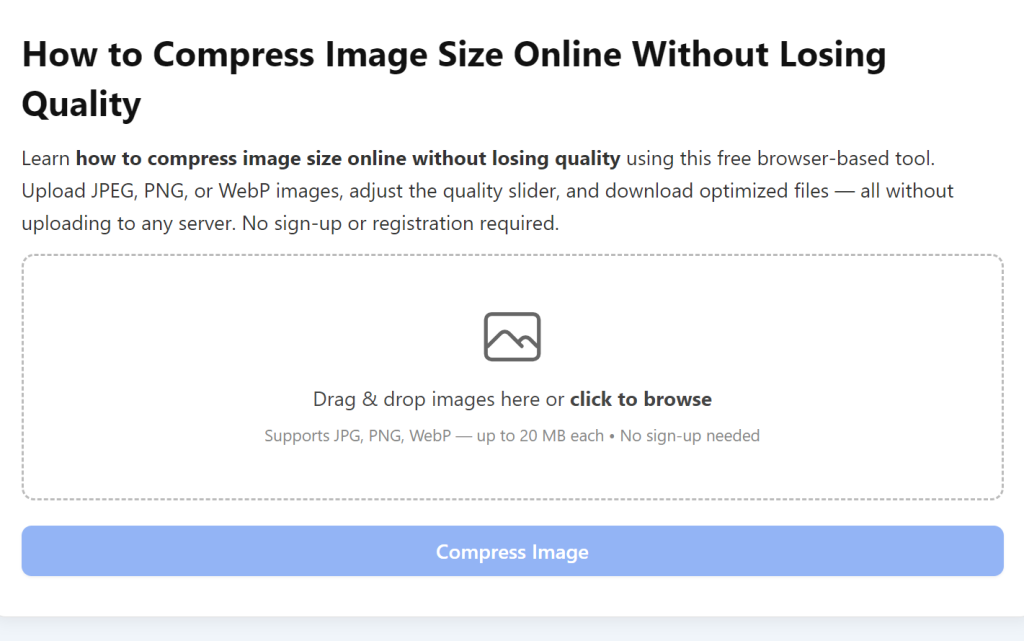
Open your preferred reliable JPG to WebP converter tool. Look for the bulk upload or folder upload feature—this is critical for website optimization, as most sites have dozens of images to process. Avoid single-file uploads, as they waste massive amounts of time. Simply select your pre-organized website image folder and upload all JPGs at once. The tool will scan and load every file automatically within seconds.
Step 3: Adjust Optimization Settings for Web Performance
This step is where you balance tiny file sizes and crisp, professional website imagery. When learning how to convert JPG to WebP for faster website load, your optimization settings need to be tailored for web display—not casual personal photo compression.
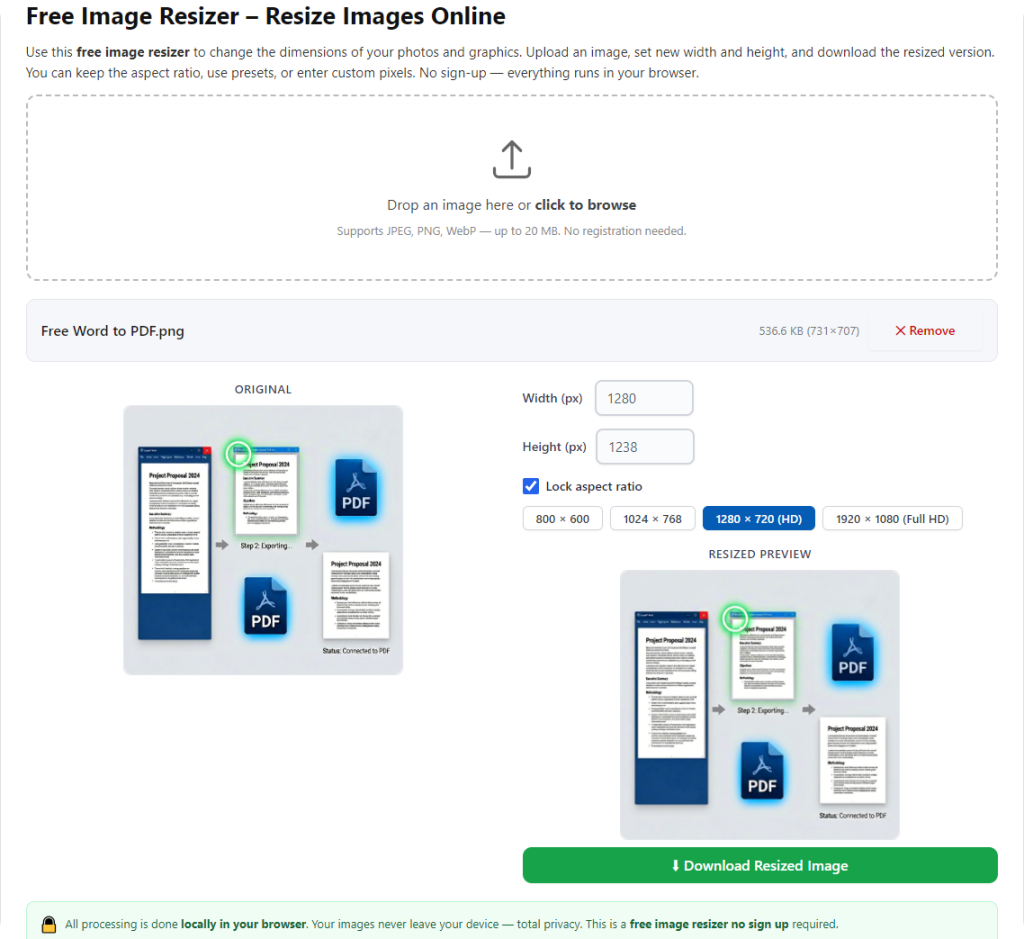
For standard website images like blog graphics, thumbnails, and lifestyle photos, use a balanced lossy compression setting with a quality slider between 75 and 85. This delivers maximum file reduction with zero visible quality loss. For high-priority visuals such as product images, hero banners, and portfolio shots, switch to lossless compression to preserve every fine detail while still cutting file sizes significantly. Always enable the lock aspect ratio feature to prevent distorted or stretched images on your web pages.
Step 4: Run Bulk Conversion
Once your settings are finalized, click the convert button to start the bulk process. The tool will automatically convert every uploaded JPG file to optimized WebP format. You can monitor the real-time progress bar and let the tool run in the background while you handle other tasks. The entire batch process is fully automated, so no manual supervision is needed.
Step 5: Download and Replace Website Images
After conversion completes, download your new lightweight WebP image folder. Quickly spot-check a few images to confirm quality and clarity. Then, simply replace your old JPG website images with the new WebP files. Once updated, you’ll notice immediate improvements in page load speed across your entire site.
Pro Tips for Maximum Website Speed Optimization
To lock in the fastest load times and clean image quality when you convert JPG to WebP for faster website load, follow these simple pro tips to level up your site optimization results:
- Never max out compression levels. Over-compression creates blurry website images that hurt your brand credibility, even if they load faster.
- Optimize images in batches by page type. Separate homepage banners, blog images, and product photos to apply tailored compression settings for the best results.
- Always backup your original JPG files. Keep unoptimized copies saved in case you need to reprocess images for new web layouts or design updates.
- Re-optimize old website content regularly. If you have years of old blog posts with unoptimized JPGs, batch convert them to WebP to boost overall site speed.
Common Mistakes to Avoid
The biggest mistake site owners make is ignoring image optimization entirely and sticking with slow, outdated JPG files. Many people also use low-grade converter tools that over-compress images, leaving pixelated, unprofessional visuals that damage brand trust. It’s also a misstep to rely blindly on default tool settings—always adjust compression modes to match your image type. Spending just a few extra seconds fine-tuning settings ensures fast load speeds and sharp, polished website imagery every time.
Final Thoughts
Learning how to convert JPG to WebP for faster website load is hands down one of the highest-return optimizations you can make for your site. It costs nothing, requires no technical expertise, and only takes a few minutes of your time, yet it drastically boosts page speed, user experience, and overall site performance. Swapping bulky, slow JPG files for lightweight WebP imagery eliminates unnecessary page lag, cuts bounce rates, and builds a faster, more professional website that keeps visitors engaged.
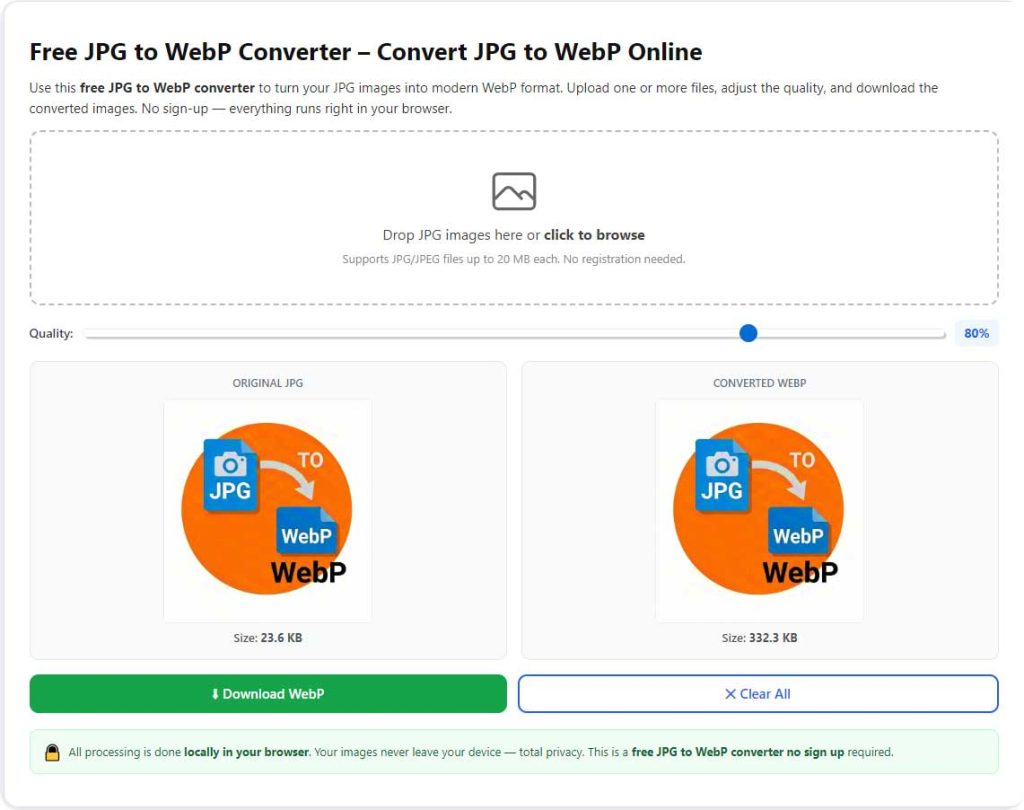
After learning the operation method, click the link below to enter the tool page for immediate use.