Logos are the core visual identity of every brand, creator, small business, and content creator. Vector SVG files stand out over pixel images because they stay crisp at any screen size, print dimension, or platform layout.
Most designers need to adjust logo colors regularly: matching seasonal marketing themes, adapting brand marks for light/dark website backgrounds, refreshing social media profile graphics, or creating alternate color variants for product packaging.
Traditional desktop vector software comes with steep costs, complicated installation steps, and steep learning curves. Many new creators cannot justify purchasing professional design tools just to tweak simple logo color palettes.
A browser-based SVG editing platform eliminates these barriers entirely. Mastering how to use SVG Editor Online to edit logo colors lets anyone recolor, adjust, and export brand vector marks without downloads, subscriptions, or advanced design training.
This comprehensive walkthrough covers the downsides of offline design tools, core advantages of web-based SVG editing, essential editor features, real-world brand use cases, and a detailed step-by-step workflow for perfect logo color adjustments every time.
Common Drawbacks of Offline Software for Logo Color Edits
Many people default to downloaded desktop design programs to modify SVG logo hues, yet these tools create consistent roadblocks for casual users and small business owners.
Expensive recurring or one-time software fees
Premium vector editing suites require costly upfront purchases or monthly subscription plans. If you only need to edit logo colors occasionally, paying full price for a massive feature set wastes valuable budget.
Large file installation and system requirements
Offline design software takes up significant hard drive space and demands powerful device hardware to run smoothly. Laptops, low-end desktops, or tablets often lag or crash when loading complex SVG logo files.
Steep learning curves for basic color tasks
Professional desktop editors pack hundreds of advanced design functions. Navigating layered menus just to change a logo’s fill or stroke color forces new users to waste hours watching tutorial videos for simple tasks.
Limited cross-device accessibility
Saved project files lock you to the single computer where the software is installed. You cannot quickly pull up your logo file on a secondary laptop or tablet to adjust colors while traveling or working remotely.
Risk of file export errors for SVG formats
Many offline tools distort vector paths, embed hidden raster images, or add unnecessary code when exporting edited logos. Broken SVG code causes display glitches on websites, social platforms, and print materials.
Key Benefits When You Learn How to Use SVG Editor Online to Edit Logo Colors
Integrating a web-based SVG editor into your brand asset workflow delivers clear, tangible perks for every person who regularly tweaks logo color variations.
Zero downloads, installations, or hardware limits
All editing runs entirely within your standard internet browser. There is no setup process, no storage bloat, and the tool works seamlessly on Windows, Mac, Chromebook, tablets, and mobile devices.
Instant, free access to core color editing tools
Every feature required to modify logo fill, stroke, gradient, and transparency colors unlocks immediately upon opening the tool. No paywalls hide basic color adjustment panels behind premium tiers.
Native SVG file compatibility with zero quality loss
Online SVG editors read and write pure vector code natively. Recoloring logos does not blur edges, pixelate shapes, or corrupt layered design elements embedded within your original brand mark.
Unlimited quick color test iterations
You can swap logo color palettes dozens of times in a single session to compare options for marketing campaigns, website themes, and merchandise designs without saving separate project files each time.
Simplified export for all digital and print platforms
Finished recolored logos export as clean, optimized SVG files ready for websites, social media profiles, email signatures, flyers, stickers, and packaging. Many editors also offer PNG transparent background exports for quick graphic previews.
Cross-device cloud-friendly operation
You can upload your source SVG logo on a home desktop, pause editing, and reopen the exact same file on a tablet or work laptop later to continue adjusting logo colors without transferring bulky design files.
Must-Have Features in a Reliable Online SVG Editor for Logo Color Edits
Not every browser-based SVG tool delivers consistent results for brand logo recoloring. When picking a platform to practice how to use SVG Editor Online to edit logo colors, prioritize these specialized design-focused functions.
Separate fill and stroke color adjustment panels
The editor must split shape fill (solid interior) and stroke (outline) color controls. Most logos use distinct outline and body hues, so independent tweaking eliminates accidental color overwrites across the entire mark.
Hex, RGB, CMYK, and HSL color input support
Professional brand guidelines rely on precise color codes. A quality online SVG editor lets you paste official brand hex codes, adjust RGB sliders for digital screens, or switch to CMYK values for physical print merchandise.
Gradient color editing for multi-tone logos
Many modern brand logos feature linear or radial color gradients. Top web editors let you edit gradient stop points, shift hue values, and adjust gradient opacity without breaking vector path geometry.
Layer panel for selective logo element recoloring
Complex logos combine text, icons, shapes, and graphic accents on separate layers. A built-in layer list lets you isolate individual logo components to recolor only one shape without altering the full design.
Transparency and opacity sliders for subtle color shifts
Adjusting alpha transparency softens logo colors for watermarks, footer brand marks, or overlay graphics. This feature avoids the need for separate image editing software to create faded logo variants.
One-click bulk color replacement tool
For logos built with a single base hue across dozens of shapes, a global color swap function replaces every matching shade instantly. This drastically cuts down manual editing time for full brand palette refreshes.
Clean SVG export optimization toggle
Look for an export setting that strips redundant hidden code from your finished logo. Optimized SVG files load faster on websites and avoid rendering errors on mobile social feeds.
Top Real-World Use Cases for Online SVG Logo Color Editing
Mastering how to use SVG Editor Online to edit logo colors supports nearly every digital and print brand project across niches from solo creator brands to mid-sized local businesses.
Website brand asset customization
Web designers recolor primary logos to match light mode and dark mode website themes. Alternate pale logo versions work for hero section overlays and footer navigation bars.
Social media profile and post graphics
Content creators adjust logo hues to fit monthly campaign color schemes for Instagram, TikTok, and feed posts. Transparent light-colored logos overlay product photos without clashing with background imagery.
Print merchandise and promotional materials
Business owners tweak SVG logo colors to match t-shirt ink shades, business card stock tones, flyers, window decals, and branded packaging using CMYK print color values.
Email marketing and digital document branding
Soft, low-contrast logo color variants prevent visual overload inside email headers, PDF proposals, and online invoices. Quick online edits eliminate waiting for a graphic designer for minor hue adjustments.
Seasonal and limited-time marketing campaigns
Holiday, sale, or event-specific brand visuals require temporary logo color swaps. An online SVG editor lets you generate short-term color variants in minutes without long design turnaround times.
Brand guideline refresh and brand identity updates
When a business updates its official color palette, users can upload the original SVG logo and apply new hex codes to create updated master brand files entirely within the browser tool.
Step-by-Step Complete Guide: How to Use SVG Editor Online to Edit Logo Colors
Follow this streamlined, beginner-friendly workflow to upload, recolor, refine, and export any vector logo using a web-based SVG editor, with no prior design expertise required.
Step 1: Locate and prepare your original SVG logo source file
First, retrieve the unmodified master SVG version of your brand logo. Avoid converting PNG/JPG pixel images to SVG beforehand; raster conversions create broken, hard-to-edit vector shapes that distort color editing results.
Save the SVG file to an easily accessible folder on your device desktop or cloud storage for fast uploading into the online editor later. Double-check that the file opens normally in a basic web browser to confirm no pre-existing code corruption.
Step 2: Launch your preferred online SVG Editor in a browser tab
Open your standard web browser and navigate to the SVG editor platform of your choice. The entire interface loads instantly with no login popups, mandatory signups, or software download prompts blocking access.
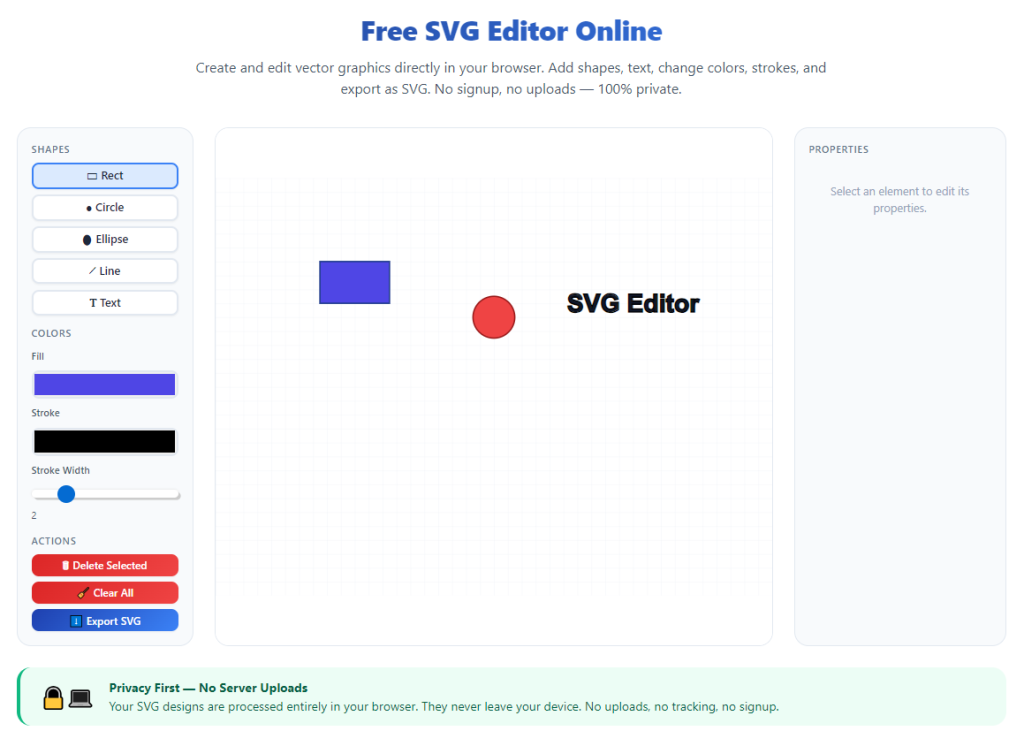
Spend 30 seconds familiarizing yourself with core layout zones: the main canvas preview window, left-hand layer navigation panel, top main toolbar, and right-side color adjustment sidebar dedicated to fill and stroke controls.
Step 3: Upload your source SVG logo file to the editor canvas
Locate the “Upload SVG” or “Import File” button in the top toolbar. Click the button and select your prepared logo SVG file from your device storage. The vector brand mark will render crisply on the central editing canvas within one to two seconds.
If your logo appears oversized or misaligned on the canvas, use the zoom and pan tools in the toolbar to frame the design comfortably for precise color editing work.
Step 4: Isolate logo elements using the layer panel for targeted color edits
Open the layer sidebar to view all separate components of your logo, split into text shapes, graphic icons, border strokes, and decorative accents. Click the eye icon next to any layer to temporarily hide unrelated design pieces while editing specific sections.
Click a single layer name to select only that logo element. This prevents accidental color changes to other parts of your brand mark during hue adjustments. For full-logo bulk color swaps, hold the shift key to select all visible layers simultaneously.
Step 5: Open the color adjustment sidebar and modify fill colors
With your target logo layer selected, navigate to the fill color section on the right panel. You have three flexible methods to update the interior shade of your logo shape:
- Click the color spectrum picker to drag a slider and preview live hue shifts on the canvas
- Type an official brand hex color code directly into the input box for exact brand guideline matching
- Toggle RGB or CMYK numerical sliders to fine-tune red, green, blue, and print ink balance values
Every color change applies in real time to the selected logo element, so you can instantly visualize how the new shade fits your brand vision without saving intermediate files.
Step 6: Adjust stroke/outline logo colors separately
Many logos feature thin or thick border strokes around icons and text. Locate the stroke color control directly beneath the fill panel to edit outline hues independently of the shape interior.
You can also modify stroke width alongside color to thicken or thin logo borders while adjusting shades, creating fully cohesive recolored logo variants in one single editing step.
Step 7: Add or edit gradient colors for multi-tone logo designs
If your brand logo uses linear or radial gradient fills, click the gradient toggle inside the fill color panel. The editor displays adjustable gradient stop markers along a color bar.
Click each stop marker to assign a new hex/RGB color value, drag markers left or right to shift gradient balance, and adjust the gradient angle slider to reposition color fade direction across your logo shape.
Step 8: Use bulk global color replacement for full-logo palette swaps
For logos built around one primary base color repeated across dozens of shapes, activate the global replace color tool from the top toolbar.
Select the original base shade using the color eyedropper, then input your new target brand color code. The editor automatically swaps every matching hue across all logo layers in one click, drastically speeding up full brand refreshes.
Step 9: Tweak transparency and opacity for subtle color overlays
Locate the opacity percentage slider at the bottom of the color panel. Lower the value to soften your recolored logo for semi-transparent watermarks, website footer graphics, or faint overlay brand marks on photos.
Keep opacity at 100% for standard primary logo versions used on solid backgrounds for maximum color vibrancy and legibility.
Step 10: Preview multiple color variations side-by-side
Duplicate your logo design canvas or create a separate editor tab to test alternate color palettes. Toggle between warm brand tones, neutral muted shades, and bold vibrant hues to compare which variant performs best for your intended use case.
Take quick mental notes or screenshot previews of top color options to reference later when selecting a final recolored logo file for export.
Step 11: Optimize SVG export settings for clean, lightweight output
Once you finalize your preferred logo color scheme, click the export button in the top editor toolbar. Locate the optimization checkbox labeled “Clean SVG Code” or “Minify File Size” and enable this setting to strip unnecessary hidden markup.
Select your output format: SVG for vector web/print use, or transparent PNG if you need a pixel preview graphic for social media draft previews. Avoid JPG exports for logos, as compression blurs vector edges and distorts precise brand colors.
Step 12: Download and save your recolored logo file
Click the download button to save the optimized recolored SVG file directly to your device storage. Rename the file clearly to distinguish color variants (example: logo-dark-blue.svg, logo-white-pale.svg) for organized brand asset storage.
Reupload the original source SVG back into the editor at any time to generate additional alternate logo color versions for future marketing projects.
Common Mistakes to Avoid While Using SVG Editor Online to Edit Logo Colors
Even with a fully featured web vector tool, these frequent user errors can ruin logo color accuracy, break vector geometry, or create broken export files for your brand assets.
Editing raster-converted fake SVG logo files
Uploading a converted PNG/JPG fake SVG file creates uneditable merged shapes. Color edits will apply to the entire graphic at once, with no ability to recolor individual logo text or icon elements separately. Always start with a native vector master SVG file.
Forgetting to separate fill and stroke color adjustments
Users often modify only fill colors and overlook matching stroke outlines. Mismatched border and interior hues create disjointed, unprofessional-looking logo variants that violate consistent brand visual rules.
Skipping layer selection and editing the full logo accidentally
Without isolating individual layers, single color clicks overwrite every shape on the canvas. This forces full rework of your logo design to restore original multi-color brand details.
Using RGB color codes for print merchandise logos
RGB color values calibrate exclusively for digital screen displays. When designing logos for t-shirts, business cards, or packaging, switch the editor’s color mode to CMYK to match physical print ink tones accurately.
Disabling SVG code optimization during export
Unoptimized SVG files carry redundant hidden layers, unused color swatches, and excess markup. These bloated files load slowly on websites and occasionally fail to render correctly on mobile social platforms.
Overlooking opacity sliders for primary brand logos
Setting low opacity on your main website header logo reduces text readability against page backgrounds. Reserve faded transparency settings only for secondary overlay watermark logo variants.
Expert Pro Tips to Maximize Logo Color Editing Results in Online SVG Editors
Apply these actionable design strategies to streamline your workflow and produce polished, brand-compliant recolored logo files every time you use a browser-based SVG editor.
- Bookmark your chosen online SVG editor in your browser favorites for one-click instant access before any marketing asset creation session.
- Compile a dedicated text file storing all official brand hex, RGB, and CMYK color codes to copy-paste directly into the editor’s color input panels for perfect consistency.
- Create a master folder system to store every recolored logo variant sorted by use case: website dark mode, social light posts, print merchandise, seasonal campaigns.
- Test each finished recolored SVG logo on both light white and dark black background previews within the editor canvas to confirm legibility across all display environments.
- Use the bulk global color replace tool first for full brand palette updates, then manually fine-tune small accent layers for subtle visual polish.
- Avoid adding extra shapes, text, or decorative graphics while only intending to edit logo colors; keep the original vector geometry untouched to preserve official brand identity guidelines.
- Generate 2–3 alternate neutral color variants alongside your primary brand logo during each editing session to build a ready-to-use library of brand assets for last-minute marketing tasks.
Final Thoughts
Customized logo color variants form the backbone of flexible brand marketing across digital screens and physical print materials alike. Offline desktop design software creates unnecessary cost, hardware, and accessibility barriers for anyone who only needs simple hue adjustments to their vector SVG brand mark.
Learning how to use SVG Editor Online to edit logo colors removes every major friction point of traditional design workflows. Browser-based vector tools deliver native SVG compatibility, precise professional color controls, instant cross-device access, and unlimited free quick color iterations without subscriptions or downloads.
Whether you are a solo content creator, small local business owner, freelance social media manager, or entry-level web designer, this step-by-step tutorial gives you all the knowledge required to generate clean, brand-aligned recolored logo vector files in minutes. By following the outlined workflow, avoiding common editing mistakes, and leveraging expert color editing tips, you can build a full library of professional matching logo color variants to support every ongoing marketing and branding project long-term.
After learning the operation method, click the link below to enter the tool page for immediate use.