Raise your hand if you’ve ever been there: you spend 45 minutes perfecting a Word document—adjusting the fonts, aligning the images, spacing out the paragraphs, fixing the tables—and then you hit “convert to PDF”… only to want to scream. The font changes from Calibri to Arial, the image you spent 10 minutes positioning jumps to a new page, the table borders disappear, and your carefully crafted layout is a hot mess. Sound familiar?
I’ve been that person—more times than I want to admit. I once spent an hour formatting a resume in Word, converted it to PDF, and sent it to a hiring manager… just to realize the bullet points were misaligned, the header was cut off, and the font was all wrong. I had to rush to fix it, resend it, and apologize for the unprofessional look. That’s when I vowed to figure out how to convert Word to PDF without format change—for good.
In this guide, I’m keeping it real—no fancy jargon, no confusing tech talk, just simple steps from someone who’s messed up their share of Word to PDF conversions. Whether you’re a student converting a homework assignment, a professional sending a report, or just someone who wants their PDF to look exactly like their Word doc, this guide is for you. We’ll cover why formatting gets messed up (spoiler: it’s not your fault!), how to pick the right tool to avoid format loss, step-by-step instructions to convert Word to PDF without format change, real-life scenarios, common mistakes to skip, and pro tips to make the process seamless. By the end, you’ll never have to deal with a messed-up PDF again.
Why Does Formatting Get Messed Up When Converting Word to PDF?
Before we dive into how to convert Word to PDF without format change, let’s talk about why formatting gets lost in the first place. It’s not because you’re doing something wrong—it’s because Word and PDF are two totally different file types[1][6].
Word documents are “fluid”—they adjust to different screen sizes, printers, and even different versions of Word. The same Word file might look slightly different on your laptop versus your phone because Word is designed to be editable[6]. PDFs, on the other hand, are “fixed”—they’re meant to look the same on every device, no matter what. When you convert Word to PDF, the tool has to “lock” all the editable elements of Word into a fixed PDF layout[1][4].
Here are the most common culprits that cause format change[1][6][7]:
• Font issues: If your Word doc uses a custom or specialty font that the conversion tool doesn’t have access to, it will substitute it with a default font (like Arial), which messes up spacing and appearance[1][6].
• Image problems: Images often shift or resize because their “anchoring” or wrapping style in Word doesn’t convert properly to PDF. Sometimes, images even disappear entirely[1][6].
• Text boxes and shapes: These can move position or resize, altering your entire layout—especially if you have multiple text boxes or complex shapes[1].
• Page layout settings: Margins, page breaks, and spacing can get distorted if the tool doesn’t properly recognize Word’s layout settings[4].
• Complex elements: Tables, charts, multi-level lists, or embedded graphics are harder to convert, and even small missteps can ruin formatting[4][6].
The good news? You can fix all of this with the right tool and a few simple prep steps. That’s exactly what we’re going to cover next—how to convert Word to PDF without format change, every single time.
How to Pick the Right Tool to Convert Word to PDF Without Format Change
The biggest mistake people make is using a random Word to PDF converter—most of them are built for speed, not for preserving formatting. To convert Word to PDF without format change, you need a tool that’s designed to handle all the tricky elements of Word docs. Here’s what to look for (learn from my mistakes!):
1. Explicitly says it preserves formatting: The tool should clearly state that it keeps fonts, images, tables, and layouts intact. Look for phrases like “no format loss” or “1:1 format match”[4][6].
2. Supports font embedding: The best tools let you embed fonts in your Word doc first, so the converter recognizes custom fonts and doesn’t substitute them[1][6].
3. Handles complex elements: It should work seamlessly with tables, text boxes, images, charts, and multi-level lists—all the things that usually cause format issues[4][6].
4. Has a preview feature: You need to see the PDF before downloading to make sure formatting is perfect. No preview = risk of sending a messed-up document[6].
5. No watermarks or ads: Watermarks clutter your document, and ads can slow you down. Stick to tools that are clean and ad-free[4].
6. Works on any device: You should be able to convert Word to PDF without format change on your laptop, phone, or tablet—no need to switch devices[4][5].
7. Fast and reliable: No one wants to wait 10 minutes for a conversion. Look for tools that convert even complex docs in 30 seconds or less[4][5].
Pro tip: I used to use the “Save as PDF” feature in Word, and while it works for simple docs, it often messes up complex layouts (like tables or text boxes)[1][2]. Since switching to a tool designed for format preservation, I’ve never had a problem.
Step-by-Step: How to Convert Word to PDF Without Format Change
Now, let’s get to the good stuff—exactlyhow to convert Word to PDF without format change. These steps are simple, but they’re critical for keeping your formatting intact. I’ll use a real example: let’s say I have a 6-page Word report with images, tables, and a custom font that I need to convert to PDF for work.
Step 1: Prep Your Word Document (5 Minutes Max)
Prepping your Word doc is the secret to converting it to PDF without format change. This step ensures the converter has everything it needs to preserve your layout[1][6][7]:
• Double-check your formatting: Open your Word doc and verify every detail—fonts, image placement, table alignment, margins, and spacing. If something is off in Word, it will be off in the PDF[4][6].
• Embed your fonts: If you’re using a custom font (not Arial, Calibri, or Times New Roman), embed it in Word first. Go to File > Options > Save, and check “Embed fonts in the file”[1][6]. This ensures the converter uses the exact font you chose, not a substitute.
• Fix image settings: Make sure images are “inline with text” or “square” (not “behind text” or “in front of text”)—these wrapping styles convert better to PDF[1][6]. Also, check that images are properly sized and aligned.
• Remove unnecessary elements: Delete blank pages, extra notes, or hidden formatting (like extra spaces or paragraph breaks) that might confuse the converter[4].
• Save a backup of the original: Always save a copy of the Word doc in a separate folder. If the PDF isn’t right, you can go back and adjust without starting over[6].
Example: My work report uses a custom font (Georgia), has 3 images, and a table. I embedded the font, changed the images to “inline with text,” deleted a blank page, and saved a backup—ready to convert!
Step 2: Open the Right Conversion Tool
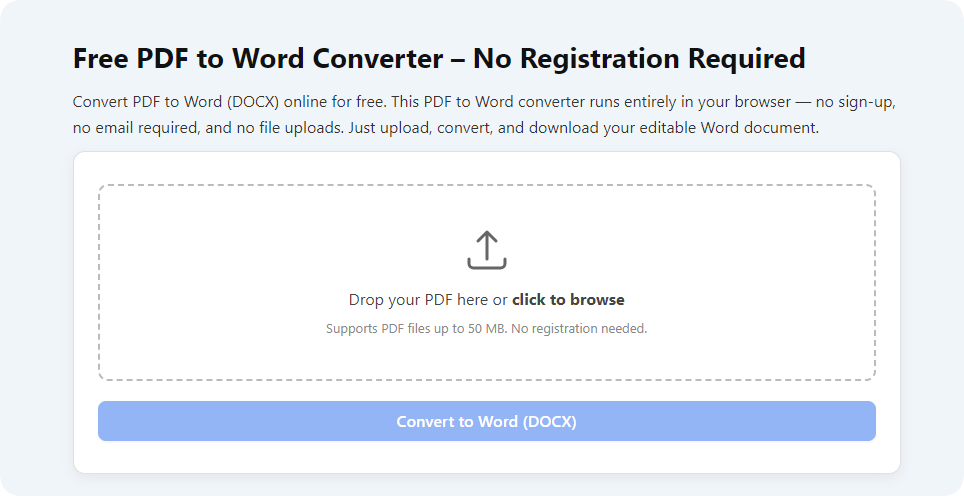
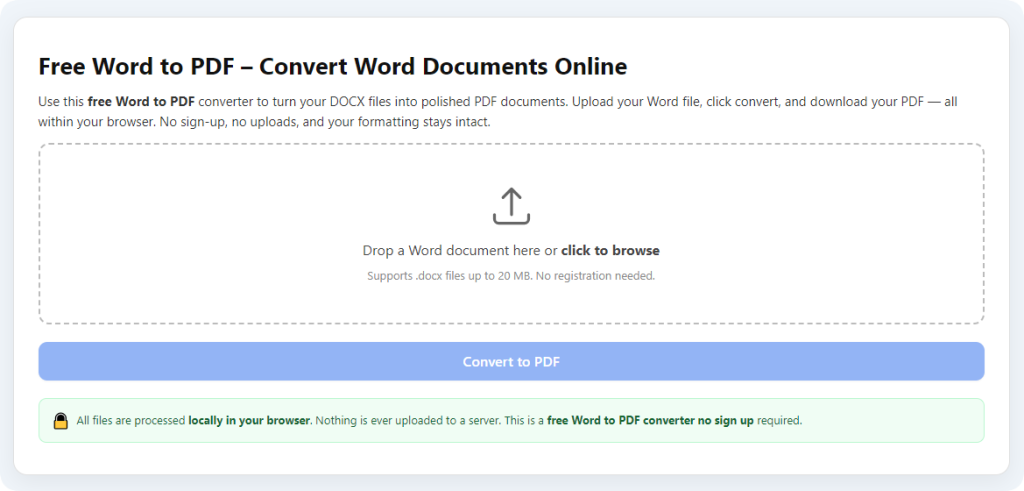
Open your web browser (Chrome, Safari, Edge—any works) and go to the tool you picked (the one that says it preserves formatting). You’ll see a clean interface with a clear upload zone that says something like “Upload Word File” or “Convert Word to PDF Without Format Loss”[4][5].
Pro tip: Bookmark the tool so you can access it quickly next time. No more searching for “Word to PDF converter” and sifting through tools that mess up formatting[4].
Step 3: Upload Your Word Document
This part is super easy—just upload your prepped Word doc. Here’s how[4][5]:
• Drag and drop (computer): Click and hold your Word file, drag it into the upload zone, and let go. This takes 2 seconds—perfect for busy days.
• Select manually (phone or computer): If drag and drop doesn’t work (e.g., on a phone), click the “Select File” button, navigate to your folder, and choose your Word doc.
What to expect: The tool will process your file for a few seconds (10-20 seconds, max) and show you the file name, size, and a preview of the Word doc. Some tools will even highlight any potential format issues (like unembedded fonts) before conversion[6].
Step 4: Choose the “Preserve Format” Setting
This is where the magic happens—most good tools have a setting specifically to help you convert Word to PDF without format change[4][7]. Here’s what to do:
1. Look for a dropdown menu or button labeled “Conversion Mode” or “Quality.”
2. Select “Preserve Format,” “High Quality,” or “Original Layout” mode. This mode is optimized to keep your fonts, images, and tables exactly as they are in Word[4][7].
3. Avoid “Fast” or “Small File Size” modes—these compress too much and can ruin formatting, especially for images[7].
Pro tip: If the tool has an option for “PDF/A Compliant,” uncheck it—this can sometimes cause font substitutions[2][7].
Step 5: Convert & Preview Your PDF
Now it’s time to convert—but don’t skip the preview step (it’s the key to avoiding format issues)[6]:
1. Click the “Convert to PDF” button (it might say “Start Conversion” or “Convert Now”)—click it[4][5].
2. Wait a few seconds: The tool will convert your Word doc to PDF. This takes 10-30 seconds, depending on the size of your document and how many complex elements (images, tables) it has[4].
3. Preview the PDF thoroughly: Click the preview button and check every page. Make sure fonts are correct, images are in place, tables are aligned, and spacing is the same as in Word. If something’s off, go back to your Word doc and adjust (e.g., re-embed the font or fix image wrapping)[1][6].
Example: I previewed my work report PDF and noticed one image was slightly shifted. I went back to Word, adjusted the image’s wrapping style, and converted again—it was perfect the second time.
Step 6: Download & Verify Your PDF
You’re almost done—this final step ensures your PDF is perfect[4][6]:
1. If the preview looks good, click the “Download” button. Save the PDF to a folder where you can find it easily (e.g., “Converted PDFs” or “Work Reports”).
2. Open the downloaded PDF and double-check everything again. Pay extra attention to fonts, images, and tables—these are the most common areas for format loss[1][6].
3. Rename the PDF to something clear (e.g., “Work Report – PDF.pdf”) so you don’t mix it up with the original Word doc[4].
That’s it! You just learned how to convert Word to PDF without format change. Your PDF looks exactly like your Word doc—no font substitutions, no shifted images, no messed-up tables.
Real-Life Scenarios: How to Convert Word to PDF Without Format Change
Let’s put these steps into action with real scenarios you’ll actually encounter. This will show you how easy it is to convert Word to PDF without format change in everyday life.
Scenario 1: Student Converting a Homework Assignment
You’re a student, and you have a 4-page Word homework assignment with bullet points, images, and a small table. You need to convert it to PDF for submission, and you don’t want the formatting to get messed up. Here’s how:
1. Prep your homework: Check bullet points are aligned, images are inline with text, and save a backup.
2. Upload the Word file to the format-preserving tool.
3. Select “Preserve Format” mode.
4. Convert and preview—make sure bullet points, images, and the table are correct.
5. Download the PDF and submit it to your teacher[4][6]. Your homework looks exactly how you formatted it—no points deducted for messy layout!
Scenario 2: Professional Converting a Client Report
You’re at work, and you have an 8-page client report with a custom font, multiple tables, and charts. You need to send it as a PDF, and it needs to look professional (no format issues). Here’s how:
1. Prep the report: Embed the custom font, check table alignment, fix chart formatting, and save a backup[1][6].
2. Upload the report to the tool.
3. Select “High Quality” mode to preserve fonts and charts.
4. Convert and preview—check that fonts are correct, tables are aligned, and charts are clear.
5. Download the PDF and email it to your client[4][7]. The client will see a professional report that looks exactly like your Word doc—no awkward questions about format.
Scenario 3: Job Seeker Converting a Resume
You have a resume in Word with a clean layout, custom spacing, and a professional font. You need to convert it to PDF for job applications, and you don’t want the formatting to shift (a common resume mistake!). Here’s how:
1. Prep your resume: Embed the font, check spacing between sections, and save a backup[6].
2. Upload the resume to the tool.
3. Select “Preserve Format” mode.
4. Convert and preview—make sure spacing is correct, font is consistent, and no sections are cut off.
5. Download the PDF and use it for job applications[4]. Your resume looks polished and professional—exactly how you intended.
Scenario 4: Converting a Complex Document with Text Boxes
You have a Word doc with text boxes, images, and multi-level lists (e.g., a brochure or flyer). These elements are tricky to convert, but you can still do it without format change. Here’s how:
1. Prep the doc: Make sure text boxes are aligned, images are inline with text, and lists are formatted correctly[1][6].
2. Upload the doc to the tool.
3. Select “Original Layout” mode to handle text boxes and complex elements.
4. Convert and preview—check that text boxes are in the right place, images are aligned, and lists are intact.
5. Download the PDF and share it[4]. Your brochure looks exactly like your Word doc—no shifted text boxes or messed-up lists.
Common Mistakes to Avoid When Converting Word to PDF Without Format Change
I’ve made every single one of these mistakes—learn from me so you don’t waste time or frustration:
1. Skipping the prep step: Not embedding fonts, fixing image wrapping, or checking formatting is the #1 reason format gets lost. Always prep your Word doc first[1][6].
2. Ignoring the preview: Don’t download the PDF blindly—preview it! Even the best tool can have issues with complex elements, and you don’t want to send a messed-up document[6].
3. Using the wrong conversion mode: “Fast” or “Small File Size” modes compress too much and ruin formatting. Always use “Preserve Format” or “High Quality”[7].
4. Forgetting to embed fonts: Custom fonts are the biggest culprit of format change. Embed them in Word before converting[1][6].
5. Using a tool that doesn’t preserve formatting: Don’t use random tools—stick to ones that explicitly say they keep formatting intact[4][6].
6. Deleting the original Word doc: If you need to make changes to the PDF, you’ll need the original Word doc. Always save a backup[6].
7. Using “Print to PDF” for complex docs: While “Print to PDF” works for simple docs, it can mess up complex layouts (like text boxes or charts). Stick to a dedicated converter[2].
Pro Tips to Master How to Convert Word to PDF Without Format Change
Now that you know how to convert Word to PDF without format change, these pro tips will make the process even smoother and ensure perfect results every time:
1. Use standard fonts when possible: Arial, Calibri, and Times New Roman convert reliably everywhere—no need to embed them[6].
2. Adjust image DPI before converting: If your Word doc has high-quality images, set the DPI to 300 in Word (File > Options > Advanced > Image Size and Quality) to preserve quality[7].
3. Test with a sample doc first: If you’re converting an important document (like a resume or client report), test the tool with a small sample doc first to make sure it works[4][6].
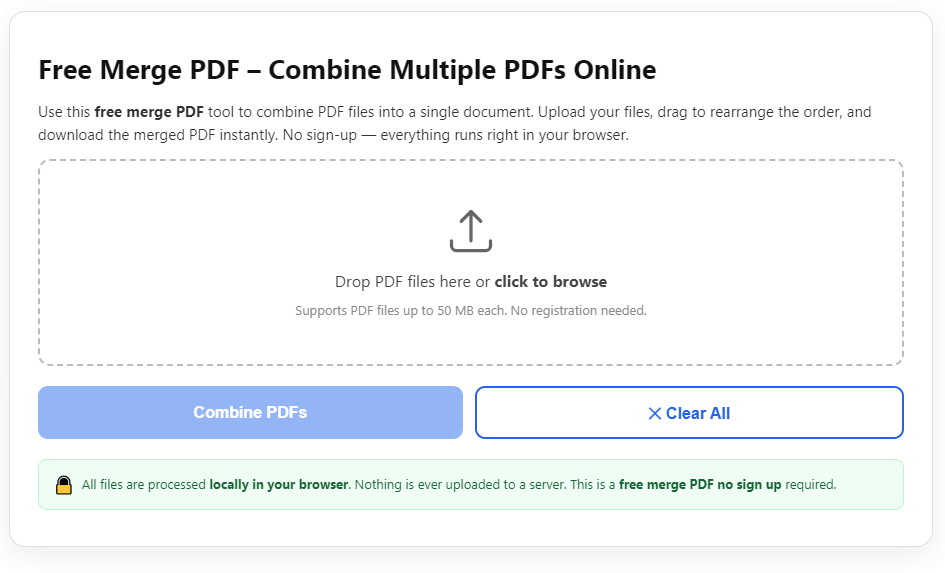
4. Use batch conversion for multiple docs: If you have multiple Word docs to convert, look for a tool with batch upload support—it saves so much time[3][4].
5. Clear your browser cache if the tool is slow: Sometimes, browser cache slows down the tool. Clear it, and uploads/conversion will be faster[4].
6. Use local conversion for sensitive docs: For confidential docs (like contracts), use a tool that processes files locally (no upload to servers) for extra security and better format preservation[3][4].
7. Check for updates: If you’re using a desktop tool, keep it updated—updates often fix format preservation issues[4].
Frequently Asked Questions (FAQ) – How to Convert Word to PDF Without Format Change
Q: Why does my Word to PDF conversion keep messing up formatting? A: Format change usually happens because of unembedded fonts, poor image wrapping, or using the wrong tool. Follow the prep steps and use a format-preserving tool to fix this[1][6].
Q: Can I use Word’s “Save as PDF” to convert without format change? A: It works for simple docs (plain text, no images/tables), but for complex docs, it often messes up formatting. Use a dedicated tool for better results[1][2].
Q: Is it free to convert Word to PDF without format change? A: Yes! Most top tools have free versions that preserve formatting—no hidden fees, no watermarks, no ads[4][5].
Q: Can I convert Word to PDF without format change on my phone? A: Yes! Most tools are mobile-friendly. Just open your phone browser, upload the Word doc, convert, and download[4][5].
Q: What if my PDF still has format issues after following the steps? A: Go back to your Word doc and check for unembedded fonts, image wrapping, or complex elements. Adjust, then convert again—this usually fixes the issue[1][6].
Q: Will my images lose quality when converting? A: No—if you use “High Quality” mode and adjust image DPI in Word, your images will stay sharp[7].
Q: Can I convert multiple Word docs to PDF without format change at once? A: Yes—look for a tool with batch conversion support. You can upload multiple docs, convert them all at once, and keep formatting intact[3][4].
Final Thoughts – How to Convert Word to PDF Without Format Change Is Easier Than You Think
Converting Word to PDF without format change doesn’t have to be a nightmare. It’s all about prepping your Word doc properly and using the right tool. The steps I’ve shared are simple, and they work—every single time.
The key takeaway? Stop wasting time on tools that mess up your formatting. Follow the prep steps, use a format-preserving tool, and preview before downloading. You’ll be able to convert Word to PDF without format change in minutes, and your PDFs will look exactly like your Word docs.
I’ve been using this method for years, and it’s saved me countless hours of rework and frustration. Whether I’m converting student homework, work reports, or personal docs, I never have to worry about format change again. It’s one of those small hacks that makes my day-to-day so much easier.
So next time you need to convert a Word doc to PDF, don’t stress. Follow the steps in this guide to convert Word to PDF without format change, and send your PDF with confidence. You’ll be done in minutes, and you’ll never have to deal with a messed-up layout again. Start converting now!
After learning the operation method, click the link below to enter the tool page for immediate use.