Every modern iPhone saves captured photos in the HEIC format by default. This compact file type cuts storage usage nearly in half while preserving sharp image quality for local device viewing.
Even with these storage perks, HEIC files create constant compatibility headaches for everyday iPhone owners. Most social platforms, desktop software, printing services, and older mobile devices do not natively open HEIC picture files.
Users often run into broken previews, failed uploads, or error messages when trying to share their iPhone photos outside the Apple ecosystem. Manually adjusting iPhone camera settings only impacts new shots and cannot fix existing HEIC image libraries.
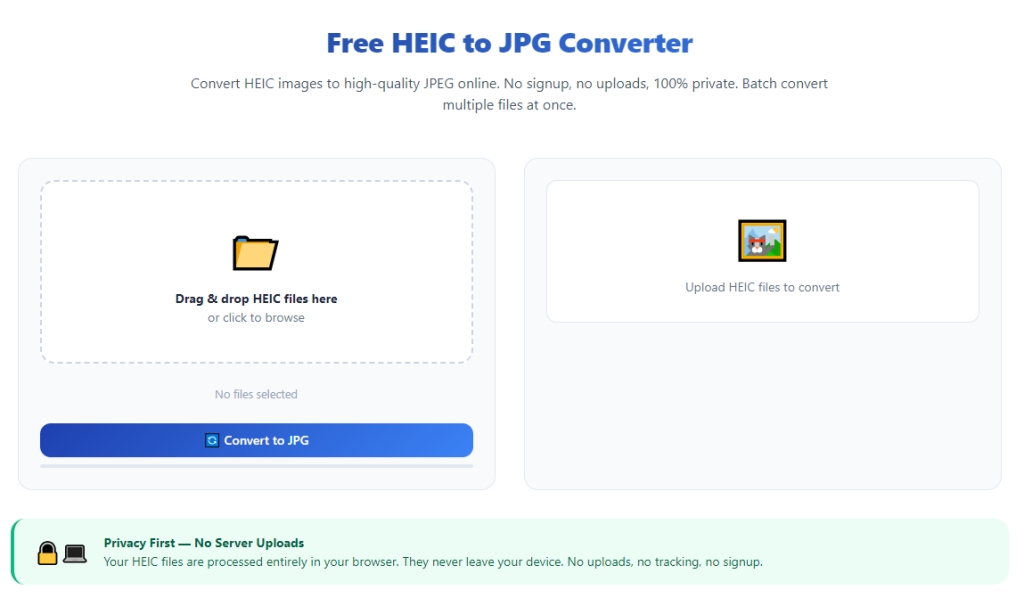
A reliable HEIC conversion tool eliminates all these compatibility roadblocks. Mastering how to use HEIC to JPG converter for iPhone photos lets you turn every stored HEIC picture into widely supported JPG files, with full control over image quality and batch processing speeds.
This complete guide breaks down the core frustrations of unprocessed iPhone HEIC files, key advantages of dedicated conversion tools, must-have converter features, real-life use cases, and a detailed beginner workflow for seamless photo format transformation.
Common Compatibility Issues With Raw iPhone HEIC Photos
Relying on unmodified HEIC files from your iPhone creates consistent disruptions to sharing, editing, and printing workflows for casual and creator users alike.
Apps and desktop programs fail to load HEIC files
Standard web browsers, Windows computers, and third-party editing apps lack built-in HEIC decoding support. When you transfer iPhone photos to non-Apple hardware, you will see blank thumbnails or “file cannot open” pop-ups.
Social media upload errors
Nearly all mainstream content platforms reject direct HEIC uploads. You cannot post vacation shots, portrait photos, or product imagery without first switching the file format to JPG.
Printing and photo lab restrictions
Local print shops, online photo printing services, and home printers only accept standard raster formats like JPG. HEIC files get rejected during upload, forcing last-minute format adjustments before printing orders.
Limited cross-device file transfer
Sending HEIC photos via text, cloud storage, or file sharing tools frequently corrupts the image data. Recipients on Android, Windows, or older hardware receive unviewable broken image attachments.
Camera setting limitations for old photo libraries
Changing your iPhone camera format to capture JPG only affects future photos. Thousands of existing HEIC snapshots stored in your photo album remain incompatible with external systems permanently unless converted.
Slow manual workaround processes
Copying individual photos to messaging apps to force automatic conversion wastes massive amounts of time for large photo folders. This makeshift method also compresses image quality without adjustable settings.
Core Benefits of Learning How to Use HEIC to JPG Converter for iPhone Photos
Integrating a dedicated conversion tool into your photo workflow removes every HEIC compatibility barrier while protecting your original iPhone image quality.
Universal cross-platform file compatibility
JPG is the global standard image format supported by every device, app, website, and printing service. Once you learn how to use HEIC to JPG converter for iPhone photos, all your converted images open flawlessly anywhere you send them.
Adjustable image quality preservation
Top-tier converters let you tweak compression levels during transformation. You can generate high-resolution JPGs for printing or lightweight compressed versions for fast social media uploads, no permanent quality loss to original shots.
Efficient batch photo processing
Instead of converting one iPhone picture at a time, quality tools support bulk folder uploads. Entire vacation albums, portrait shoots, and product photo libraries convert in a single session to save hours of repetitive manual work.
Original HEIC file safety
Reputable converters create separate new JPG copies without altering or deleting your original iPhone HEIC photos stored on your device. Your native high-efficiency image library stays fully intact for local storage savings.
Flexible offline and online tool options
You can choose browser-based web converters for quick one-off edits or downloadable desktop tools for large offline photo batches. Both tool styles follow the same simple process outlined in this tutorial.
Streamlined content creation workflows
Content creators, small business owners, and casual photographers eliminate format delays between shooting iPhone photos and publishing content online. Consistent conversion removes last-minute upload failures during posting schedules.
Must-Have Features in a Trusted HEIC to JPG Converter for iPhone Photos
Not all image conversion tools deliver stable, high-quality results for iOS camera shots. When picking a converter to master how to use HEIC to JPG converter for iPhone photos, prioritize these iPhone-focused core features.
Bulk multi-image upload support
The tool must accept full photo folder imports instead of single-file only uploads. This feature is non-negotiable for users with hundreds of stored iPhone HEIC snapshots to process.
Customizable JPG quality sliders
Look for adjustable compression controls ranging from maximum lossless quality to small low-file-size outputs. This lets you tailor converted photos for printing, social media, or cloud storage separately.
No hidden image watermarks on exports
Many free conversion tools stamp visible branding overlays onto finished JPG files. Premium user-friendly converters deliver clean, unmarked output photos for personal and commercial use.
Fast lightweight processing engine
Slow, bloated conversion software stalls when processing large iPhone photo batches. Efficient tools complete full album conversions in seconds without lagging your phone or desktop hardware.
Direct iPhone file import compatibility
Quality tools support direct photo imports from iOS device albums, cloud photo storage linked to your iPhone, and USB transferred HEIC folders pulled straight from your mobile camera roll.
Simple organized output sorting
The converter should let you set dedicated save folders for finished JPG files, separate from your source HEIC library. This prevents mixing converted and original photos in your storage.
Zero mandatory account sign-up barriers
Top casual-use converters offer full core functionality without forced registration, email verification, or login steps for quick, occasional photo transformation tasks.
Common Real-World Use Cases for iPhone HEIC to JPG Conversion Tools
Mastering how to use HEIC to JPG converter for iPhone photos fits nearly every personal, creative, and business scenario where you share or print images captured on iOS hardware.
Daily social media content posting
Influencers, hobby creators, and small business marketers convert daily iPhone portrait, lifestyle, and product shots to JPG for seamless feed, story, and reel uploads without platform error messages.
Family and travel photo sharing
Users send vacation, holiday, and event photos to family members with non-Apple phones and Windows laptops. Converting to JPG ensures every recipient can open and view shared snapshots instantly.
Online and in-store photo printing orders
Anyone ordering physical photo prints, canvas art, photo books, or framed imagery must submit JPG files. A converter lets you prepare entire iPhone photo albums for printing services in minutes.
Desktop photo editing projects
Graphic designers and hobby editors transfer iPhone reference photos to Windows editing software that cannot read HEIC formats. Converted JPGs import cleanly into all mainstream editing programs.
Cloud storage cross-device syncing
Users sync photo libraries across Android tablets, Windows laptops, and smart TVs. JPG format eliminates broken preview issues when accessing your iPhone photo archive on non-iOS hardware.
E-commerce product photography
Small business sellers capture inventory photos on iPhones for online store listings. Batch conversion turns hundreds of product HEIC shots into upload-ready JPGs optimized for marketplace image rules.
Archiving old iPhone photo libraries
Users backing up years of iOS camera roll snapshots to external hard drives convert all stored HEIC files to JPG for long-term universal archive storage compatible with future devices.
Step-by-Step Complete Guide: How to Use HEIC to JPG Converter for iPhone Photos
Follow this universal, beginner-friendly workflow for both online web converters and desktop offline tools to transform your iPhone HEIC photos into usable JPG files.
Step 1: Organize your iPhone HEIC photo files
First, sort the photos you plan to convert on your iPhone or transfer them to your computer via USB cable or cloud storage. Group related shots into folders to simplify batch uploads to the converter.
Separate photos by use case if needed—for example, split printing photos and social media photos into distinct folders to apply different quality settings later.
Step 2: Access your chosen HEIC to JPG converter
Launch either your preferred browser-based online converter or open the downloaded desktop conversion program on your computer. No account creation or login is required for most standard tools.
Locate the core upload panel, which will feature a clear button labeled “Add Photos,” “Upload HEIC Files,” or “Import from iPhone” as the main starting point for all conversion tasks.
Step 3: Import your iPhone HEIC images into the tool
Click the upload button to pull files from your device storage. If working directly on iPhone, grant photo library access permission to let the converter read your camera roll HEIC snapshots.
For desktop workflows, select entire pre-sorted photo folders instead of individual images to activate batch processing functionality and save time on large photo sets.
Double-check the upload list to confirm all target iPhone HEIC photos appear in the tool’s preview queue before moving to adjustment settings.
Step 4: Customize JPG output quality and compression settings
Locate the quality adjustment slider or percentage menu built into the converter interface. Match your setting to your intended use for the finished JPG photos:
- Maximum quality (90–100%): For high-resolution printing, canvas art, and professional editing projects
- Medium quality (70–85%): General social media posts, shared family photos, and standard cloud storage backups
- Low compression (50–65%): Fast lightweight uploads for quick social stories and small file-size email attachments
Leave other default format settings unchanged unless your platform or printer specifies custom pixel or resolution limits for output files.
Step 5: Select a dedicated save location for converted JPGs
Choose a separate folder on your phone or computer to store all finished JPG photos. Avoid saving converted files into the same folder as your original HEIC images to prevent file mix-ups.
Label the output folder clearly (such as “Converted iPhone JPG Photos”) to easily locate transformed images later for sharing, printing, or editing work.
Step 6: Start the HEIC to JPG conversion process
Review your upload list, quality settings, and target save folder one final time. Click the main “Convert,” “Start Process,” or “Generate JPG” button to begin transforming your iPhone photos.
Batch conversion times vary based on how many images you uploaded; small groups of 10–20 photos finish in under five seconds, while full albums of hundreds of shots take roughly one to two minutes.
Keep the converter window open during processing to avoid interrupting the file transformation sequence and creating corrupted partial image outputs.
Step 7: Preview finished converted JPG files
Once the process completes, the tool will display thumbnail previews of all newly created JPG photos. Scroll through the full list to verify every image converted clearly with no blurring, color distortion, or cropping errors.
If any photo appears distorted, delete that single file from your output folder and re-upload the original iPhone HEIC copy to run a second conversion pass with higher quality compression settings.
Step 8: Export and store your finished JPG photos
Use the tool’s “Download All” or “Save to Folder” function to lock all converted images into your pre-selected output directory. Close the converter upload queue once all files finish exporting fully.
You now have a complete set of universal JPG copies of your original iPhone HEIC photos ready for uploading, printing, editing, or cross-device sharing without compatibility errors.
Step 9: Repeat for additional photo batches (optional)
If you have more iPhone HEIC folders to convert, clear the current upload queue within the converter and repeat steps three through eight for your remaining photo libraries.
Step 10: Use your JPG photos for your intended task
Open your saved output folder and access the converted JPG images to upload to social platforms, send via text or email, submit for printing, or import into desktop editing software with zero format-related disruptions.
Common Mistakes to Avoid When Using a HEIC to JPG Converter for iPhone Photos
Even after learning how to use HEIC to JPG converter for iPhone photos, these frequent errors can ruin photo quality or create messy disorganized image archives.
Skipping quality setting adjustments for all photo uses
Using the lowest compression setting for printing photos creates blurry, low-detail outputs unsuitable for physical prints. Always tweak quality sliders based on whether you share online or order printed imagery.
Mixing original HEIC and converted JPG files in one folder
Storing both file types in the same directory makes it impossible to quickly identify which photos work for external sharing. Separate source and output folders every time you run conversions.
Interrupting batch conversion mid-process
Closing the converter tab or app while photos are still processing generates incomplete, unopenable JPG files. Wait for the full completion notification before closing the tool window.
Converting photos one at a time instead of batch uploading
Processing individual iPhone snapshots wastes massive amounts of time for large camera roll libraries. Always select full folders to activate bulk conversion functionality.
Ignoring tool watermark restrictions on free converters
Unreviewed low-grade free tools add permanent branded overlays across converted photos. Verify previews after processing to ensure your finished JPGs contain no unwanted text or logos.
Deleting original iPhone HEIC source files post-conversion
HEIC files take half the storage space of matching JPG copies. Keep your original iOS camera roll photos saved locally to preserve compact storage efficiency alongside your shareable JPG backups.
Pro Expert Tips to Maximize Results From Your HEIC to JPG Converter
Use these actionable strategies to streamline your workflow and get consistent high-quality results every time you learn how to use HEIC to JPG converter for iPhone photos.
- Bookmark reliable no-signup converters in your browser for instant, quick access whenever you need to transform iPhone photos on demand.
- Create three permanent dedicated storage folders labeled “Print-Quality JPGs,” “Social Media JPGs,” and “Archived HEIC Originals” to automatically separate all your image file types.
- Run batch conversions once weekly to process new iPhone camera roll photos before they pile up into unmanageable large album sets.
- Always set quality to 90% or higher for any portrait, product, or landscape photos you plan to print or edit professionally later on.
- Test one sample photo with new converter tools first to check for watermarks, color shifting, or resolution loss before uploading entire photo folders.
- Avoid re-converting finished JPG files repeatedly; each extra compression pass slowly erases subtle image detail from your original iPhone camera shot.
- When preparing photos for marketplace listings or professional content, use the converter’s batch feature to process all product imagery in a single uninterrupted session.
Final Thoughts
HEIC format delivers valuable storage benefits for iPhone users, but its limited cross-device compatibility creates endless frustrations for anyone sharing, printing, or editing their mobile photos outside Apple’s ecosystem. Manual workarounds for format switching are slow, inconsistent, and often damage original image quality.
Learning how to use HEIC to JPG converter for iPhone photos eliminates every compatibility pain point in one streamlined workflow. Reliable conversion tools deliver adjustable quality controls, fast bulk processing, clean unwatermarked outputs, and full protection for your original compact HEIC photo library stored on your iPhone.
Whether you are a casual hobbyist sharing family snapshots, a creator posting daily social content, or a small business owner preparing product imagery for online sales, a dedicated HEIC conversion tool is an essential part of your iPhone photo management routine.
By following this step-by-step tutorial and avoiding common conversion mistakes, you can quickly generate unlimited universal JPG copies of every picture captured on your iPhone, with perfect image clarity and zero format-related upload or sharing errors moving forward.
After learning the operation method, click the link below to enter the tool page for immediate use.