Writing, compiling, and sharing lengthy business, research, and academic reports creates a common pain point for nearly every office worker, student, and content creator. Multi-page PDF reports filled with data tables, research chapters, financial breakdowns, and appendixes become extremely hard to navigate without clear internal navigation markers. Scrolling hundreds of pages to locate a single data section wastes hours of valuable work time, slows down team collaboration, and leaves readers frustrated when reviewing your long reports.
Judging navigation usability by eye alone does not fix this core issue. Manually scrolling through every page, typing page numbers into search bars, or inserting text labels on page margins creates messy, unprofessional PDF files that hurt document readability. This is where a reliable PDF bookmark adder delivers massive value for anyone regularly working with long reports. A dedicated PDF bookmark adder builds clickable, collapsible navigation menus inside your PDF file, letting anyone jump straight to chapters, subsections, charts, and reference blocks in one click. This guide breaks down every detail of how to use PDF bookmark adder for long reports, covering the flaws of manual PDF navigation, core tool advantages, must-have features, real-world use cases, a full step-by-step operation tutorial, common user mistakes to avoid, and expert optimization tips for polished, easy-to-navigate long report PDFs.
Why Manual PDF Navigation Fails for Long Multi-Page Reports
Relying on manual page scrolling or basic PDF search functions to navigate long reports creates persistent workflow headaches that reduce productivity and make your documents harder to share with teammates, clients, or academic reviewers. Every workaround you use without a PDF bookmark adder carries hidden drawbacks that scale worse as your report page count grows.
Subjective, inefficient manual page searching
Anyone reading your long report has to memorize page numbers or run repeated text searches to locate critical content. When you share unmarked PDF reports with a team, every reader wastes minutes hunting for identical sections across the same document. This disjointed navigation experience makes dense long reports feel overwhelming and disorganized.
No layered navigation structure for complex report outlines
Most long reports follow tiered formatting: main chapters, subsections, data add-ons, and appendix attachments. Manual PDF tools cannot build nested navigation menus that match your report’s logical outline. Without a PDF bookmark adder, you cannot separate primary chapters from smaller subsections, forcing readers to sift through ungrouped page content constantly.
Time wasted on repetitive manual labeling work
Some users attempt to solve navigation issues by adding sticky notes, text callouts, or page index tables at the start of their long reports. Updating these manual markers every time you edit, reorder, or delete report pages creates redundant editing labor. A single revision to your long report invalidates all handwritten navigation labels, requiring full rework of your document index.
Inconsistent navigation standards across shared team reports
When multiple team members draft separate segments of a long business or research report, manual navigation methods create inconsistent labeling styles. One writer may mark financial sections with page notes, while another leaves technical data completely unlabeled. This mismatch ruins the unified reading experience every professional long report needs, and manual edits cannot standardize navigation across combined document drafts.
Static markers break after report edits
If you rearrange report chapters, insert new data pages, or remove outdated appendix content, handwritten page references and sticky note markers instantly become inaccurate. Fixing these broken navigation markers across a 100+ page long report takes hours of repetitive checking, a problem completely eliminated once you learn how to use PDF bookmark adder for long reports.
Core Benefits of Mastering How to Use PDF Bookmark Adder for Long Reports
Integrating a PDF bookmark adder into your long report editing workflow transforms document usability for both creators and readers. Once you fully understand how to use PDF bookmark adder for long reports, you unlock consistent, scalable navigation improvements that benefit every type of multi-page PDF document you generate.
Build dynamic, clickable nested navigation menus
A high-quality PDF bookmark adder generates collapsible bookmark trees that mirror your long report’s official outline. Main chapters act as top-level bookmarks, with subsections, charts, and supplementary data nested underneath. Readers can expand or collapse menu layers to scan your report’s full structure without scrolling through pages, drastically speeding up document review time.
Cut document editing and review time drastically
Adding bookmarks through a dedicated PDF bookmark adder automates nearly all navigation setup work. Instead of manually cross-referencing hundreds of pages, you import your report outline and auto-generate matching bookmarks in seconds. The time saved scales dramatically for long reports with 50, 100, or more pages, freeing you to focus on refining report data rather than formatting navigation markers.
Keep bookmarks automatically synced with page edits
The biggest advantage of learning how to use PDF bookmark adder for long reports is live page synchronization. If you insert new pages, reorder report chapters, or delete outdated content, the tool updates all bookmark page targets automatically. You never need to rewrite or adjust navigation labels after revising your long report draft.
Standardize navigation formatting across all team reports
Business teams, research labs, and academic departments can adopt identical bookmark styling rules with a PDF bookmark adder. You set uniform font sizing, label naming conventions, and nesting structures for every long report your team produces. Shared documents maintain a clean, professional navigation layout that aligns with company or institutional branding standards.
Improve readability for all report audiences
Clients, managers, research peers, and academic examiners all respond better to long reports with clear internal bookmarks. Readers can jump directly to relevant sections instead of skimming irrelevant pages, which reduces frustration and encourages thorough review of your full report content. For client-facing long reports, polished PDF bookmarks also elevate your brand’s professional presentation quality.
Fully compatible with all standard PDF readers
Bookmarks created via a reliable PDF bookmark adder work seamlessly on every mainstream PDF viewing tool, including desktop software, mobile phone readers, and cloud-based PDF platforms. Recipients do not need special software to access your navigation menus, eliminating compatibility barriers when sharing long reports across devices.
Zero hidden fees for core bookmark creation functions
Most beginner-friendly PDF bookmark adder tools offer full bookmark generation, nesting, and editing features without mandatory paid upgrades. You can format, adjust, and export fully bookmarked long reports without paywalls blocking essential navigation tools, ideal for students, freelancers, and small business teams working with limited document editing budgets.
Key Features to Look for in a PDF Bookmark Adder for Long Reports
Not all PDF bookmark creation tools support the unique formatting demands of lengthy, structured reports. When selecting a PDF bookmark adder to streamline your workflow, prioritize these report-focused features to simplify how you use PDF bookmark adder for long reports every single day.
Bulk outline import for fast mass bookmark creation
Top-tier PDF bookmark adders support importing text-based report outlines to auto-generate hundreds of bookmarks at once. Instead of typing each chapter label manually, you upload your written table of contents, and the tool maps each heading to its matching report page. This feature is non-negotiable for anyone regularly creating 80+ page long reports.
Multi-level nested bookmark support
Long reports rely on tiered heading structures, so your PDF bookmark adder must support unlimited bookmark nesting. Look for tools that let you drag and drop subsections under main chapter bookmarks, create third-layer labels for charts or case studies, and collapse entire menu groups with one click. Flat, single-layer bookmark tools cannot replicate complex report outlines effectively.
Batch bookmark editing and bulk renaming
After generating initial bookmarks for your long report, you will often need to adjust labels, reorder navigation items, or delete redundant markers. A quality PDF bookmark adder includes batch editing functions, so you can rename, reposition, or archive dozens of bookmarks simultaneously instead of modifying each one individually.
Page number auto-sync and manual offset adjustment
Every time you add title pages, forewords, or blank separator pages to your long report, your content page numbers shift. Advanced PDF bookmark adders include a page offset tool that recalibrates all bookmark targets with a single input, avoiding the tedious work of reassigning every bookmark’s page destination manually.
Full PDF text paste and complete document upload support
Your chosen tool should accept full long report PDF uploads without strict page count limits. You should never split your multi-page report into smaller files just to run bookmark generation. Reliable PDF bookmark adders process complete, unbroken report drafts to build a single unified navigation menu.
Custom bookmark styling customization
Professional long reports often require branded navigation formatting. Look for a PDF bookmark adder that lets you adjust bookmark font weight, text color, label size, and default collapse state. You can differentiate financial chapters, technical data sections, and appendixes with distinct styling for faster visual scanning.
Clean, distraction-free interface without intrusive pop-ups
Cluttered tool interfaces with constant ads and pop-ups slow down long report editing workflows. The best PDF bookmark adder platforms feature a minimal layout split between your uploaded PDF preview and bookmark editing panel, letting you focus on refining navigation without constant visual interruptions.
Common Real-World Use Cases for PDF Bookmark Adder on Long Reports
A versatile PDF bookmark adder serves every industry and document type that relies on structured long reports. Mastering how to use PDF bookmark adder for long reports delivers tangible workflow improvements across these frequent professional and academic scenarios.
Corporate financial and quarterly business reports
Finance teams regularly share 100+ page quarterly performance reports packed with revenue tables, expense breakdowns, forecast models, and audit notes. Layered bookmarks separate executive summaries from granular departmental data, letting executives jump straight to high-level takeaways without scrolling through full data sets.
Academic research dissertations and thesis documents
Graduate students submit lengthy thesis reports segmented into literature reviews, methodology chapters, experiment data, discussion sections, and reference appendixes. A PDF bookmark adder builds a navigable outline matching university formatting rules, making grading and peer review far simpler for academic advisors.
Technical engineering and product testing reports
Engineers generate multi-page testing reports filled with schematics, trial data, error analysis, and safety compliance documentation. Nested bookmarks separate core test procedures from supplementary raw data tables, allowing project managers to locate critical compliance information instantly during client audits.
Marketing strategy and market research long reports
Marketing agencies deliver comprehensive market analysis reports containing audience data, competitor breakdowns, campaign frameworks, and consumer survey results. Bookmarks organize distinct research segments so stakeholders can quickly access the specific market data relevant to their decision-making process.
Legal compliance and contract review reports
Law firms compile lengthy compliance documents, case summaries, and regulatory review reports with dozens of attached exhibits. Clear PDF bookmarks separate legal arguments, evidence exhibits, and reference statutes, cutting down document review time during client consultations and court preparation.
Internal team project progress reports
Cross-departmental project teams share combined long reports covering timeline milestones, resource allocation, risk assessments, and deliverable tracking. Standardized bookmark structures ensure every team member navigates the shared project report using identical navigation logic.
Archiving and updating old legacy long reports
Many businesses maintain libraries of past annual reports, research documents, and project archives saved as unmarked PDFs. Running a PDF bookmark adder on archived long reports adds modern navigation menus, making old reference documents searchable and usable for current team members.
Step-by-Step Complete Guide: How to Use PDF Bookmark Adder for Long Reports
This repeatable workflow works for every length and style of long report, from 30-page marketing briefs to 200-page academic dissertations. Follow each step sequentially to build clean, functional PDF bookmarks with minimal editing labor.
Step 1: Finalize your full long report PDF draft
Complete all writing, data insertion, page layout adjustments, and image embedding before opening the PDF bookmark adder. Do not add bookmarks mid-draft, as inserting or deleting pages afterward will require extra sync adjustments. Confirm your table of contents headings match the final chapter order of your long report to avoid mismatched bookmark labels later. Write naturally and lock in your full document structure before moving to navigation setup.
Step 2: Export or save your finished report as a single complete PDF
Export your long report from your word processor, spreadsheet tool, or design software into one unbroken PDF file. Avoid splitting chapters into separate smaller PDFs, as this creates fragmented navigation menus that break the full report reading experience. Double-check that all appendixes, data tables, and reference sections are included within the single PDF document file.
Step 3: Launch your preferred PDF bookmark adder tool
Open the PDF bookmark adder in your standard desktop or cloud browser. Locate the primary document upload panel, designed to accept full multi-page report PDFs. Spend 30 seconds reviewing core tool functions: bulk outline import, bookmark nesting panel, page offset adjustment, and styling customization tabs to familiarize yourself with the layout before uploading your file.
Step 4: Upload your full long report PDF to the tool’s input panel
Select your completed long report file and upload it to the PDF bookmark adder’s designated upload area. Once the file finishes processing, a page-by-page preview of your full document will load on-screen. Scan the preview briefly to confirm no pages are missing, corrupted, or misordered before beginning bookmark creation. The tool retains all original formatting, images, and text blocks of your long report during analysis.
Step 5: Import your report outline or manually create base bookmarks
Choose your faster bookmark generation method based on your report structure. If you have a typed table of contents text file, use the bulk outline import feature to auto-generate top-level chapter bookmarks instantly. For shorter structured long reports, manually add each main chapter label using the tool’s “add primary bookmark” button, inputting each heading name and its matching starting page number.
Step 6: Build nested sub-bookmarks for report subsections
Expand each main chapter bookmark to add secondary and tertiary labels for subsections, charts, data tables, and appendix content. Use the drag-and-drop nesting feature to group related subsections under their parent chapter bookmark. Follow your report’s official outline hierarchy to keep navigation logic consistent for all readers. Differentiate appendix or supplementary data bookmarks with custom styling if desired.
Step 7: Adjust page offset values to fix page number mismatches
If your long report includes unnumbered title pages, forewords, or blank separators, use the page offset tool to recalibrate all bookmark target pages. Input the exact number of non-content lead pages, and the PDF bookmark adder will shift every bookmark’s assigned page destination automatically to match your printed content page count. This eliminates broken jump links caused by front-matter pages.
Step 8: Batch edit and refine all bookmark labels
Scan the full bookmark tree for typos, inconsistent naming conventions, or redundant navigation entries. Use the bulk rename function to standardize label formatting across all chapters, shortening overly long heading text for cleaner navigation menus. Delete duplicate bookmarks created during outline import, and merge overlapping subsection labels to simplify the menu layout. Avoid overloading the bookmark panel with unnecessary minor subheadings that clutter navigation.
Step 9: Preview bookmark functionality within the tool
Use the built-in PDF preview panel to test every clickable bookmark link. Click through each main chapter and nested subsection to confirm the tool jumps directly to the correct report page. Note any misaligned page targets or broken labels for quick revision before exporting the final document. Toggle the expand/collapse menu setting to test how readers will interact with your navigation tree on standard PDF readers.
Step 10: Re-sync bookmarks after final minor report edits
If you make last-minute page additions, data updates, or section deletions to your long report, upload the revised PDF back into the PDF bookmark adder and run the auto-sync function. The tool recalculates all bookmark page destinations without requiring full manual re-creation of your navigation tree. Repeat preview testing to verify all jump links still function correctly post-edit.
Step 11: Export the fully bookmarked long report PDF
Once all bookmarks are tested, formatted, and synced perfectly, select the export PDF button to download your finalized document. Save the new bookmark-enabled PDF as a separate file to preserve your original unmarked report draft for future reference. The exported file retains all original report content plus the full collapsible bookmark navigation menu compatible with all PDF viewing software.
Step 12: Distribute or archive your optimized long report
Share the exported bookmarked PDF with teammates, clients, reviewers, or archive it within your internal document library. Recipients can open the navigation panel on any device to jump between report sections instantly, cutting down document review time and improving overall reader satisfaction with your long-form written work.
Common Mistakes to Avoid When Using PDF Bookmark Adder for Long Reports
Even with a fully featured PDF bookmark adder, these frequent user errors damage navigation quality and waste editing time on your long reports. Learn to avoid these missteps to maximize the value of your bookmark creation workflow.
Overloading the bookmark tree with trivial minor subheadings
Adding a separate bookmark for every single small paragraph creates an overcrowded navigation menu that defeats the purpose of streamlined access. Reserve bookmarks only for core chapters, key subsections, and major data exhibits; leave small explanatory paragraphs unmarked to keep the menu easy to scan.
Ignoring page offset adjustments for front-matter pages
Many users skip the offset tool and create bookmarks based on raw PDF page numbers, which do not account for title pages, table of contents sheets, or foreword sections. This creates broken jump links that send readers to the wrong content page, undermining the entire navigation function of your long report.
Blindly importing unedited raw outlines without cleanup
Copying an unpolished table of contents into the bulk import tool carries typos, inconsistent capitalization, and overly long heading text directly into your bookmark tree. Always edit your outline text file first to standardize label length and formatting before running mass bookmark generation.
Creating flat single-layer bookmarks for complex multi-tier reports
Skipping nested bookmark grouping forces readers to scroll through a long unorganized list of navigation labels. Flat bookmarks remove the logical hierarchy of your long report outline, making it harder for users to distinguish main chapters from minor supporting subsections.
Adding bookmarks before locking your final report page structure
Generating bookmarks early in the drafting process leads to constant re-syncing every time you add or delete report pages. Wait until your full report layout, page order, and content are completely finalized to minimize repeated bookmark adjustment work.
Using identical bookmark styling for all report sections
Failing to differentiate financial data, technical analysis, and appendix content with custom font or color styling forces readers to scan every label to locate relevant information. Simple visual styling tweaks drastically speed up section identification within large bookmark trees.
Expert Optimization Tips for Better PDF Bookmark Results on Long Reports
Implement these actionable strategies to refine how you use PDF bookmark adder for long reports and produce consistently professional, easy-to-navigate PDF documents for every use case.
- Save your preferred bookmark styling, nesting depth, and page offset settings as a reusable template for all future long reports to cut down repetitive formatting labor.
- Keep all bookmark labels concise, ideally under 40 characters; lengthy headings cut off inside PDF navigation panels and reduce readability of your bookmark tree.
- Separate standalone appendixes, raw data spreadsheets, and reference lists into dedicated top-level bookmark folders to avoid mixing core report content with supplementary materials.
- Share your standardized bookmark outline template with all team members creating collaborative long reports to maintain unified navigation rules across all shared documents.
- Run a quick bookmark preview check every time you re-export an updated long report to catch broken page links before sending the file to clients or reviewers.
- Archive both the original unmarked PDF and the fully bookmarked export file for every long report to support future revisions and document reference requests.
- Pair PDF bookmarks with clear internal hyperlinks within your report text for dual navigation options, letting readers jump via bookmarks or embedded inline links for maximum convenience.
- Limit the number of top-level main chapter bookmarks to under 15 for every long report; excess primary menu items create unwieldy navigation panels that slow down document scanning.
Final Thoughts
Clear internal navigation is an essential quality marker for any professional long report shared with teammates, clients, or academic evaluators. Unmarked multi-page PDF documents create unnecessary friction during review, wasting valuable work hours and leaving readers with a disjointed, frustrating document experience. Manual scrolling, handwritten page notes, and static index tables cannot match the flexible, auto-synced navigation delivered by a purpose-built PDF bookmark adder.
Learning how to use PDF bookmark adder for long reports eliminates every core pain point of navigating dense, lengthy PDF documents. The tool generates layered, clickable bookmark menus aligned perfectly with your report’s logical outline, auto-adjusts page targets after document edits, and delivers uniform navigation formatting across all your team’s written work. Whether you produce financial quarterly reports, academic dissertations, technical engineering documents, or market research long-form content, a reliable PDF bookmark adder streamlines your post-writing editing workflow and elevates the professionalism of every document you distribute.
By following the complete step-by-step workflow, avoiding common bookmark editing mistakes, and applying the expert optimization tips covered in this guide, you will consistently build polished, highly navigable long report PDFs that deliver faster, smoother reading experiences for every audience. Well-organized PDF bookmarks transform how others interact with your long reports, improving document engagement, cutting review time, and creating a more professional impression for every business, research, or academic project you complete.
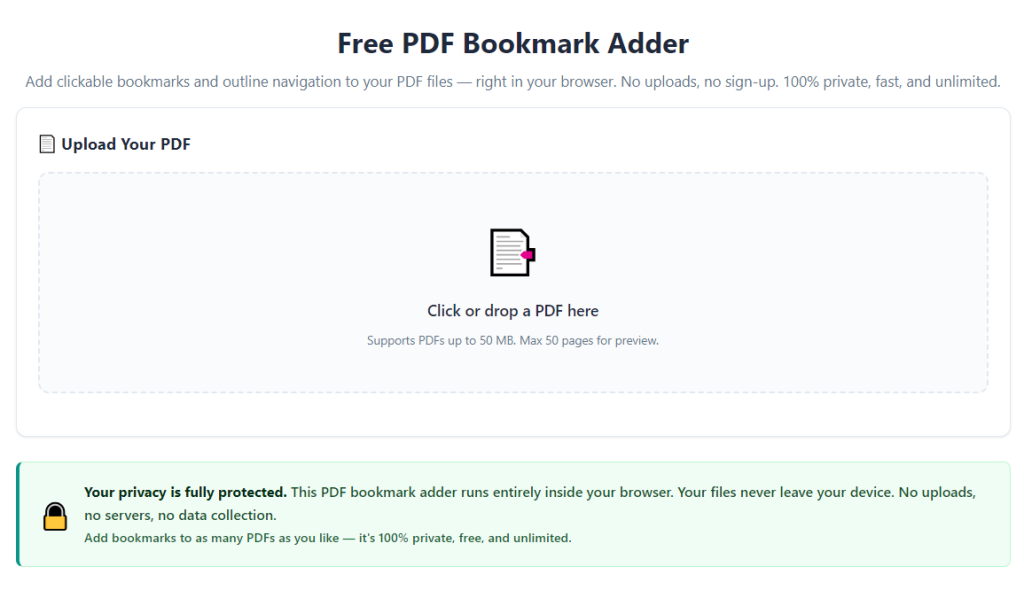
After learning the operation method, click the link below to enter the tool page for immediate use.