Sharing PDF files with clients, team members, or external partners creates massive privacy risks if you skip redaction for sensitive PII data.
Many office workers make a critical mistake: they simply black out text with highlight shapes, thinking private information stays hidden. Anyone with basic PDF editing skills can remove those overlays and pull full personal data straight from the file.
A dedicated PDF redact tool eliminates this risk entirely. It permanently erases underlying text, images, and metadata linked to sensitive PII, so no one can recover confidential details after you save the finished file.
This tutorial breaks down exactly how to use PDF redact tool for sensitive PII data, covering core tool benefits, standard PII categories, step-by-step workflows for editable and scanned PDFs, common user errors to avoid, and pro compliance tips for every industry. Whether you work in legal, healthcare, HR, finance, or small business admin, this guide delivers actionable steps you can apply to every document you distribute.
What Counts As Sensitive PII Data Requiring PDF Redaction
Before you learn how to use PDF redact tool for sensitive PII data, you need to identify every piece of personal information that demands full redaction.
PII (Personally Identifiable Information) covers any detail that can trace back to a single individual. Failing to redact these items violates global privacy standards and opens your team to fines, data breach claims, and reputational harm.
Core PII Categories to Redact in All Shared PDFs
- Full legal names, maiden names, and employee nicknames linked to official records
- Government ID numbers: Social security numbers, driver’s license IDs, passport numbers, tax filing IDs
- Contact data: Personal cell phones, home addresses, private email accounts, emergency contact lines
- Financial PII: Bank account numbers, credit card digits, routing codes, loan account IDs, tax return figures
- Healthcare PII: Patient medical IDs, diagnosis notes, prescription records, insurance policy numbers
- Biometric markers: Scanned driver’s license photos, fingerprint scan attachments, facial ID reference images
- Unique account identifiers: Customer loyalty IDs, internal employee payroll numbers, student registration codes
Quick note: Partial masking does not replace full PDF redaction. Even half-hidden social security digits count as exposed PII if the remaining numbers can cross-reference a person’s identity. Always use the PDF redact tool to fully block every digit of sensitive data.
Why Manual Highlighting Fails vs. a Proper PDF Redact Tool
Most casual PDF users rely on basic drawing or highlight tools to cover sensitive PII data, and this method carries severe security flaws. Understanding these gaps makes it clear why mastering how to use PDF redact tool for sensitive PII data is non-negotiable.
Flaw 1: Temporary overlays are removable
Colored rectangles and highlights sit on top of text layers, not inside the PDF’s core coding. A user can delete the shape layer and instantly view all hidden PII data underneath. Redact tools overwrite the original data block permanently with no recoverable source text.
Flaw 2: Hidden metadata still leaks PII
Unredacted PDFs store invisible metadata: author names, edit history, copied text snippets, and embedded comment threads full of personal data. Standard drawing tools ignore metadata, while a dedicated PDF redact tool scans and wipes all hidden PII traces in one pass.
Flaw 3: Scanned image PDFs cannot be masked manually
If your document is a photo-based scanned PDF, regular highlight tools do not bind to text pixels. Only a redact tool with built-in OCR can detect typed PII on image pages and fully erase those pixel blocks.
Flaw 4: No bulk processing for multi-page documents
Manually drawing blocks on every page wastes hours for long contracts, HR rosters, or medical case files. PDF redact tools support search-and-redact bulk functions to wipe matching PII patterns across an entire document in seconds.
Core Advantages of Mastering How to Use PDF Redact Tool for Sensitive PII Data
Integrating a PDF redact tool into your document sharing workflow delivers security, efficiency, and regulatory benefits that basic PDF editors cannot match.
Permanent, irreversible data removal
When you complete redaction and save the modified PDF, the sensitive PII data is deleted from the file’s source code. There is no way to extract or restore original names, ID numbers, or financial records from the finalized document.
Built-in compliance support for global privacy rules
GDPR, CCPA, HIPAA, and federal financial data standards all mandate complete removal of PII before external file sharing. Using a certified PDF redact tool creates an audit trail showing you followed required data minimization protocols.
Search-driven bulk redaction cuts editing time drastically
Instead of manually dragging redaction boxes across every page, you can input keyword patterns (such as SSN formats or phone number templates). The PDF redact tool auto-scans the full file and flags every matching sensitive PII data entry for one-click mass redaction.
Unified redaction for text, images, and embedded attachments
Many PDFs contain hidden image attachments with scanned IDs or signed personal forms. Standard editing tools miss these embedded files, while redact tools scan all layers, embedded assets, and page images to eliminate every PII entry.
Customizable redaction marking for internal transparency
You can set the redact tool to display solid black blocks, white opaque fills, or custom labeled tags like “REDACTED PII” so readers instantly recognize removed private data without digging into underlying layers.
Key Must-Have Features When Picking a PDF Redact Tool
Not all PDF editors include fully functional redaction tools. As you learn how to use PDF redact tool for sensitive PII data, prioritize tools with these blogger and business-focused core functions:
- Permanent secure redaction (not temporary overlay shapes)
- Integrated OCR engine for scanned image PDF PII detection
- Search & batch redact with custom regex patterns for ID numbers
- Hidden data sanitizer to wipe metadata, comments, and attachment PII
- Multi-file bulk redaction for folders of HR, legal, or client documents
- Custom redaction color and label styling options
- Post-redaction audit report generation for compliance record-keeping
- Cross-format support for native editable PDFs and scanned photo PDFs
Avoid lightweight free PDF viewers that advertise “redaction” features—these almost always use removable highlight overlays instead of secure permanent data erasure.
Step-by-Step Guide: How to Use PDF Redact Tool for Sensitive PII Data (Editable Native PDFs)
This 10-step workflow works for all standard editable PDF files like digital contracts, spreadsheets exported to PDF, typed HR forms, and client billing documents. Follow each step to fully secure sensitive PII data before sharing.
Step 1: Duplicate your original PDF master file first
Never run redaction edits directly on your only source copy. Save a separate duplicate file to work with, so you retain the unredacted master for internal record storage. This prevents accidental permanent loss of critical business records.
Step 2: Open the duplicate file in your certified PDF redact tool
Launch your editor and load the copied PDF. Navigate to the main security toolbar and select the labeled “Redact” or “Redact Text & Images” module—do not confuse this with basic shape drawing tools.
Step 3: Run a full document search for all sensitive PII patterns
Use the tool’s search function to input your common PII formats: social security number templates, phone number sequences, home address keywords, or full client names. The scanner will highlight every matching piece of sensitive PII data across all pages of the PDF.
Step 4: Review all auto-flagged PII entries for accuracy
Scroll through each highlighted match to confirm the marked text qualifies for redaction. Deselect any false positives, such as generic business phone numbers or public company addresses that do not count as personal PII.
Step 5: Apply bulk redaction to all verified search matches
Select the “Mark All for Redaction” button to cover every flagged PII entry with your chosen opaque block style. At this stage, marks are only previewed—no data has been permanently erased yet.
Step 6: Manually redact missed PII images and scattered text
The search function will miss standalone scanned photos, handwritten signature blocks, or random one-off PII details. Click the manual redact cursor, drag a box over each unmarked sensitive PII data section to add individual redaction labels.
Step 7: Launch hidden data sanitization scan
Open the tool’s “Remove Hidden Information” menu. This module purges all metadata: author names, edit logs, embedded comment threads, attached image files, and copy-paste text history that could leak residual PII.
Step 8: Preview the full redacted document page by page
Flip through every PDF page to double-check no sensitive PII data peeks around redaction blocks. Zoom in on tables, footers, and page margins—these small areas often hold overlooked ID numbers or personal contact lines.
Step 9: Finalize and permanently apply all redaction marks
This is the irreversible stage. Click “Apply Redactions” to overwrite all marked PII data from the PDF’s core file structure. A pop-up warning will confirm that original text and images cannot be recovered after this action.
Step 10: Save the secure redacted PDF as a new file
Export the finished document under a clear naming label like “[Client Name] – Redacted PII PDF” to separate it from your internal unredacted master copy. You can now safely send this version to external contacts without PII exposure risks.
Specialized Workflow: How to Use PDF Redact Tool for Sensitive PII Data on Scanned Image PDFs
Scanned documents (photo-based PDFs with no selectable text) require an extra OCR step before full PII redaction. Many users struggle with this format, so follow this simplified modified workflow.
- Open your scanned PDF in the redact tool and run the built-in OCR text recognition function. The tool converts pixel-based text into editable searchable layers without altering the original page layout.
- Repeat the PII pattern search step from the native PDF workflow to auto-detect names, IDs, and contact data within the newly recognized text layers.
- Manually redact scanned photos containing driver’s licenses, passport shots, or handwritten personal signatures, as OCR will not flag image-only biometric PII data.
- Apply all redaction marks and sanitize hidden file layers, then save a new redacted copy separate from your original scanned master.
Common Mistakes When Using PDF Redact Tool for Sensitive PII Data
Even experienced office staff make these costly redaction errors that lead to accidental PII leaks and compliance violations. Learn to avoid each pitfall as you practice how to use PDF redact tool for sensitive PII data.
Mistake 1: Using drawing shapes instead of official redact functions
As covered earlier, rectangles and highlights sit on top of text and can be deleted entirely. Always use the dedicated redact module for permanent PII removal.
Mistake 2: Skipping hidden metadata sanitization
Redacting visible text does not erase invisible comment threads, edit history, or embedded image attachments full of sensitive PII data. Always run the hidden data removal tool before saving.
Mistake 3: Editing the only original PDF file without a backup
Once you apply permanent redactions, the underlying PII data vanishes forever. If you need the full unredacted document later for audits, you will have no way to restore lost records without a pre-edit duplicate copy.
Mistake 4: Ignoring scanned image attachments inside PDFs
Many digital files embed scanned ID photos as hidden attachments. Search functions only scan page text, not embedded assets—always manually inspect attachment panels for unredacted PII images.
Mistake 5: Sharing draft files before clicking “Apply Redactions”
Preview redaction marks do not erase data until you confirm the apply action. If you save and share the unapplied draft, all sensitive PII data remains fully accessible underneath the preview blocks.
Mistake 6: Rushing through page-by-page previews
Table cells, document footers, handwritten margin notes, and small signature blocks frequently hold overlooked PII. Skipping the full preview step leaves private data exposed to external readers.
Pro Compliance Tips to Maximize PDF Redaction Security
These expert strategies refine how to use PDF redact tool for sensitive PII data and strengthen your organization’s data privacy standards long-term.
- Create a standard PII redaction checklist for every document type (HR paperwork, client contracts, medical intake forms) to ensure no personal data slips through edits.
- Save separate folders for redacted shared PDFs and unredacted internal master files to eliminate mix-ups during file distribution.
- Run quarterly team refresh training on the redaction tool workflow, especially for new hires handling customer or employee PII records.
- Enable the tool’s audit log feature to generate timestamped reports of all redaction edits, which you can store to prove regulatory compliance during official audits.
- Avoid compressing redacted PDFs with third-party online converters after finishing edits—outside compression tools can sometimes restore partial hidden PII metadata layers.
- For high-sensitivity legal or healthcare documents, password-protect the finalized redacted PDF as an extra security layer alongside completed PII redaction.
- Test your redacted PDF files before sending them out: open the finished copy in a free basic PDF viewer to confirm no sensitive PII data can be uncovered.
Final Thoughts
Secure document sharing does not have to involve complicated, time-consuming editing processes once you master how to use PDF redact tool for sensitive PII data.
Manual masking tricks create dangerous privacy loopholes that expose your business to data breaches and regulatory penalties. A certified PDF redact tool delivers permanent, compliant removal of every form of sensitive personal information across native digital PDFs and scanned image documents alike.
By following the step-by-step redaction workflow, avoiding common user mistakes, and implementing the pro compliance tips laid out in this guide, you can standardize secure PII handling across every team member who shares PDF files externally.
Every time you prepare a document for client, partner, or public distribution, run the full redaction process to protect individual personal data, uphold global privacy laws, and maintain consistent trust with the people whose sensitive PII information your organization manages daily.
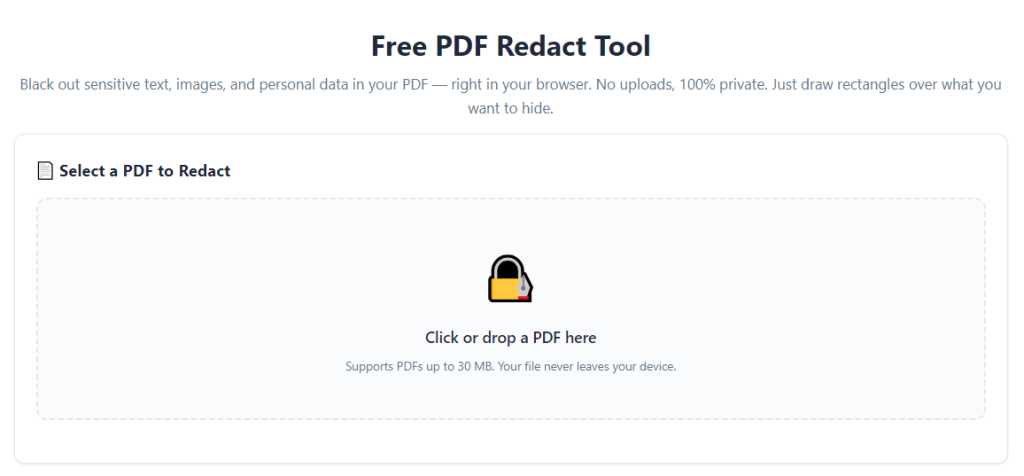
After learning the operation method, click the link below to enter the tool page for immediate use.