Working with digital documents and presentations is a daily task for students, office workers, educators and content creators across all industries. PDF files are reliable for sharing static content, thanks to their consistent formatting across every device and platform. Yet when you need to turn a PDF report, study material or manual into a dynamic presentation, the process can become frustrating.
Most basic conversion tools add large, distracting watermarks across every slide. These branded marks ruin the look of professional presentations and make school projects appear unpolished. Many tools also lock full conversion features behind paid subscriptions, forcing users to pay just to remove simple branding elements.
Manual copying and pasting content from PDF to PPT takes hours. You will spend time reformatting text, adjusting images and rearranging layouts, only to end up with messy, inconsistent slides. This old method wastes valuable time and often delivers low-quality results.
A reliable free PDF to PPT converter no watermark fixes all these common issues. It transforms static PDF files into fully editable PowerPoint slides, with zero added logos, text overlays or branding marks on your final work. This guide covers the flaws of standard converters, key advantages, essential features, real-world use cases and a detailed step-by-step guide to get the best results every time.
Common Problems With Regular PDF to PPT Converters
Before you start using a watermark-free tool, it helps to understand why standard conversion options fall short for personal and professional use. These issues affect casual users and business teams alike.
Unavoidable branded watermarks
The biggest complaint about basic converters is permanent watermarks. These labels cover text, images and key content on each slide. For classroom presentations, client meetings or company events, these marks look unprofessional and distract your audience from your main message.
Limited free functionality
Many platforms offer only partial conversion for free users. You might convert just a few pages at a time, or lose access to layout and image retention features. Full document conversion always requires a paid upgrade.
Broken formatting after conversion
Low-quality tools mess up original layouts. Text shifts out of place, images disappear or resize incorrectly, and bullet points turn into plain text. You end up spending extra time fixing every slide manually.
Slow processing speed
Some online converters take a long time to load and process files, especially longer PDFs. Waiting around for minutes or even longer disrupts your workflow when you have tight deadlines to meet.
File size and page restrictions
Free tiers often set strict limits on file size and total pages. Large reports, long textbooks or detailed guides cannot be converted in one go, forcing you to split files and combine slides later.
Privacy concerns for sensitive files
Many generic converters upload your files to external servers permanently. If you work with confidential business data, internal reports or private study materials, this creates unnecessary data security risks.
Core Benefits of Free PDF to PPT Converter No Watermark
Switching to a free PDF to PPT converter no watermark upgrades your entire document workflow. Every feature is built to deliver clean, usable presentations without hidden costs or annoying branding.
Fully watermark-free output
The most important advantage is completely clean slides. No logos, no text overlays and no brand labels appear anywhere on your converted PPT files. Your content stays the main focus for any presentation scenario.
100% free for all core functions
All conversion tools remain free to use. You do not need to sign up for plans, enter payment details or unlock premium tiers to convert full PDF documents into PowerPoint slides. There are no hidden fees at any stage.
Preserves original layout and design
Top tools keep your original formatting intact. Font styles, text alignment, images, tables, charts and bullet points all transfer over accurately. This cuts down massive amounts of reformatting work after conversion.
Creates fully editable slides
Converted files are not locked or read-only. You can edit text, move images, change colors, add animations and rearrange slides directly in PowerPoint. Full editability makes it easy to customize presentations for your needs.
Handles various file sizes and page counts
A quality free PDF to PPT converter no watermark works with short documents and lengthy multi-page files. You can convert full reports, textbooks, lecture notes and large guides in a single process.
Fast and efficient file processing
Conversion happens within seconds or a few short minutes, even for larger files. You do not need to wait through long loading screens, so you can finish tasks and move on to other work quickly.
Simple interface for all skill levels
You do not need technical knowledge to operate the tool. The layout is straightforward, with clear buttons and simple settings. Beginners and experienced users can complete conversions with zero confusion.
Must-Have Features in a Top Free PDF to PPT Converter No Watermark
Not all watermark-free conversion tools offer the same performance. When choosing your go-to tool, look for these practical features that separate high-quality options from basic alternatives.
Accurate layout retention
This feature ensures every visual element transfers correctly. Tables, graphs, embedded images and styled text should match the original PDF exactly. Poor layout support creates extra editing work after conversion.
Batch and full-page conversion support
The tool should let you convert an entire PDF file in one click. The ability to select specific page ranges is also useful, if you only need certain sections for your presentation.
Multiple output format compatibility
While your main goal is PPT conversion, extra support for related presentation formats adds flexibility. You can save files to standard PowerPoint formats that work on all desktop and mobile applications.
Secure local file processing
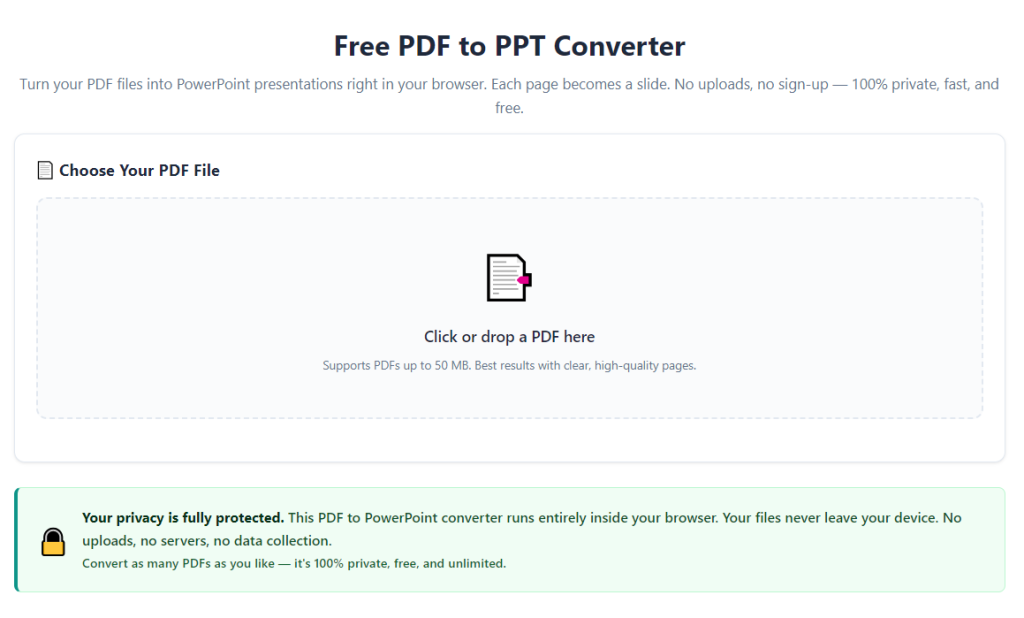
The best tools prioritize user privacy. They process files locally instead of storing your documents on remote servers. This keeps sensitive business, academic and personal data safe at all times.
Drag-and-drop file upload
A drag-and-drop function speeds up the upload process. Instead of browsing through multiple folders manually, you can simply drag your PDF file into the tool window to start working.
Basic preview function
A built-in preview lets you check pages before and after conversion. You can spot obvious formatting issues early and adjust settings to get better results.
Cross-device accessibility
A reliable converter works smoothly on desktop computers, laptops and common mobile devices. You can convert files whether you are working from an office, classroom or while traveling.
Common Use Cases for Free PDF to PPT Converter No Watermark
A free PDF to PPT converter no watermark serves a wide range of users and scenarios. From education to business, this tool streamlines work for anyone who turns PDF content into presentations.
Student school presentations
Students regularly use PDF lecture notes, textbooks and research papers for class presentations. A watermark-free converter creates clean slides for class talks, group projects and thesis defenses. Professional-looking slides help make a strong impression on instructors.
Teacher and educator lesson slides
Educators often convert PDF lesson plans, reading materials and study guides into classroom presentations. Clean, unmarked slides keep students focused on learning content instead of distracting watermarks. Teachers can also edit slides easily to match different class levels.
Office and business meetings
Employees convert PDF reports, sales documents, project briefs and company guides into presentation slides for team meetings and client calls. Watermark-free PPT files maintain a professional brand image during important business discussions.
Conference and event presentations
Speakers at workshops, seminars and industry events frequently work from PDF reference materials. Converting these files into polished slides ensures presentations look sharp on large screens and for large audiences.
Freelancer and client work
Freelancers in marketing, design and consulting often create presentations for clients. Using a free PDF to PPT converter no watermark means delivering clean work without third-party branding, which keeps clients satisfied and maintains your professional reputation.
Personal and hobby presentations
For community events, club meetings or personal hobby sharing, users convert PDF articles and guides into simple slides. No watermarks keep casual presentations neat and easy to follow for friends and group members.
Internal company training materials
HR teams and department leaders convert PDF training manuals into slide decks for employee onboarding and skill training. Clean slides make training sessions clear and easy to follow for all new and existing staff.
Step-by-Step Guide: How to Use Free PDF to PPT Converter No Watermark
Follow this simple, actionable workflow to convert any PDF into a fully editable, watermark-free PowerPoint presentation. These steps work for all file sizes and document types.
Step 1: Prepare your source PDF file
First, locate the PDF file you want to convert. Check the document for any final edits you need to make before conversion. Fix typos, adjust images or remove unnecessary pages to save time later.
If you only need specific pages from a large PDF, note down the page numbers. Many tools let you select custom page ranges during the conversion process.
Step 2: Launch the conversion tool
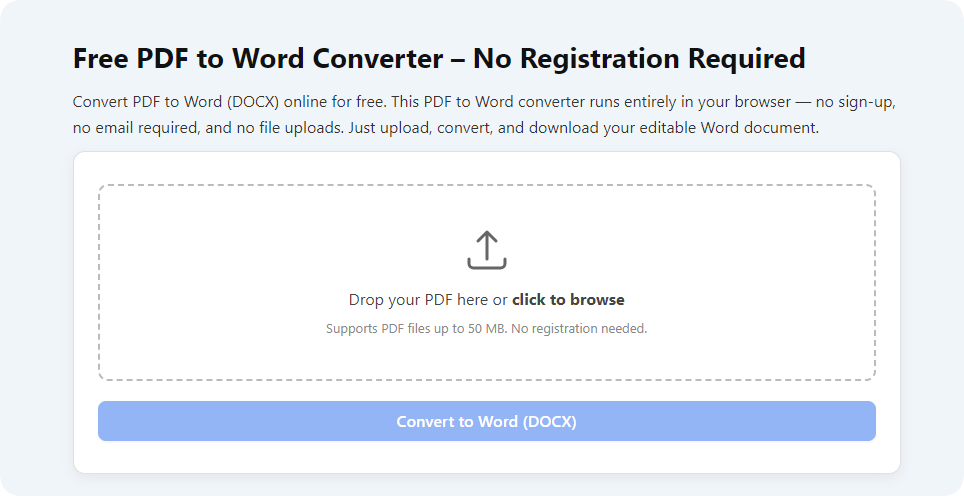
Open your chosen free PDF to PPT converter no watermark in your browser or desktop application. The main screen will show a clear upload area, with no confusing pop-ups or paid upgrade prompts.
Take a quick moment to review the main settings. Locate upload options, page selection tools and output format choices before adding your file.
Step 3: Upload your PDF file
Use the drag-and-drop feature to move your PDF into the upload zone. Alternatively, click the upload button and browse your device folders to select the document.
Wait a few seconds for the file to finish uploading. Larger files will take slightly longer, but the process remains fast on all standard internet connections.
Step 4: Adjust conversion settings
Once your file is uploaded, open the settings panel. Confirm you have selected PowerPoint or PPT as your target output format.
If you do not need the entire document, choose the custom page range option and enter your start and end page numbers. Leave this setting on full document if you want every page converted.
Keep layout retention enabled. This critical setting preserves your original fonts, images and structure to minimize post-conversion edits.
Step 5: Start the conversion process
Double-check all settings to make sure they match your needs. When everything is ready, click the convert button to begin processing.
The tool will work through your PDF page by page. A simple progress bar lets you track how much of the process is complete. Do not close the window while conversion is running.
Step 6: Preview the converted slides
After conversion finishes, use the built-in preview tool to view your new PPT slides. Scroll through each page and check for layout errors, missing images or shifted text.
If you spot major issues, go back and adjust your settings or re-upload the original PDF file to run the process again.
Step 7: Download the watermark-free PPT file
Once you are happy with the preview results, click the download button to save your presentation file to your device.
The downloaded file is completely free of watermarks, logos and extra branding. It is fully compatible with all standard PowerPoint software.
Step 8: Open and edit your presentation
Locate the downloaded file on your device and open it in your PowerPoint program. Start making custom edits to fit your presentation goals.
You can add titles, animations, transitions, extra notes or new images. Rearrange slides to adjust the flow of your presentation for your audience.
Step 9: Finalize and use your presentation
Complete all final formatting and design work. Check for small typos or alignment issues one last time.
You can now use the presentation for classes, meetings, events or client work. Save a final version to your device or cloud storage for future use.
Common Mistakes to Avoid When Using PDF to PPT Conversion Tools
Even with a reliable free PDF to PPT converter no watermark, small mistakes can ruin your final presentation quality. Keep these pitfalls in mind to get perfect results every time.
Uploading corrupted or damaged PDF files
A broken PDF will lead to incomplete conversion, missing content or distorted slides. Always open and test your source file first to confirm it works properly before uploading.
Disabling layout retention
Turning off layout settings will make text and images shift randomly. Always keep layout retention active unless you plan to rebuild every slide from scratch.
Converting overly complex layered files
PDFs with heavy graphics, overlapping elements or rare font types may not convert perfectly. Simplify complex design elements in the original PDF first for cleaner results.
Ignoring page range settings
Converting an entire large file when you only need a few pages creates extra work. Always set custom page ranges to keep your presentation concise and focused.
Skipping the preview step
Downloading files without previewing can leave you with hidden errors. A quick check saves you from redoing full conversions later.
Saving files to unknown folders
Always select a clear, easy-to-find download location. Losing your converted PPT file wastes time and forces you to run the conversion a second time.
Pro Tips to Maximize Results From Free PDF to PPT Converter No Watermark
Use these practical tips to streamline your workflow and create higher-quality presentations with your watermark-free conversion tool.
Always compress extra-large PDF files before uploading. Smaller files upload faster and convert more smoothly without losing content quality.
Group related PDF documents together if you need multiple presentations. Process them one after another to maintain consistent formatting across all slide decks.
Keep a backup of your original PDF file. This lets you re-convert pages if you accidentally edit or delete content from your PPT slides.
Match slide design to your audience after conversion. Use the clean watermark-free base to add branded colors, logos and themes for business or school use.
Test converted files on different devices before important presentations. This ensures slides display correctly on projectors, laptops and large screens.
Regularly clear your upload history if you work with confidential files. This adds an extra layer of privacy for sensitive business and personal documents.
Learn basic PowerPoint editing shortcuts to speed up post-conversion tweaks. A fast editing routine pairs perfectly with quick PDF to PPT conversion.
Final Thoughts
Converting PDF documents into professional PowerPoint presentations no longer requires expensive software or low-quality tools covered in watermarks. A free PDF to PPT converter no watermark is a practical, affordable solution for students, educators, office teams, freelancers and anyone who works with digital presentations.
Manual copying and reformatting is slow and inefficient. Standard converters ruin your work with distracting branding and hidden paywalls. A dedicated watermark-free converter eliminates all these problems, delivering clean, editable slides at no cost.
This tool balances speed, accuracy, privacy and ease of use for every type of project. Whether you build simple classroom slides or polished business presentation decks, it maintains your original content and layout without adding unwanted marks.
By following the step-by-step process and avoiding common mistakes, you can turn any PDF into a high-quality PowerPoint presentation in minutes. Add this tool to your daily workflow to save time, improve presentation quality and keep all your digital content looking professional.
After learning the operation method, click the link below to enter the tool page for immediate use.