QR codes are widely used for sharing links, contact details, payment information and document access in both personal and professional work.
Most traditional QR scanning solutions for desktop devices require downloading and installing dedicated applications. These programs take up storage space and add unnecessary setup steps.
Many users also feel uneasy about installing unknown third-party software on their PCs, due to potential security risks and frequent pop-up notifications.
A reliable QR code decoder without app for PC solves these common headaches. It runs fully inside your desktop browser and works without any local software installation.
This detailed guide explains the downsides of desktop QR apps, core advantages of browser-based tools, key features, daily use cases and a full step-by-step operating guide for PC users.
Drawbacks of Installing Dedicated QR Code Apps on PC
Standard desktop QR code applications were once the only choice for scanning codes on computers, but they come with a long list of noticeable disadvantages.
Occupies valuable local storage space
Every installed program takes up hard drive or solid state drive space. Multiple small apps gradually slow down overall system performance over time.
Complicated installation and update processes
Downloading setup files, following installation wizards and completing post-install configurations eat up extra time. Regular version updates also create repeated interruptions.
Potential security and privacy concerns
Some little-known QR apps request broad system permissions during setup. This raises worries about unauthorized data access and hidden background activities.
Automatic pop-ups and annoying notifications
Many desktop QR tools launch automatically on startup or send frequent reminders. These distractions disrupt focused work and browsing sessions.
Compatibility issues across different desktop systems
Certain QR applications only support specific system versions. They may fail to launch or crash unexpectedly on older or customized PC operating environments.
Key Benefits of QR Code Decoder Without App for PC
Switching to a browser-based QR code decoder without app for PC creates a lighter, safer and more efficient workflow for all your desktop QR scanning tasks.
Zero downloads and local software installation
The entire tool operates within your regular desktop browser. You never need to run setup files or store extra programs on your computer’s local drive.
Saves system resources and storage space
Since no application runs in the background, your PC maintains faster response speeds. All storage space stays free for your important files and main software.
Enhanced security with limited permission access
Browser-based decoders only access content you manually upload. They cannot scan local folders or run hidden processes, which greatly reduces security risks.
Automatic updates without user action
All function upgrades and bug fixes apply to the tool remotely. You always use the latest stable version without manually downloading update packages.
Full compatibility with all mainstream desktop browsers
It works seamlessly on every popular browser used on PCs. You can stick to your preferred browsing software with no need to switch or adjust settings.
Instant access anytime with simple bookmarks
Save the tool page to your browser bookmarks, and you can open it with one click whenever you need to decode QR codes on your desktop device.
Essential Features for a Quality QR Code Decoder Without App for PC
When selecting a dependable QR code decoder without app for PC for daily desktop use, focus on these practical and user-friendly core features.
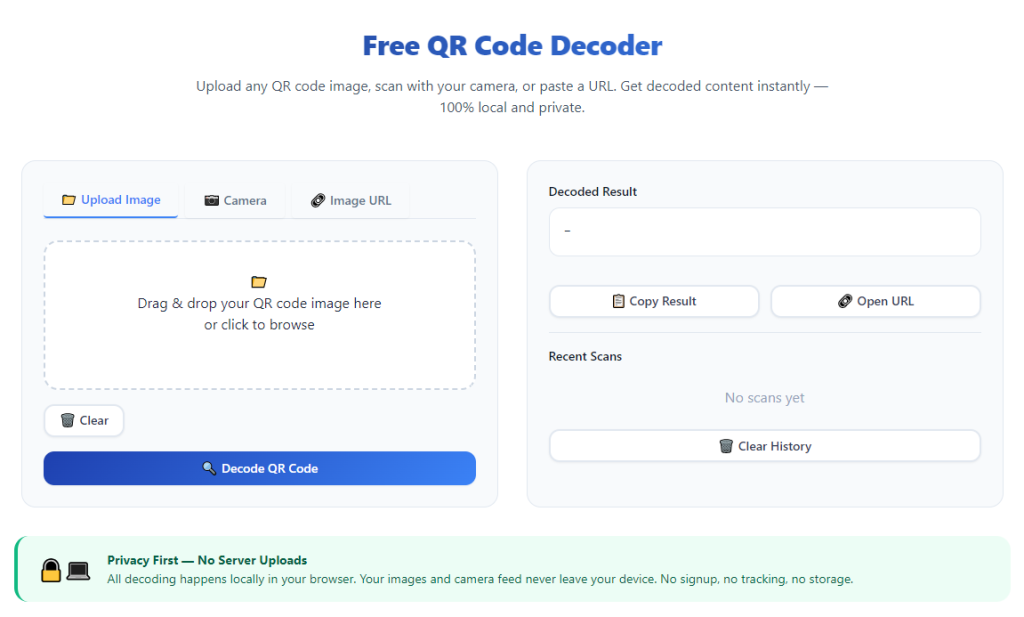
Local image upload support for saved QR files
Most QR codes used on PCs exist as saved picture files. A solid tool lets you browse folders and upload images directly for quick decoding.
Desktop webcam scanning for physical QR codes
Built-in camera support connects to your PC webcam. You can scan printed QR codes, labels and documents in real time without switching to a mobile phone.
Support for all common image file formats
It accepts standard picture formats captured from screenshots, scanners and digital cameras. No extra file conversion is required before starting decoding.
Clear result display with full content preview
All decoded text, links and symbols appear neatly on screen. You can read complete embedded information at a glance with no messy formatting errors.
One-click copy function for decoded content
A dedicated copy button moves results straight to your clipboard. This makes it easy to paste links and text into documents, emails or browser address bars.
Lightweight design for fast loading on PC browsers
The streamlined interface loads in seconds even on standard network connections. You will not face long waiting times before starting your scanning work.
Common Usage Scenarios for No-App QR Code Decoder on PC
A fully functional QR code decoder without app for PC fits a wide range of personal, office and online tasks completed on desktop computers every day.
Decoding QR screenshots from web pages
When you capture QR codes directly from websites on your PC, use the browser-based tool to decode screenshots instantly. No extra software is needed for quick checks.
Reading QR images downloaded from emails and chats
Colleagues, friends and clients often share QR codes via messages or email. Upload these downloaded images to get full content right on your desktop.
Scanning printed QR documents in the office
Use your PC webcam to scan paper flyers, business cards and printed forms with QR codes. This is convenient for daily office administration and customer work.
Processing QR codes from scanned files and archives
Digital archives and scanned paperwork frequently include QR patterns for file indexing. The no-app decoder keeps your document management workflow smooth.
Verifying links from promotional QR codes
Before opening unknown web addresses from QR codes, decode them first on your PC. This simple step helps you avoid unsafe or suspicious online content.
Personal file and note management with QR codes
Many users store file paths and short notes inside QR codes for easy lookup. A browser-based decoder lets you access this information quickly on your main desktop device.
Step-by-Step Guide: Use QR Code Decoder Without App for PC
Follow this simple workflow to operate a QR code decoder without app for PC and finish all QR decoding tasks smoothly on your desktop computer.
Step 1: Prepare your QR code content
Locate the saved QR image file on your PC folders, or get ready to scan a physical QR code with your desktop webcam.
Check the image quality briefly. Clear, complete patterns will ensure fast and accurate decoding results every time.
Step 2: Open the decoder in your desktop browser
Launch your usual PC browser and open the QR decoder page. The full interface will load quickly with no installation prompts or extra setup steps.
Take a moment to identify the two main functions: file upload for saved images and webcam scan for physical QR codes.
Step 3: Choose your preferred working mode
Select the upload option if you are working with picture files stored locally on your computer.
Pick the webcam scan mode if you plan to capture printed QR codes, stickers or documents in real time.
Step 4: Import or capture the QR code
For file upload: Click the browse button, navigate to your target folder and select the QR image file to import.
For webcam scan: Allow temporary camera permission when prompted. Align the QR code inside the on-screen frame and hold steady for capture.
Do not refresh or close the browser tab while the tool processes your selected or captured content.
Step 5: Wait for automatic decoding
Once the QR code is imported or captured, the tool starts analyzing the pattern automatically.
The whole process only takes a few seconds. No manual adjustments or extra clicks are required during calculation.
Step 6: View and verify decoded results
After processing finishes, all embedded data will display in the result area. Read through links, text or contact information carefully.
Confirm all characters and details are complete and readable before moving on to your next task.
Step 7: Copy results or start a new task
Click the copy button to save decoded content to your clipboard for use in other programs, browsers or documents.
Use the reset button to clear the current session, so you can decode another QR code right away without restarting the page.
Common Mistakes to Avoid During PC QR Decoding
Even with a user-friendly QR code decoder without app for PC, small operating errors can lead to failed scans or incomplete data extraction.
Granting unnecessary browser permissions
Only allow camera access when you plan to use the webcam scan mode. Deny other unrelated permissions to keep your desktop environment secure.
Uploading heavily corrupted or over-cropped images
Images with missing key QR markers or extreme cropping cannot be decoded properly. Keep a small clear border around the QR pattern before upload.
Moving the object or camera during webcam scanning
Shaky movement creates blurry frames. Keep both your PC and the physical QR code steady until the scan process fully completes.
Uploading multiple QR images in one single session
Most standard browser decoders process one file at a time. Uploading several images together will cause recognition errors.
Using extremely low-resolution picture files
Over-compressed or tiny images lose pattern details. Use original quality files whenever possible for reliable decoding performance.
Practical Tips to Improve PC Decoding Efficiency
These simple tips help you make the most of QR code decoder without app for PC and streamline your daily desktop QR scanning routine.
- Add the decoder page to your browser bookmarks for one-click access, so you can launch it instantly whenever you need to read QR codes.
- Organize your QR image files into dedicated folders on your PC. This speeds up file browsing and selection during upload steps.
- Adjust room lighting before using the webcam mode. Soft, even light prevents shadows and improves real-time scanning accuracy.
- Close unused browser tabs while decoding to free up system resources, especially on older desktop computers.
- Double-check decoded web links before visiting them, to stay safe while browsing unfamiliar online destinations.
- Clear your browser cache occasionally if you notice slow loading, to keep the decoder running smoothly long-term.
Final Thoughts
QR code scanning is a frequent task for modern desktop users, whether for work communication, file management or daily online browsing.
Traditional standalone QR applications bring extra installation work, storage burden and ongoing security concerns for PC owners.
A well-built QR code decoder without app for PC eliminates all these drawbacks. It delivers fast, safe and convenient QR decoding purely through your desktop browser.
With dual upload and webcam modes, full format support and automatic remote updates, this tool adapts perfectly to all kinds of desktop usage habits.
By following the step-by-step process and practical tips shared above, you can handle all QR code tasks on your PC easily, with no software downloads required at all.
After learning the operation method, click the link below to enter the tool page for immediate use.