PDF documents are everywhere for personal, student, freelance and business work. Contracts, research papers, client drafts, resumes and confidential notes all need protection against unauthorized copying or redistribution.
Text watermarks act as a simple, effective security layer. Custom text marks like draft labels, brand names, copyright statements or confidential tags stop people from sharing your unapproved files without credit.
Most people assume they need heavy desktop editing suites to add these marks. Large PDF editors take storage space, require setup, and often carry paid subscription fees just for basic watermark features.
If you only need to add a simple text overlay once in a while, downloading full software is a massive waste of time and device storage. This is where learning how to add text watermark to PDF without software becomes an essential skill for all document creators.
This thorough guide covers every no-software workflow for PDF text watermarking, breaks down the flaws of desktop PDF tools, lists all critical benefits of software-free workflows, shares common real-world use cases, and delivers a detailed step-by-step walkthrough for both browser-based and native system built-in methods.
Common Downsides of Installing PDF Software Just For Watermarks
Before diving into how to add text watermark to PDF without software, it helps to understand why local desktop tools create unnecessary hassle for basic watermark tasks.
Large storage and installation overhead
Full PDF editing software packages take up significant hard drive space. Even lightweight desktop tools require setup wizards, update packages, and background processes that slow down laptops and desktops over time.
Mandatory paid tiers for basic watermark functions
Many popular PDF editors lock text watermark tools behind premium subscriptions or one-time purchase fees. Casual users who only need occasional marking cannot justify recurring charges for a single small feature.
Compatibility issues across device operating systems
Software built for one operating system often fails to run on others. If you switch between different device types, you must find separate installation files for each machine to access the same watermark feature.
Risk of bloatware and hidden bundled programs
Free downloadable PDF tools frequently attach extra browser extensions, system cleaners, or advertising programs during installation. These hidden add-ons clutter your device and compromise browsing privacy.
Slow launch times for one-off quick edits
Opening a full PDF editor just to stamp a short text watermark creates unnecessary waiting. Launching large software, loading file libraries, and navigating complex menus delays fast document security tweaks.
Core Advantages When You Add Text Watermark To PDF Without Software
Mastering the workflow to add text watermark to PDF without software eliminates every pain point tied to downloadable PDF editors, while delivering fully functional text marking results for all your documents.
Zero storage space consumption on your device
No install files, program folders, or background services take up hard drive memory. All watermark processing happens either through your default web browser or native built-in system tools that already exist on your machine.
100% free access to core text watermark features
Software-free PDF watermark methods do not lock basic customization behind paywalls. You can adjust text font, size, transparency, placement and repetition without unlocking premium tiers.
Full cross-device compatibility
Every workflow to add text watermark to PDF without software works on all standard device types. Laptops, tablets and even mobile browsers support browser-based PDF marking with identical functionality.
No setup, updates or maintenance required
There are no program updates to download, no patch installations, and no troubleshooting broken software builds. The tools you use to stamp text watermarks stay ready to use every time you open your browser or native document viewer.
Quick single-click processing for urgent documents
When you have last-minute PDF files to secure before sharing, software-free workflows cut editing time drastically. You skip long software launch sequences and jump straight to uploading or opening your target PDF.
No risk of unwanted bundled bloatware
Since you avoid third-party downloadable programs entirely, you eliminate exposure to hidden advertising tools, tracking extensions and unnecessary system modifications during installation.
Customizable professional text watermark outputs
Contrary to common misconceptions, methods to add text watermark to PDF without software support full text customization. You can create faint semi-transparent draft stamps, bold copyright text, repeated diagonal confidential labels and centered brand signatures matching professional desktop editor quality.
Must-Have Customization Features For Software-Free PDF Text Watermarking
When choosing a workflow to add text watermark to PDF without software, confirm your chosen method supports these critical customization options to produce polished, secure PDF files every time.
Adjustable text content input
You must be able to type fully custom text strings. Common examples include “Draft Copy”, “Confidential Internal Use”, copyright year labels, personal brand names, or client-specific document tags for business files.
Transparency opacity sliders
Fully functional software-free tools let you lower text opacity. Faint semi-transparent watermarks sit neatly behind primary PDF content without covering readable text on reports and contracts.
Multiple placement layout options
Look for workflows that support centered page marks, diagonal repeated text, bottom footer stamps, top header labels, and single-corner text placement for flexible document styling.
Font and size modification controls
Custom font selection and text resizing keep your watermark consistent with your brand visual identity. You can pick bold formal fonts for corporate PDFs and simple clean fonts for personal academic documents.
Repeat tile watermark mode
The tile repeat function spreads your custom text across every page of the PDF in a diagonal grid pattern, creating maximum protection against full-page screenshot copying for sensitive materials.
Multi-page PDF batch support
Quality no-software workflows process full multi-page files in one session, applying identical text watermarks to every page instead of forcing you to split PDFs and mark single pages individually.
Instant download of new watermarked PDF
After finishing text customization, the workflow must generate a new downloadable PDF file without embedded logos or forced branding overlays added by browser-based tools.
Real-World Use Cases to Add Text Watermark To PDF Without Software
The skill to add text watermark to PDF without software fits a huge range of personal, student, freelance and small-business document workflows, covering nearly every scenario where PDF security labeling is required.
Student research paper and thesis drafts
Learners regularly share unfinished research drafts with advisors and peers. Adding a “Draft – Not Final Submission” text watermark prevents unapproved versions from being circulated as complete academic work.
Freelance writer and designer sample portfolios
Creative professionals send PDF portfolios to potential clients. A text watermark carrying your brand name or “Sample Work Do Not Distribute” protects original creative content from unauthorized reuse without payment.
Small business client contracts and quotes
Local service businesses distribute PDF price quotes, service agreements and preliminary contracts. Confidentiality text watermarks limit sharing sensitive pricing and client personal data with outside parties.
Internal company meeting documents and memos
Team leaders circulate internal strategy PDFs, meeting notes and planning spreadsheets converted to PDF format. Internal-use-only text stamps block external stakeholders from accessing private company data.
Personal resume and application PDF files
Job seekers send formatted PDF resumes to hiring teams. A subtle name or “For Interview Review Only” text watermark prevents resumes from being repurposed for unknown third-party applications.
Copyright-protected e-book excerpts and writing samples
Authors share short PDF previews of novels, essays and nonfiction manuscripts with publishers. Copyright statement text watermarks stop full unauthorized reproduction of unpublished written work.
Real estate and legal draft document sharing
Agents and paralegals pass preliminary legal forms, property disclosure sheets and draft agreements back and forth. Draft labeling text watermarks avoid confusion between unfinished drafts and fully executed final legal paperwork.
Step-by-Step Guide: Two Primary Methods to Add Text Watermark To PDF Without Software
Two reliable, widely accessible workflows let you add text watermark to PDF without software: browser-based online native tools (no downloads) and built-in operating system document editors. Both require zero third-party software installation.
Method One: Browser-Based Online Tool Workflow (All Devices)
This method works on any laptop, tablet or mobile device with a standard web browser, no desktop programs required.
Step 1: Prepare your target PDF file
Locate the PDF you plan to mark with text watermarks on your device storage. Make a quick duplicate copy of the original unmarked file to preserve a clean backup before editing.
Step 2: Open your default web browser
Launch any standard browser installed on your device. No specialized PDF viewing software or editing suites need to be downloaded ahead of time.
Step 3: Locate a native browser PDF processing tool
Access a standard online PDF editor that supports text watermarking functions. These tools run fully inside your browser tab with no background software installs.
Step 4: Upload your source PDF file
Use the upload button on the tool interface to select and import your PDF. Large multi-page documents upload smoothly without file size restrictions for standard personal and small-business files.
Step 5: Navigate to the text watermark feature
Find the dedicated watermark menu inside the editing dashboard, then select the text watermark option instead of image-based stamp overlays. This is the core step to add text watermark to PDF without software.
Step 6: Input your custom watermark text
Type your desired label into the text input box. Examples include confidential disclaimers, draft markers, brand names or copyright lines tailored to your document’s purpose.
Step 7: Customize all visual watermark settings
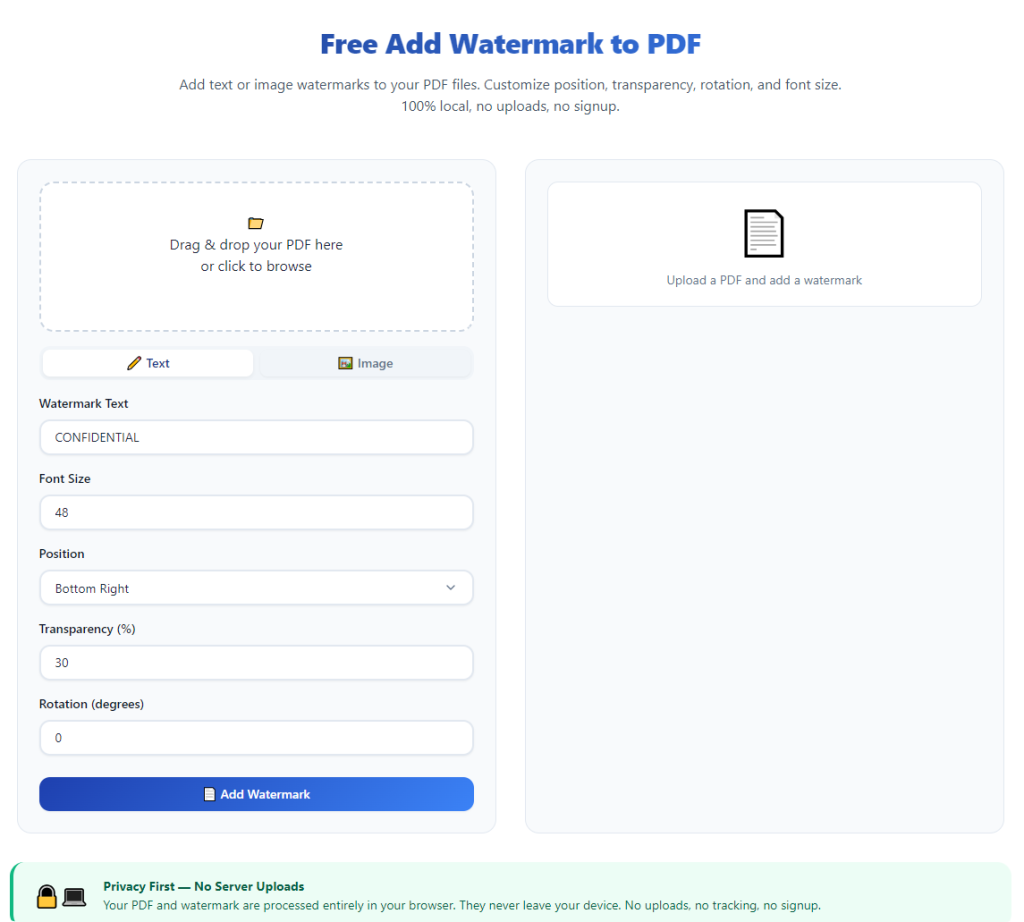
Adjust font style, text size, color transparency, page placement and repeat tile mode to match your security and aesthetic preferences. Preview changes live on the PDF page sample.
Step 8: Apply watermark to full PDF pages
Select the apply all pages toggle to stamp identical text marks across every sheet in your multi-page document. Confirm the preview window displays consistent text placement across page samples.
Step 9: Generate and download the new watermarked PDF
Click the process or export button to render a brand-new edited PDF file. Save the downloaded file to your device storage for sharing, printing or further document distribution.
Step 10: Verify finished watermark results
Open the newly downloaded PDF in your default viewer to double-check text visibility, transparency and placement across all pages before sending the file to recipients.
Method Two: Native Operating System Built-In Editor Workflow (No Browser Tools Needed)
This second workflow uses document viewers preinstalled on your device, requiring zero browser access or third-party online tools to add text watermark to PDF without software.
Step 1: Locate and open your PDF with the native default viewer
Right-click your PDF file and select your device’s pre-built document viewer as the opening program. This tool comes preloaded with your operating system, no extra downloads required.
Step 2: Access the markup or edit menu inside the viewer
Open the top navigation bar’s tools tab and locate markup, annotate or edit functions built directly into the native viewer interface.
Step 3: Select text overlay or stamp creation tool
Choose the text annotation function to generate a reusable stamp that acts as a permanent text watermark for the full PDF file.
Step 4: Create your reusable custom text stamp
Type your desired watermark text, adjust font, opacity and sizing settings, then save the stamp preset to reuse it for future PDF files without retyping labels.
Step 5: Apply the text stamp across all document pages
Use the repeat or batch apply function to place your custom text stamp uniformly on every page of the open PDF file. Adjust diagonal tile repeat for full background watermark coverage.
Step 6: Export the modified file as a new PDF
Select the export, save as or print-to-PDF function from the file menu to generate a separate edited document with embedded permanent text watermarks. Avoid overwriting your original unmarked source file.
Step 7: Store the finished watermarked PDF separately
Save the exported edited PDF to a dedicated folder for shared documents, and keep your untouched original PDF stored separately for future unmarked use if needed.
Common Mistakes to Avoid When You Add Text Watermark To PDF Without Software
Even with straightforward no-software workflows, these frequent errors ruin document quality or reduce the security effectiveness of your PDF text watermarks.
Using overly opaque bold text that blocks core PDF content
If you set text transparency to 100% solid black or dark font, your watermark covers charts, paragraphs and tables on the PDF. Readers cannot view critical document details clearly through heavy unfiltered text marks.
Forgetting to create a backup of the original unwatermarked PDF
Many users overwrite their source file directly after adding text watermarks. Once permanent text stamps embed into the PDF layers, removing them without specialized editing becomes extremely difficult.
Applying unique uneven text placement across separate pages
Skipping the “apply to all pages” setting creates inconsistent marking. Some pages carry centered text, others corner stamps, creating an unprofessional disjointed look for formal business or academic PDFs.
Using overly short generic text labels with weak security value
Simple single-word marks like “Draft” offer minimal protection against unauthorized reuse. Longer specific text including brand names or full confidentiality disclaimers deliver far stronger document protection.
Ignoring tile repeat mode for highly sensitive confidential files
Single-corner or single-center text watermarks are easy to crop out of PDFs with basic cropping tools. Repeated diagonal tile text patterns cover the full page and prevent simple cropping workarounds.
Selecting incompatible font sizes that shrink unreadably on small PDF pages
Oversized text crowds compact single-page resumes or short forms, while tiny font sizes become invisible when recipients zoom out to view full document previews on mobile screens.
Relying on temporary annotation text instead of embedded permanent watermarks
Native viewer temporary markup text only appears when opening the file in the same editor. Recipients using alternate PDF readers will not see the text stamp, eliminating all security benefits entirely.
Pro Tips to Get Perfect Results When You Add Text Watermark To PDF Without Software
These actionable expert tactics boost the quality, security and visual polish of every PDF file you mark using software-free text watermark workflows.
- Bookmark your preferred browser-based PDF tool for instant one-click access whenever you need to add text watermark to PDF without software for last-minute document edits.
- Save multiple preset text stamp templates with distinct transparency and placement settings for separate use cases (client contracts, student drafts, internal team memos).
- Always test your finished watermarked PDF on both desktop and mobile viewers before sharing, to confirm text visibility scales properly across all screen sizes.
- Mix subtle low-opacity tile text watermarks with a single bold corner copyright label for layered security that resists cropping and screenshot removal attempts.
- Avoid overly long paragraphs of watermark text; concise short phrases keep the overlay unobtrusive while retaining clear security messaging for readers.
- Batch process multiple related PDF files in one browser session to apply matching uniform text watermarks across an entire folder of documents for consistent branding.
- Adjust text color to light gray instead of pure black for semi-transparent background marks; light gray blends gently with text and graphics without distracting readers.
- If you regularly reuse identical confidentiality labels, save your custom text stamp preset inside your native system viewer to cut down repeated typing and customization work.
Final Thoughts
Text watermarks remain one of the most accessible, affordable ways to secure all types of PDF documents against unauthorized copying, sharing and unapproved redistribution.
Downloading heavy paid or free PDF editing software solely for this single marking task wastes valuable device storage, creates setup maintenance work and exposes users to unwanted bundled add-on programs.
Learning reliable methods to add text watermark to PDF without software removes all these unnecessary barriers. Browser-based online processing and native preinstalled system editors deliver fully customizable, permanent text watermark embedding with zero installation steps, zero subscription fees and zero storage overhead.
These software-free workflows match the customization power of premium desktop PDF tools, supporting adjustable transparency, tile repeating, font styling and full multi-page batch processing for personal, academic and commercial document needs.
By following the two detailed step-by-step workflows above, avoiding common watermarking mistakes, and applying the professional optimization tips shared in this guide, you can consistently produce clean, secure, branded PDF files in seconds without ever installing third-party PDF editing software on any of your devices.
After learning the operation method, click the link below to enter the tool page for immediate use.