Old printed snapshots, scanned film negatives, and decades-old digital camera shots almost always suffer from one identical flaw: extremely low resolution. These vintage photos hold irreplaceable personal memories, family milestones, and historical moments that users want to preserve and display clearly.
When you try to print, frame, or share these low resolution old photos online, every flaw becomes obvious. Pixelation, faded color layers, blurry facial features, and soft background detail ruin the visual impact of your most precious vintage imagery.
Many people attempt basic editing software to fix blurry old photos manually. Manual sharpening, brightness sliders, and basic crop tools cannot rebuild lost pixel data from low resolution source files. These makeshift edits only create harsh artificial grain without recovering genuine hidden detail.
A professional image upscaler for low resolution old photos eliminates all these frustrating limitations. Built specifically to analyze and reconstruct faded vintage imagery, this specialized tool recovers lost texture, smooths pixel blockiness, and boosts resolution without damaging the original nostalgic character of your old photos.
This complete practical tutorial breaks down the pain points of manual old photo editing, core advantages of dedicated resolution upscaling tools, must-have specialized features, real-world use cases, and a fully step-by-step workflow to restore any low resolution vintage image perfectly.
Common Problems With Low Resolution Old Photos & Manual Editing Fix Attempts
Vintage photographs carry sentimental value, yet their low native resolution creates persistent visual issues that regular editing tools cannot fully resolve.
Pixel blockiness after resizing
Scanned film rolls, early digital camera files, and small printed photo scans only contain a limited number of pixels. Any standard zoom or resize operation stretches these tiny pixels apart, creating blocky square artifacts across faces, landscapes, and fine details like hair or fabric patterns.
Faded, washed-out color depth
Aging paper prints and degraded film lose pigment over time. Manual color correction sliders can brighten images slightly, but they cannot restore natural layered tones unique to each era of old photography. Generic color filters often produce unnatural, oversaturated results that erase authentic vintage warmth.
Lost fine facial and background detail
Low resolution old photos compress delicate visual information. Wrinkles, jewelry details, handwriting on vintage cards, and distant background figures become indistinct blurs. Manual sharpening tools overemphasize harsh edges rather than reconstructing soft, natural hidden detail.
Time-consuming trial-and-error editing cycles
Restoring a single low resolution old photo via basic editing software takes dozens of adjustment rounds. Users tweak sharpness, contrast, saturation, and resize settings repeatedly with no guaranteed improvement. This lengthy process multiplies drastically when restoring full albums of family vintage snapshots.
Risk of permanent image damage
Over-sharpening, over-brightening, and forced resizing can permanently distort old photo texture. Once critical pixel layers become over-processed, you cannot revert the image back to its original subtle vintage state without retaining unedited backup copies.
Generic editing tools lack vintage photo training data
Standard image resizing software is built for modern high-definition digital photos. These programs do not recognize film grain, faded sepia tones, scan artifacts, or the unique texture characteristics found exclusively in low resolution old photos. Their algorithms fail to prioritize natural restoration over artificial crispness.
Core Advantages of Using an Image Upscaler for Low Resolution Old Photos
Integrating a specialized image upscaler for low resolution old photos into your memory restoration workflow delivers consistent, high-quality results that basic editors simply cannot match.
AI pixel reconstruction built for vintage media
Unlike simple stretch-resize functions, premium tools use trained models designed exclusively for aged, low-resolution imagery. The image upscaler for low resolution old photos analyzes patterns unique to film scans, faded paper prints, and early low-megapixel digital shots to generate entirely new natural pixel data instead of just stretching existing pixels.
Balanced clarity without erasing nostalgic vintage texture
Many generic photo enhancers over-sharpen and strip soft film grain to create overly artificial crispness. This dedicated upscaler separates unwanted pixel blockiness from intentional vintage grain. It clears blurriness while preserving subtle film texture that keeps old photos feeling authentic and timeless.
Automatic faded color and tone recovery
The tool detects washed-out sepia, monochrome, and muted color vintage palettes. It gently restores balanced saturation, midtones, and shadow depth without harsh neon color shifts common in generic photo filters. Every restored photo retains the soft tonal character matching its original time period.
Massive time savings for bulk photo restoration
Restoring an entire album of low resolution old photos manually can take full days of editing work. An image upscaler for low resolution old photos processes individual snapshots in seconds, and most platforms support batch uploads to restore dozens of vintage images in a single session. This cuts editing labor down by a huge margin for family archivists and hobbyists alike.
Multiple resolution output options for all use cases
After upscaling your low resolution old photo, you can export files at custom high-definition dimensions. Whether you need small web-shareable files, medium resolution digital gallery copies, or large print-ready sizes for framing, the tool generates matching optimized output without re-running full restoration cycles repeatedly.
Zero permanent alteration to original source files
All upscaling and restoration edits run on copied versions of your uploaded low resolution old photos. Your raw scanned vintage files remain untouched and stored separately, eliminating the risk of ruining one-of-a-kind irreplaceable family imagery during trial-and-error edits.
Accessible for casual users and professional archivists alike
No advanced photo editing training is required to operate this specialized upscaler. Simple one-click restoration presets cater to beginners, while advanced manual adjustment sliders give professional archivists precise control over grain, sharpness, and color balance for museum-quality vintage photo work.
Must-Have Specialized Features in a Quality Image Upscaler for Low Resolution Old Photos
Not all online photo enlarging tools include vintage-focused functionality. When selecting a reliable image upscaler for low resolution old photos, prioritize these tailored restoration features built specifically for aged low-definition imagery.
Vintage media AI training model toggle
Look for a dedicated preset labeled for old photos, film scans, and faded prints. This separate model prioritizes grain preservation, soft edge reconstruction, and sepia/monochrome tone correction, unlike general photo upscaler modes optimized for modern digital content.
Custom upscale multiplier controls
Adjustable scaling factors let users pick subtle 2x mild upscaling for minor blurriness fixes, or powerful 4x / 8x heavy resolution boosts for extremely pixelated tiny old snapshots. Flexible multipliers avoid over-processing photos that only need light clarity improvements.
Separate grain retention and pixel smoothing sliders
Top-tier tools split two critical restoration functions into independent controls. You can reduce ugly blocky pixel artifacts while dialing up or down natural film grain to match your preferred vintage aesthetic, rather than being forced into a single fixed balance.
Monochrome and sepia tone restoration module
Many low resolution old photos exist as black-and-white or sepia scanned prints. This dedicated module restores lost shadow detail in monochrome shots and brings back warm, balanced sepia pigment without adding unnatural color casts to vintage monochrome media.
Batch upload bulk processing support
Anyone restoring multiple family photo albums relies on batch functionality. The best image upscaler for low resolution old photos accepts multiple image uploads at once, applying identical vintage restoration settings to every low resolution old photo in your selected group to maintain consistent style across an entire collection.
Lossless high-resolution export formats
Restored upscaled old photos should save in lossless file types that preserve all recovered detail. Supported output options include standard high-quality formats suitable for printing, digital archiving, and social media sharing, with no automatic compression that re-introduces blurriness after editing completes.
Manual fine-tune adjustment panel
Beyond one-click auto restoration presets, a full adjustment panel delivers granular control. Users can tweak brightness, contrast, shadow recovery, color warmth, sharpness intensity, and grain visibility to refine results for uniquely damaged low resolution old photos with uneven fading or scan damage.
Real-World Use Cases for an Image Upscaler for Low Resolution Old Photos
This vintage resolution enhancement tool fits countless personal, hobby, and professional projects centered around restoring low resolution old photos for preservation and display.
Family memory album digital archiving
Most households store boxes of printed vintage photos, small polaroids, and early digital camera memory card files with very low native resolution. An image upscaler for low resolution old photos restores these snapshots to crisp high-definition digital copies for permanent cloud storage, eliminating the risk of physical print degradation over time.
Framed wall art and physical print production
Small, blurry low resolution old photos cannot produce sharp large-format prints for wall decor. Upscaling rebuilds enough pixel data to create clear, detailed poster-sized reproductions of wedding photos, childhood portraits, and multi-generational family group shots ready for professional framing.
Ancestry and genealogy research projects
Genealogists frequently work with tiny scanned historical portraits, newspaper clipping photos, and old census attached imagery at extremely low resolution. Upscaling reveals hidden facial features, text on vintage clothing, background landmarks, and handwriting critical for family tree research and historical documentation.
Social media memory sharing and digital scrapbooking
Users regularly share throwback vintage photos on social feeds, digital scrapbook pages, and online family groups. Low resolution old photos appear fuzzy and unappealing on screen feeds. Upscaled high-definition versions display clear detail on mobile and desktop platforms without pixel distortion.
Historical archive and museum volunteer restoration
Local history museums, community archives, and historical societies process large collections of donated vintage film scans and printed photos. Bulk batch upscaling streamlines restoration workflows to create high-resolution digital archive copies for public display and educational exhibits.
Vintage gift custom creation
Custom personalized gifts rely on clear photo imagery: custom mugs, canvas prints, photo calendars, and jewelry engraved with family snapshots. Low resolution old photos produce muddy, unreadable gift products until run through an image upscaler for low resolution old photos to boost clarity and detail.
Film reel and negative scan enhancement
Scanned 35mm film negatives, disposable camera rolls, and expired film scans often export at limited resolution with heavy grain and faded color. The vintage AI model reconstructs lost detail from film source files to create clean, vivid digital reproductions of analog old photography.
Step-by-Step Complete Workflow: How to Use an Image Upscaler for Low Resolution Old Photos
Follow this simple, beginner-friendly process to upscale, restore, and export any low resolution old photo with professional vintage clarity results.
Step 1: Prepare your raw low resolution old photo source file
First, locate your unedited original scan or digital copy of the vintage photo. Always work from the raw unmodified source file, not previously edited, cropped, or resized versions of the image. Copies that have already been stretched or sharpened manually contain permanent pixel damage the upscaler cannot fully reverse.
Save your low resolution old photo in a standard readable image format. For physical printed photos, use a flatbed scanner at neutral default scan settings to create the cleanest base file before uploading into the upscaler tool.
Separate your photos by restoration goals if using batch processing. Group all black-and-white sepia shots together, and color vintage prints in a separate batch to apply matching tone restoration settings uniformly.
Step 2: Launch the image upscaler tool and locate upload panel
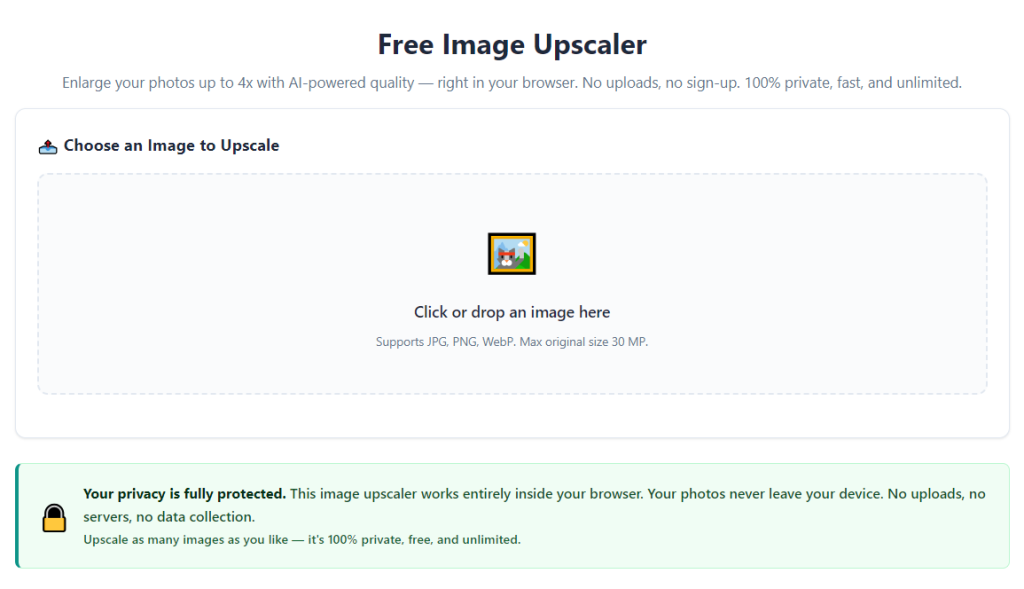
Open the tool interface within your browser. The main landing page will display a prominent image upload area built for single or multiple vintage photo uploads. No complicated setup, account creation, or extra software installation is required for core upscaling functionality.
Locate the preset menu at the top of the interface. Identify the dedicated mode labeled for old photos, vintage film scans, and low resolution aged imagery—this is the critical setting that separates generic photo upscaling from specialized vintage restoration.
Step 3: Upload your low resolution old photo(s)
Drag and drop your scanned vintage image files directly into the upload box, or use the file select button to pull photos from your local device storage. If restoring multiple low resolution old photos at once for bulk processing, select all target files in one upload session to enable batch processing mode.
After upload completes, each thumbnail preview will display a small label showing the original native resolution of your vintage photo, so you can track how much detail the tool will reconstruct during upscaling.
Step 4: Select the vintage photo AI model and upscale multiplier
Open the preset dropdown menu and activate the old photo restoration AI model designed exclusively for low resolution vintage media. Avoid generic portrait or landscape upscaler modes, as these prioritize modern digital image characteristics and will strip authentic vintage film grain.
Next, choose your upscale multiplier value:
- 2x scaling: Best for slightly blurry photos with moderate original resolution, subtle clarity boost without dramatic file size increases
- 4x scaling: Standard all-purpose choice for most scanned printed old photos, balances detail recovery and file manageability
- 8x scaling: Reserved for tiny miniature vintage snapshots, polaroids, and heavily pixelated low-res scans intended for large print outputs
Step 5: Apply optional manual restoration adjustments (customization stage)
For basic one-click restoration, skip straight to the generate button after selecting your preset and scaling multiplier. For heavily faded, damaged, or uneven low resolution old photos, open the advanced adjustment panel to refine output quality.
Key customizable sliders to tweak for vintage imagery:
- Grain preservation: Raise this value to retain soft film grain texture; lower to smooth heavy scan pixel blockiness
- Shadow recovery: Boost to bring out lost detail in dark vintage photo backgrounds and dark clothing tones
- Color warmth: Adjust upward for sepia and warm-toned vintage prints; lower to balance oversaturated faded color scans
- Sharpness intensity: Keep moderate to avoid artificial harsh edges common in generic photo enhancers
- Noise reduction: Mild reduction only, to remove scan dust without erasing natural vintage texture
For monochrome and sepia low resolution old photos, activate the dedicated black-and-white restoration module to avoid accidental artificial color casting during processing.
Step 6: Run the upscaling and vintage restoration process
Click the process or generate button to begin AI reconstruction of your low resolution old photo. Processing time varies slightly based on your selected scaling multiplier and file size, but single vintage snapshots finish within a few seconds.
The tool’s AI will analyze every section of the image: facial features, fabric textures, background scenery, printed text, and film grain patterns. It generates entirely new natural pixel data to fill gaps created by the original photo’s limited low resolution source file.
A split live preview will load on screen once processing completes, showing a direct side-by-side comparison of your original blurry low resolution old photo and the newly restored high-definition upscaled version. Scroll across the preview to inspect fine detail recovery in faces, small objects, and background elements.
Step 7: Make final minor adjustments based on preview results
Examine the split preview carefully for any areas that feel over-processed or under-restored. If the image appears overly sharp and artificial, reduce the sharpness slider and re-run a quick reprocess cycle. If fading still feels noticeable, slightly increase shadow recovery and color warmth values.
If restoring a batch of low resolution old photos, adjust your universal preset sliders once, and reprocess the full group to maintain consistent vintage tone and clarity across all your family snapshots.
Step 8: Export your finished high-resolution restored photo
Once you are satisfied with the preview restoration quality, navigate to the export or download panel. Select your preferred output file format—lossless formats are recommended for archival print and long-term storage use, while compressed formats work for quick social media sharing.
Choose your exported resolution matching your end goal: keep the full upscaled pixel dimensions for printing and archiving, or resize the finished file down to smaller optimized dimensions exclusively for online digital sharing.
Save the exported high-definition file to a dedicated folder separate from your original low resolution old photo scans, to clearly distinguish raw source material from restored finished versions of each vintage image.
Step 9: Organize and store your finished upscaled vintage photo library
Create categorized folders for your completed restored photos grouped by event, generation, or photo type (wedding shots, childhood portraits, historical scans, etc.). Back up both your original low resolution source scans and new upscaled high-definition copies to separate storage locations to prevent permanent memory loss.
For ongoing restoration projects, bookmark the upscaler tool to quickly access the vintage AI model and repeat this workflow whenever you digitize new boxes of printed low resolution old photos.
Common Mistakes to Avoid When Using an Image Upscaler for Low Resolution Old Photos
Even with a feature-rich vintage photo resolution tool, these frequent user errors ruin restoration quality and erase authentic nostalgic character from low resolution old photos.
Using generic modern photo upscaler presets on vintage imagery
General portrait or landscape AI models are trained on bright, high-definition contemporary digital photos. Applying these presets to low resolution old photos strips natural film grain, over-sharpens soft facial features, and creates unnatural plastic-looking skin textures that destroy vintage charm. Always activate the dedicated old photo restoration model first.
Selecting maximum 8x scaling for moderately sized original photos
Massive 8x multipliers create extremely large file sizes and risk over-processing photos that only need mild clarity fixes. Stick to 2x or 4x scaling unless your source low resolution old photo is a tiny miniature scan or polaroid print with very limited native pixel dimensions.
Over-maxing sharpness and noise reduction sliders
Cranking sharpness and noise reduction to maximum values creates harsh artificial edges, erases subtle film grain, and washes out soft vintage tonal gradients. Small incremental adjustments deliver far more natural, museum-quality restoration results for aged low resolution photos.
Editing the original source file before upscaling
Cropping, resizing, or applying brightness filters to your low resolution old photo scan prior to upload permanently deletes original pixel data. The upscaler’s AI relies on complete unaltered source information to reconstruct lost detail accurately; pre-editing limits the tool’s restoration potential drastically.
Ignoring batch setting consistency for album projects
When restoring dozens of family low resolution old photos in a single batch, changing grain or warmth sliders mid-process creates mismatched tone and clarity across your photo collection. Lock uniform preset values before starting bulk processing to keep your entire vintage archive visually cohesive.
Deleting original low resolution scan files after export
Your upscaled restored photo is an AI-generated reconstruction, not a replacement for the raw original scan. Always retain unmodified low resolution source files for future re-restoration attempts with updated tool models or alternative customization settings.
Rushing the preview comparison stage
Skipping the side-by-side original vs restored preview check leads to unnoticed over-processing or under-restoration issues. Take extra time to zoom into small fine details like facial wrinkles, jewelry, handwriting, and background landmarks to verify complete detail recovery before downloading finished files.
Expert Pro Tips to Maximize Results From an Image Upscaler for Low Resolution Old Photos
Use these actionable professional strategies to elevate your vintage photo restoration quality and streamline your entire low resolution old photo editing workflow.
- Scan all physical printed old photos at neutral flatbed scanner default settings to create the cleanest possible low resolution source files before uploading to the upscaler tool. Avoid auto-enhance scanner filters during digitization.
- Separate monochrome, sepia, and color vintage photos into distinct upload batches to apply tailored tone restoration presets without cross-contaminating color balance across your archive.
- Always run a mild grain preservation setting enabled for every vintage photo restoration. Preserving subtle film texture keeps upscaled images from looking artificially modern and disconnected from their original era.
- Save a standard preset template of your preferred grain, warmth, and shadow sliders once you find balanced vintage output values. Reuse this template for all future low resolution old photo batches to cut down repetitive manual adjustment work.
- Pair finished upscaled high-res photos with simple minimal editing for minor dust spot removal only. Avoid heavy saturation or contrast edits after AI upscaling to protect the tool’s reconstructed natural tonal layers.
- Prioritize lossless export formats for any low resolution old photos intended for physical framing, genealogy archives, or long-term permanent digital memory storage. Compressed formats are only suitable for temporary social media sharing.
- Schedule regular bulk restoration sessions to gradually work through large boxes of printed vintage photos instead of tackling hundreds of low resolution scans in one overwhelming single session.
- Compare multiple scaling multipliers on one heavily faded test photo to learn how each 2x /4x /8x setting impacts texture and file size, so you can quickly select the ideal multiplier for all future vintage uploads.
Final Thoughts
Low resolution old photos hold irreplaceable personal, family, and historical memories that deserve clear, detailed digital preservation. Manual editing workflows and generic resizing tools cannot recover the lost pixel detail hidden within faded, blurry vintage scanned imagery.
An image upscaler for low resolution old photos solves every core pain point of vintage photo restoration. Specialized AI models built exclusively for aged film and printed media reconstruct hidden texture, balance faded tones, smooth ugly pixel blockiness, and retain authentic nostalgic film grain all within a fast, easy-to-use interface suitable for beginners and professional archivists alike.
Whether you digitize family photo albums for wall prints, restore historical imagery for genealogy research, or create custom vintage memory gifts, this dedicated resolution enhancement tool streamlines every stage of restoring low resolution old photos to crisp, high-definition archival quality.
By following the complete step-by-step workflow, avoiding common restoration mistakes, and applying the expert optimization tips shared above, you can consistently produce natural, vivid, detail-rich upscaled versions of your most precious low resolution vintage photos to preserve and share for many years to come.
After learning the operation method, click the link below to enter the tool page for immediate use.