Every time you snap a photo with a smartphone or digital camera, the device embeds invisible hidden information inside the file. This hidden layer is called image metadata, also known as EXIF data. Among all stored details, GPS location tags pose the biggest privacy risk for regular users, content creators, and social media posters alike.
Most people upload photos online without realizing every snapshot carries exact longitude and latitude points tied to where the picture was taken. Strangers, advertisers, or bad actors can extract these GPS coordinates and trace your home address, travel routes, work locations, or private event spots with basic online tools. Simply cropping or resizing a picture rarely wipes this location information completely.
If you want full control over your digital privacy before sharing photos, mastering how to use image metadata remover to delete GPS data becomes an essential skill. This comprehensive tutorial breaks down everything you need to know, from understanding risky GPS metadata, comparing manual vs automated removal, core tool features, real-life use cases, a detailed step-by-step workflow, common mistakes to avoid, and actionable privacy tips for long-term safe photo sharing.
What Is Image Metadata, and Why GPS Data Is Dangerous to Leave Attached
Image metadata stores dozens of invisible data points locked inside every JPG, PNG, RAW, or HEIC image file. Cameras log capture time, device model, camera settings, author tags, and precise GPS location coordinates automatically when you hit the shutter button.
When GPS data stays embedded, anyone who downloads your shared photo can pull up your exact shooting location within seconds. This risk amplifies across social media, forum posts, blog uploads, file sharing platforms, and email attachments.
Manual deletion attempts often fail for multiple reasons. Many photo editors only hide GPS tags on previews but keep raw location data stored in the file backend. Mobile gallery “privacy” toggles rarely strip EXIF GPS entries entirely. This gap is where a dedicated image metadata remover delivers reliable, permanent results.
Learning how to use image metadata remover to delete GPS data eliminates this exposure permanently. The tool targets only embedded metadata layers, leaving your actual image quality, colors, composition, and resolution fully untouched. No blurring, cropping, or visual edits are required to erase location traces entirely.
Limitations of Trying to Remove GPS Data Without an Image Metadata Remover
Lots of casual photo sharers rely on quick, free manual tricks to clear location tags, yet these methods come with critical privacy flaws that defeat your safety goals. Understanding these drawbacks highlights why an image metadata remover is the most trustworthy solution.
Manual gallery toggle limitations
Most smartphone photo apps include a simple location sharing switch. This setting only blocks automatic GPS tagging for new photos you take moving forward. It does not erase GPS data already saved inside existing pictures stored on your device. Any old photos you captured with location tracking active will retain full coordinate tags indefinitely.
Basic photo editor failures
Free built-in editing tools on phones and desktop systems make surface-level changes to images. Resizing, rotating, filtering, or cropping photos does not touch the underlying EXIF metadata block. The GPS coordinates remain intact, hidden within the file code even after heavy visual edits.
Screenshot loopholes
Some users take screenshots of original photos to bypass metadata tags. While screenshots rarely carry GPS data, this method ruins image resolution, blurs details, and creates low-quality copies unsuitable for professional sharing, blogging, or print use. This workaround sacrifices visual quality just to fix a privacy issue solvable with a lightweight metadata tool.
Online upload platform partial stripping
Certain social platforms claim they strip metadata from uploaded content. However, many platforms only remove GPS tags from public-facing previews, not the original file stored on backend servers. If someone downloads your original uploaded image file, full GPS metadata may still be recoverable for third-party viewers.
Time-consuming command-line manual edits
Advanced users sometimes attempt manual EXIF editing through command-line software. This process demands technical coding knowledge, takes multiple minutes per photo, and risks accidental corruption of your image file if you input incorrect commands. For everyday users, this approach is far too complicated and slow.
All these unreliable shortcuts prove that learning how to use image metadata remover to delete GPS data is the most consistent, low-effort, high-security privacy method available for all skill levels.
Core Benefits When You Master How to Use Image Metadata Remover to Delete GPS Data
A dedicated image metadata remover built to strip GPS location tags delivers unique advantages no manual workaround can match. Every benefit centers on protecting user privacy while preserving full image quality and saving editing time.
Permanent, complete GPS coordinate removal
Unlike partial editing hacks, a purpose-built metadata remover fully deletes every line of GPS metadata embedded in the image file. Longitude, latitude, altitude, location timestamp, and map reference tags get erased permanently with zero residual location traces left behind. After processing, no third-party tool can recover any geotag information from your photo.
Zero loss of original image quality
The remover tool only edits invisible text-based metadata layers. It never alters pixel data, resolution, color grading, lighting, framing, or sharpness of your photograph. Your finished photo looks identical to the original, with no blurriness, compression artifacts, or visual degradation after GPS data removal.
Ultra-fast bulk photo processing capability
Many users share dozens or hundreds of photos at once for travel blogs, business marketing posts, event galleries, or social media albums. When you learn how to use image metadata remover to delete GPS data in bulk batches, you process dozens of photos in a single session instead of editing each file one by one manually. This drastically cuts down pre-sharing preparation time.
Additional optional metadata clearing
While your primary goal is wiping GPS data, reliable remover tools let you select extra metadata categories to delete on demand. You can strip camera model tags, capture timestamps, device serial numbers, author names, and thumbnail previews alongside GPS coordinates for complete digital anonymity online.
Cross-device file compatibility
Top image metadata remover tools support every common photo file format, including JPG, HEIC, PNG, TIFF, and RAW camera files. They work with images shot on iOS, Android, DSLR cameras, mirrorless cameras, and compact point-and-shoot devices, so you can process any photo library regardless of capture hardware.
No advanced technical skills required
The entire workflow for how to use image metadata remover to delete GPS data relies on simple point-and-click interfaces. You do not need coding skills, photo editing experience, or background knowledge of EXIF file structures. Beginners can master the full process within a single five-minute walkthrough.
Must-Have Features of a Trusted Image Metadata Remover for Deleting GPS Data
Not all metadata stripping tools deliver equal privacy protection. When selecting software to erase photo geotags, prioritize tools with these user-focused, privacy-first features to safely delete GPS data every time.
Targeted GPS metadata toggle controls
The best tools separate GPS data removal from general metadata wiping. You can choose to delete only location tags while keeping harmless metadata such as camera exposure settings intact if you want to retain photographic technical details without location risk. This customizable selection makes the tool flexible for hobbyist photographers and privacy-focused casual users alike.
Batch multi-file upload support
Processing single photos one at a time wastes valuable editing minutes. Look for remover tools that accept entire photo folders or bulk multi-image uploads, so you can clear GPS data from dozens of photos in one go. This feature is critical for content creators who regularly upload large photo collections online.
Real-time metadata preview panel
Before you start deleting GPS data, the tool should display a full preview of all embedded EXIF tags inside your uploaded image. You can scan the preview panel to confirm exactly which GPS coordinates, timestamps, and location markers are present before processing the file. This transparency lets you verify privacy risks before removal.
Lossless file export function
Avoid tools that compress or re-encode images during metadata stripping. High-quality removers export fully lossless copies of your photos, with identical resolution and file size as the original, minus only the hidden GPS metadata layers.
Offline local file processing option
The most secure image metadata removers process all photos entirely on your local device without uploading original files to external online servers. This feature prevents third-party platforms from storing your private photos while you delete GPS data, adding an extra layer of sensitive content protection.
Simple export and save workflow
After stripping GPS tags, the tool should offer one-click save options to your device storage. You can create a separate cleaned photo folder to organize geotag-free images, keeping your original unedited photos safely stored in a different directory as a backup.
Common Real-World Use Cases for Removing GPS Data With an Image Metadata Remover
Learning how to use image metadata remover to delete GPS data applies to countless daily and professional scenarios where you share photographs publicly online. Each use case highlights tangible privacy risks solved by clearing embedded location tags.
Personal social media photo sharing
Most casual users post vacation snapshots, family gatherings, home interior photos, and daily lifestyle shots to social feeds. If GPS data remains attached, every follower or stranger who downloads your pictures can pinpoint your house, favorite hangout spots, or regular commute routes. Wiping geotags eliminates this stalking risk entirely.
Travel blog and lifestyle content creation
Bloggers upload hundreds of location-based travel photos to articles, gallery pages, and social media promotions. While you may want to reference general travel cities in writing, you do not need exact GPS coordinates embedded inside every published photo. Removing precise location metadata keeps your personal accommodation spots hidden from readers.
Small business marketing and local brand posts
Local shop owners, restaurant operators, and service providers post venue photos, product shots, and behind-the-scenes workplace content online. Erasing GPS data prevents competitors or unwanted visitors from tracking your exact business operating location via downloaded marketing images.
Freelance photography client file delivery
Professional photographers deliver edited photo galleries to clients via file sharing links. Many clients request full location anonymity for private event photos such as weddings, birthday parties, or family portraits. Running all final photos through a metadata remover to delete GPS data fulfills client privacy requests reliably.
Online forum and classified listing image uploads
Users selling secondhand goods, posting community discussion threads, or listing rental properties often attach supporting photos. Embedded GPS tags can reveal your personal residence address to anonymous strangers browsing listings. Stripping geotags before posting protects your home location from public exposure.
Educational and student content submissions
Students posting project photos, field trip documentation, or campus research images to class portals or public school blogs risk leaking school or personal residential GPS coordinates. An image metadata remover quickly clears location data before assignment uploads to maintain student privacy.
Archive storage of old personal photographs
Older photos captured years ago still carry permanent GPS location tags. If you back up these images to cloud storage or share archive albums with friends, hidden coordinate data stays embedded indefinitely. Batch processing archives with a metadata remover erases all location traces retroactively.
Step-by-Step Complete Tutorial: How to Use Image Metadata Remover to Delete GPS Data
This simple, beginner-friendly workflow walks through every stage to safely strip GPS location tags from any photograph using an image metadata remover. Every step stays short and straightforward, with clear privacy checkpoints built into the process.
Step 1: Gather all photos you plan to process
Collect every image file you intend to clear GPS data from into a single folder on your desktop, phone storage, or tablet. Separate raw unedited original photos from copies you want to upload online. Always keep an untouched backup folder of original images in case you need to recover unmodified metadata later.
Quickly scroll through your photo library to identify shots captured at sensitive locations such as your home, workplace, or private events. Prioritize these files first when learning how to use image metadata remover to delete GPS data.
Step 2: Launch your trusted image metadata remover tool
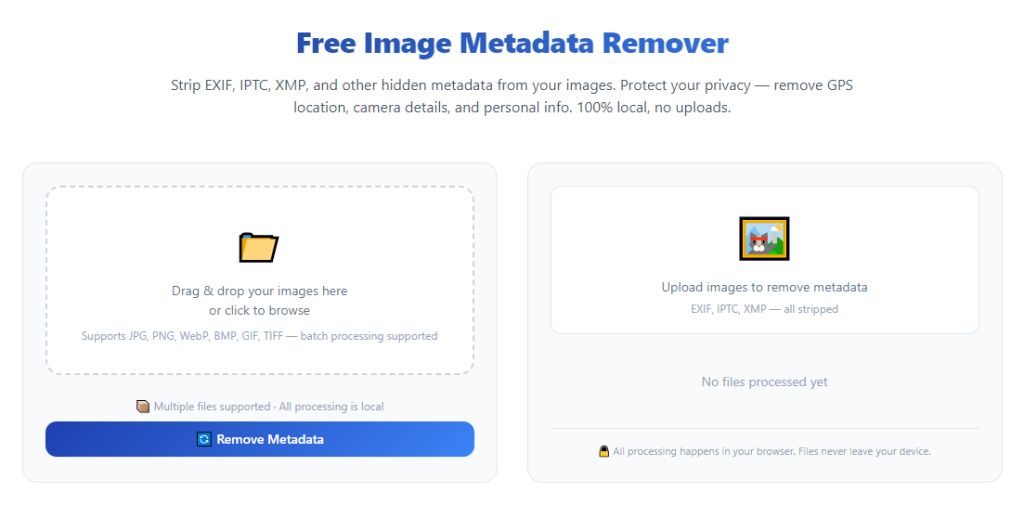
Open the remover application on your device. Navigate to the primary file upload screen designed for photo metadata editing. Close any pop-up promotional overlays to access the core image processing dashboard without distractions.
Take ten seconds to scan the tool’s main menu and locate three key sections: file upload panel, metadata preview viewer, and metadata selection controls for GPS tag removal. Familiarizing yourself with these panels speeds up every future photo editing session.
Step 3: Upload single photos or bulk image batches
Click the upload button and select either individual photos or an entire folder of images to import into the remover tool. Confirm all selected files appear in the processing queue before moving forward. Double-check that no unintended private photos get added to the upload batch by mistake.
If you only need to delete GPS data from a small handful of images, upload them one at a time. For large travel or event photo collections, use the bulk folder upload feature to save repetitive manual selection work.
Step 4: Open the metadata preview panel to check embedded GPS tags
Select one uploaded photo and pull up the full EXIF metadata preview screen. Scroll through the listed data fields to locate GPS longitude, latitude, altitude, and capture timestamp entries. This preview confirms exactly what location information the tool will erase during processing.
This step acts as a critical privacy verification checkpoint. If you spot sensitive coordinate data attached to your photo, you can proceed confidently knowing the remover will fully eliminate these tags in the next step.
Step 5: Customize metadata removal settings to target GPS data only
Locate the metadata category checklist within the tool’s settings menu. Uncheck all metadata fields you want to preserve, such as camera lens type, ISO settings, or shutter speed data. Leave only the GPS metadata box checked to ensure the tool exclusively deletes location tags without removing other harmless photographic details.
If you want full anonymity beyond just GPS coordinates, you can select additional boxes to erase capture timestamps, device serial numbers, and embedded thumbnail previews as an optional extra privacy measure.
Step 6: Start the metadata stripping processing run
Click the process or remove metadata button to initiate GPS data deletion across all uploaded photos. The tool will run a quick lossless scan of every image file in your upload queue. Processing takes only a few seconds for single images and under one minute for bulk batches of fifty or more photographs.
Do not close the remover tool window mid-processing, as this can interrupt file edits and leave partial GPS metadata intact on unfinished photos. Wait for the completion notification pop-up to confirm all images finished processing successfully.
Step 7: Preview processed photos to confirm GPS tag removal
Once processing finishes, pull up the metadata preview panel again for one of your newly edited photos. Scan through the EXIF field list and verify all GPS coordinate entries are fully removed with no residual location information remaining in the file data.
If any GPS tags still appear on a processed photo, re-run the removal workflow with deeper metadata clearing settings enabled to eliminate leftover geotag code. Repeat this check for a few random photos from your bulk batch to guarantee consistent results.
Step 8: Export cleaned photos to a separate secure folder
Use the tool’s export save function to download all GPS-free photographs to a new dedicated folder on your device. Label this folder clearly so you can easily distinguish geotag-cleaned copies from your untouched original photo backups.
Avoid overwriting your original raw photo files during export. Saving processed images as separate copies ensures you never permanently lose the unmodified original version of any photograph you capture.
Step 9: Organize cleaned photos for safe online sharing
Move your newly exported GPS-free photos into a dedicated upload folder for social media posts, blog articles, client file deliveries, or classified listings. You can now upload any of these processed images online without worrying about hidden location data leaking your private coordinates to viewers.
Keep the original unedited photo folder stored securely in local storage or private cloud backup for personal offline reference only, never uploading these unprocessed files to public digital platforms.
Common Mistakes to Avoid When Using Image Metadata Remover to Delete GPS Data
Even with reliable metadata stripping software, simple user errors can leave hidden GPS tags intact or create unnecessary photo file complications. Steer clear of these frequent missteps to maintain consistent location privacy every time you process images.
Overwriting original photo files during export
Many users accidentally save GPS-cleaned copies directly over their original unedited photographs. This permanently erases the original metadata, including useful camera technical data you may want to reference later for photography editing projects. Always export processed photos as separate new files.
Skipping the metadata preview verification step
Rushing straight from upload to processing without checking the embedded GPS tags first creates blind spots in your privacy workflow. The preview panel confirms exactly what location data exists inside each photo, letting you adjust removal settings before final processing begins.
Attempting bulk processing of mixed file formats without tool support
Some remover tools only fully strip GPS data for JPG files and struggle with RAW camera files or HEIC smartphone images. Uploading unsupported formats in large batches can leave geotags partially embedded in unrecognized file types. Confirm format compatibility before starting bulk processing runs.
Relying on free lightweight removers with partial GPS stripping
Basic low-function metadata tools only hide GPS tags from visual previews instead of deleting the raw coordinate code from the file backend. Third-party EXIF scanners can still recover location data from these partially processed photos. Stick to fully featured removers built for permanent GPS data elimination.
Forgetting to process old archived photo libraries
Users often only run new photos through the remover tool and ignore years of archived snapshots stored in cloud drives or device folders. All older photos captured with location tracking active retain full GPS tags until you reprocess them with the metadata remover tool. Schedule periodic bulk archive cleanups to update stored photo privacy.
Mixing unprocessed original photos with cleaned upload files
If you store original GPS-tagged photos and processed geotag-free images inside the same folder, you risk accidentally uploading unedited files to public platforms. Clear folder labeling and strict file separation eliminates this accidental privacy leak risk entirely.
Expert Privacy Tips to Maximize Results When You Delete GPS Data With an Image Metadata Remover
These actionable professional strategies boost long-term digital privacy and streamline your workflow every time you use an image metadata remover to delete GPS data from photographs.
- Create two permanent photo storage folders on every device: one labeled “Originals (GPS Tags Intact)” for offline personal storage, and one labeled “Cleaned for Sharing (GPS Removed)” for all online uploads. This simple separation eliminates accidental unedited file sharing errors.
- Run a quick metadata preview scan on every new photo batch immediately after shooting, before storing images in cloud backup services. Removing GPS data early prevents location-tagged files from being saved to public cloud servers long-term.
- Adjust your camera and smartphone settings to disable automatic GPS geotagging for all future photos. This cuts down repetitive remover tool work by stopping location data embedding at the source before you capture new snapshots.
- For content creators managing weekly blog or social media photo batches, schedule a dedicated fifteen-minute weekly session to bulk process all new imagery through the metadata remover tool. Building a consistent routine prevents backlogs of unprocessed GPS-tagged photos.
- If you deliver photos to paying clients, include a quick note explaining you used an image metadata remover to delete GPS data from all final gallery files as part of your privacy service package. This adds extra value and builds trust with privacy-conscious customers.
- After exporting cleaned photos, run a secondary free online EXIF scanner on one random sample image from each batch as a final double-check to confirm zero GPS coordinate traces remain embedded.
- Avoid sharing original camera RAW files to public platforms even after metadata removal. RAW formats carry more hidden background data than compressed JPG files, so stick to processed standard image copies for all public posting.
Final Thoughts
Hidden GPS metadata embedded inside everyday photographs creates an underrecognized digital privacy hazard for every person who shares images online. Simple editing workarounds fail to fully erase location coordinates, leaving your home, travel, and workplace locations exposed to anonymous viewers downloading your posted photos.
Learning how to use image metadata remover to delete GPS data delivers a secure, fast, user-friendly solution that balances perfect image quality with complete location anonymity. Dedicated remover tools strip geotag data permanently, support bulk photo batches, work across all image file formats, and require zero advanced technical knowledge to operate correctly.
From casual social media posters and travel bloggers to freelance photographers and small business marketers, every type of photo creator benefits from integrating this metadata stripping workflow into their regular content preparation routine. By following the step-by-step tutorial, avoiding common user mistakes, and applying consistent privacy organization habits, you eliminate GPS location leaks from every photograph you share publicly online.
A reliable image metadata remover acts as your first line of defense against unintended digital location tracking. Taking a few extra minutes to clear embedded GPS tags before uploading any photo protects your personal privacy and keeps sensitive geographic information hidden from public access for good.
After learning the operation method, click the link below to enter the tool page for immediate use.