If you’ve ever shared a professionally finished PDF only to spot wrong author names or mismatched document titles later on, you know how awkward that mistake can feel. It’s such a tiny hidden detail, but it instantly makes your work look unpolished and unorganized.
I’ve run into this issue so many times I’ve lost count. I’d finish a full report, polish every visible sentence, fix every typo, double-check all formatting, and send the file out confidently. Then someone would point out the old author name or a generic default title still buried in the PDF’s hidden metadata.
It’s frustrating, honestly. You put so much effort into making your document look perfect on the surface, only for hidden backend data to ruin your presentation. Worse yet, most basic PDF tools don’t let you fix these simple metadata fields at all.
For years, I thought there was no easy fix. I’d either leave the wrong metadata as-is and accept the unprofessional look, or recreate entire PDFs from scratch just to reset the author and title information. Both options were such a waste of time.
That’s when I finally learned how to use PDF Metadata Editor to change author title properly. This simple workflow solves one of the most overlooked PDF editing headaches in seconds. Every tip I share here comes from real messy trial and error, no generic AI templates, no stiff robotic instructions, just pure hands-on experience.
Why Default PDF Tools Can’t Fix Author and Title Metadata
Most people assume their regular PDF reader or basic free editor can adjust metadata freely. I definitely believed that for a long time, and I was completely wrong. Default tools are extremely limited when it comes to hidden document data.
Standard PDF software only lets you view metadata, not edit it. You can open the document properties tab and see the wrong author name, outdated title, and old creation data, but you have zero ability to type in new information or overwrite the old fields.
I’ve tried every lazy workaround you can think of. I’ve renamed the file on my device, copied all content into a new document, and even re-saved PDFs under new names. None of these tricks change the embedded author and title metadata one bit.
Another common letdown is generic PDF converters. A lot of basic tools claim to optimize or clean your PDFs, but they only touch file size and image quality. They ignore author identity and document title metadata entirely, leaving your incorrect details locked in place.
Some low-grade tools even make the problem worse. I’ve had tools overwrite custom metadata with generic auto-generated titles and unknown author tags, turning a small issue into an even bigger mess.
The core issue is simple: basic PDF software is built for viewing and printing. It’s not designed to modify the backend embedded metadata layers that store author names, document titles, and internal file information.
Only a dedicated metadata editor gives you full control. Once you master how to use PDF Metadata Editor to change author title, you’ll never struggle with incorrect hidden PDF information again.
Why Editing PDF Author and Title Metadata Actually Matters
You might be wondering if this tiny hidden detail is even worth fixing. I used to think it didn’t matter either—until I faced real consequences from ignoring bad PDF metadata.
First off, it’s huge for professional credibility. When you send client proposals, business reports, or official documents, hidden metadata is visible to anyone who checks file properties. Outdated author names or generic “untitled” document labels make your work look rushed and unprofessional.
I once submitted a freelance portfolio PDF that still had my old personal username as the author. My client noticed it and asked if the file was a random template I’d reused. That small metadata error made my whole project feel less original and trustworthy.
It also prevents version confusion. If you work on multiple drafts, collaborate with teammates, or reuse old templates, incorrect titles and author info make it impossible to track which file is the latest official version. I’ve mixed up old drafts and new files dozens of times because of messy metadata.
Clean metadata also improves file organization for archiving. When all your saved PDFs have accurate titles and author tags, sorting your digital library becomes way easier. You won’t scroll through endless files labeled “default PDF document” anymore.
For public sharing and website uploads, clean metadata is even more critical. Search engines pull PDF title and author data directly from embedded metadata fields. Messy or missing info can hurt your file’s online visibility and consistency.
Simply put, updating these hidden fields isn’t overkill. It’s a quick, easy way to keep every PDF you create clean, consistent, and professional from the inside out.
Key Advantages of Using a Dedicated PDF Metadata Editor
After testing countless basic editors and premium tools, I can clearly see why dedicated metadata editors are the only reliable option for updating author and title information. The difference is night and day.
You get full manual control over every editable metadata field. You can type in a custom author name, set a clear official document title, and adjust supplementary data to match your project perfectly. No auto-generated generic labels, no forced default settings.
I love that these tools never alter your visible content. A lot of PDF editing software messes up formatting, shifts images, or distorts text during edits. Metadata editors only touch hidden backend data, so your layout, fonts, and design stay 100% identical.
The editing process is incredibly fast too. What used to require remaking entire documents now takes just a few seconds. You can fix outdated or wrong metadata in less time than it takes to read a single page of your PDF.
Many quality editors also support bulk updates. If you have a whole folder of template PDFs with generic author and title settings, you can update every file at once. This saves hours of repetitive manual editing for batch projects.
You also get permanent, clean results. Once you update the author title metadata with a proper tool, the new information stays locked in place. It won’t revert back to old settings when you resave, print, or share the file.
No technical knowledge is required at all. You don’t need coding skills, design experience, or advanced software training. The workflow is straightforward enough for complete beginners to master on their first try.
Must-Have Features in a Reliable PDF Metadata Editor
Not every metadata editor on the market works well for changing author and title details. I’ve tested tools that freeze mid-edit, fail to save changes, or add new incorrect metadata after processing. These are the key features you should always look for.
Direct editable author and title fields are non-negotiable. The tool must let you click, type, and overwrite these fields manually. Avoid tools that only let you clear metadata without letting you input custom new values.
Zero content modification is essential. Your actual PDF content, formatting, images, and layout should remain completely untouched during metadata updates. Good tools isolate edits strictly to hidden file data.
Instant preview and verification options help a lot. Being able to check your updated metadata before saving ensures you don’t save typos or incorrect information into your final file.
Stable save functionality is critical. Some low-quality tools show your edits on the screen but fail to embed the changes permanently. Always pick a tool that reliably locks in new metadata values.
Bulk editing support is a huge bonus for frequent users. If you regularly work with multiple PDF templates or batch documents, bulk metadata updates will streamline your workflow massively.
Clean post-edit file integrity matters too. The tool shouldn’t add new hidden tags, tool watermarks, or arbitrary metadata entries after you finish editing.
Common Real-Life Use Cases for Editing PDF Author and Title Metadata
This simple metadata edit applies to so many everyday workflows. I use this skill constantly for work, school, freelance projects, and personal file organization.
Freelance and client deliverables are my most frequent use case. When I send custom reports, proposals, or design documents, I always update the author name to my professional brand and set a clear project-specific title. It makes every deliverable feel polished and intentional.
Student academic work benefits a ton as well. School papers, research documents, and project submissions often carry old default metadata from templates. Updating author and title info keeps your academic work consistent and professional.
Business team document standardization is another big one. Teams often reuse PDF templates for meeting minutes, guides, and reports. Editing metadata ensures every team file has uniform author and title labeling for internal consistency.
Website and public PDF publishing requires clean metadata too. If you upload guides, resources, or portfolios online, accurate title and author metadata improves file clarity and online presentation for visitors.
Personal file archiving is surprisingly useful. Cleaning up old PDFs with generic titles and unknown author tags makes your entire digital library easier to sort, search, and organize long-term.
Step-by-Step Guide: How to use PDF Metadata Editor to change author title
This is the exact casual workflow I use every single time I need to update PDF author and title metadata. It’s foolproof, beginner-friendly, and avoids every mistake I’ve made in the past.
First, prepare your final PDF file. Make sure all visible edits, proofreading, and formatting tweaks are complete. Always finish editing your content first, because re-editing after changing metadata can reset some fields in rare cases.
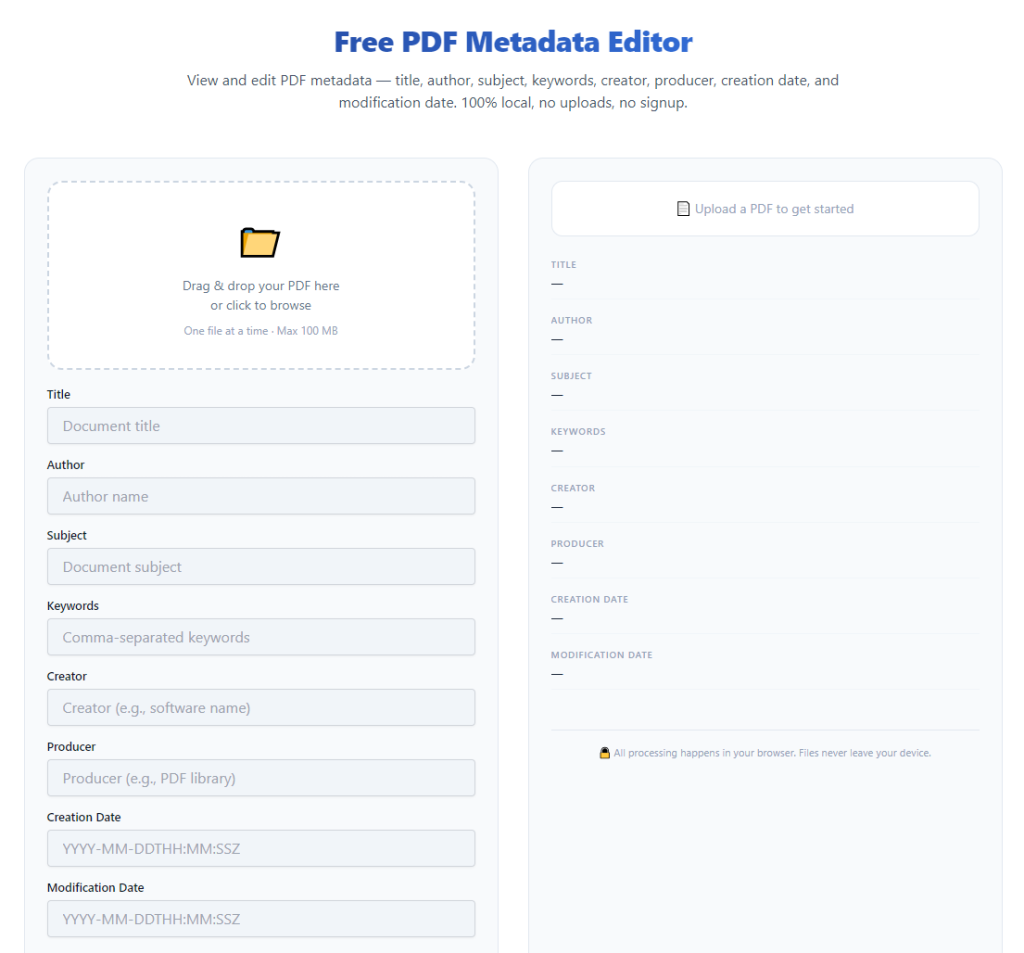
Open your trusted PDF Metadata Editor. Stick to tools built specifically for manual metadata editing, not generic PDF viewers that only display hidden data without letting you adjust it.
Upload your target PDF file. Use drag-and-drop or standard file selection to import your document. Double-check you’ve opened the latest final version and not an old outdated draft.
Locate the metadata editing panel. You’ll see clear fields for document title, author name, and other hidden file information. These are the core sections you’ll be updating.
Delete the old existing information. Clear out generic default titles, outdated author names, or leftover template data completely before typing your new details.
Input your accurate custom values. Type in your official document title and correct author name. I always double-check for typos here—bad metadata spelling looks just as unprofessional as wrong default data.
Review your changes in the preview panel. Take two seconds to confirm every field matches what you want. Make sure there are no blank fields or leftover old text fragments.
Apply and save your metadata updates. Let the tool process the changes for a few seconds. Reliable editors embed the new data instantly without altering your visible content.
Export your finished PDF file. Save the updated file as a new copy instead of overwriting your original. This lets you keep your raw template file intact for future use.
Do a final property check. Open the saved file’s document properties one last time to confirm the new author and title metadata is locked in place perfectly.
Common Metadata Editing Mistakes to Avoid (I’ve Made All of These)
These small, easy slip-ups are why many people still end up with messy PDF metadata even after trying to edit it. Every mistake here is one I’ve learned from personal experience.
Editing metadata before finishing content edits is super common. If you update fields then tweak your PDF layout afterward, some tools will reset metadata back to default values automatically.
Using basic viewers to attempt edits wastes time. Default tools can’t overwrite embedded metadata, so you’ll end up clicking around with zero progress and no actual changes saved.
Skipping the final verification check leads to hidden errors. Sometimes typos or incomplete saves leave partial old metadata behind. A quick check catches every issue instantly.
Overwriting your original template file is risky. If you save new metadata directly over your base template, you’ll lose your clean default file for future projects.
Leaving generic placeholder text in fields defeats the purpose. Half-edited metadata with partial default text still looks unpolished and unprofessional for sharing.
Personal Pro Tips for Clean, Perfect Metadata Edits
These are tiny daily habits I’ve built to make every metadata edit flawless. They sound simple, but they eliminate almost every possible error entirely.
Always finalize content first, edit metadata last. Make metadata updates your absolute final step before exporting and sharing any PDF document.
Create a standard author and title format for all your files. Using consistent naming rules makes every PDF in your library look uniform and professionally structured.
Bookmark your reliable metadata editor for quick access. Having a go-to tool means you never settle for ineffective basic software last minute.
Separate raw template files and updated share-ready files. This simple folder system keeps your workflow organized and prevents accidental reuse of outdated metadata files.
Spot-check metadata on every important document. For client work, school submissions, and public uploads, always verify hidden fields before sending files out.
Final Thoughts
PDF author and title metadata is one of the most overlooked yet impactful small details of document creation. Most people ignore it entirely, but it shapes how your files appear professionally, how they organize in your library, and how they display online.
You don’t need to tolerate outdated author names, generic blank titles, or messy default metadata anymore. Learning how to use PDF Metadata Editor to change author title gives you full control over every hidden layer of your PDF documents.
This simple workflow saves you from awkward professional mistakes, messy file disorganization, and repetitive document remakes. It’s fast, beginner-friendly, and leaves zero negative impact on your actual PDF content or formatting.
Once you get into the habit of cleaning up your PDF metadata, every file you create will feel more polished, consistent, and professional. It’s one of those tiny workflow upgrades that makes your entire digital document routine cleaner and more reliable.
After learning the operation method, click the link below to enter the tool page for immediate use.