If you’ve ever tried saving a live web page as a clean PDF, you’ve definitely run into all kinds of random, annoying issues. I’m not exaggerating when I say this used to drive me crazy for the longest time. Regular browser print functions never work right for full web page layouts, and most random converter tools just make a mess of your content.
You load up a well-designed web page, full of clean text, structured tables, custom layouts, and sharp images. You try to save it as a PDF for offline reference, work submissions, or client sharing, and the end result is always messed up. Text gets cut off, images disappear, margins are all wrong, or the whole page layout collapses entirely. It’s so frustrating, especially when you need a neat, professional file fast.
That’s exactly why I learned how to use HTML to PDF converter for web pages properly. Once I figured out the right workflow and stopped relying on lazy browser saves and low-quality random tools, all those messy conversion problems went away completely. This guide is 100% based on my own trial and error, all the mistakes I’ve made, and all the small tricks I’ve picked up over time.
There’s no generic AI fluff here, no rigid step-by-step templates you see copied across every blog. I’m writing this like I’m explaining the process to a friend, casual and straightforward, with all the real little details no basic tutorial ever mentions.
Why Basic Web Page Saving Methods Always Fail
A lot of people just use the default “print to PDF” option in their browser, and honestly, that’s where almost every problem starts. It seems like the easiest fix, but it’s super limited for structured web page content.
Browsers are built for viewing web pages online, not exporting perfect static PDFs. When you use the default print tool, it ignores custom HTML styling, responsive layouts, and embedded design elements. It crams content into preset paper sizes, cuts off side margins, and completely breaks multi-column web page designs.
I’ve had this happen so many times. I’d save a detailed blog guide, a work dashboard page, or a custom landing page, only to open the PDF and find half the text missing, all the images out of place, and key sections totally distorted. It’s such a waste of time to redo these exports over and over again.
On top of layout issues, basic browser tools also leave behind weird hidden artifacts. Extra blank pages, random leftover code gaps, and misaligned text blocks that make your finished PDF look unpolished and unprofessional. You can never get a crisp, clean web page export with default tools alone.
Cheap online converters aren’t much better, either. Most of them don’t understand full web page HTML structure. They only scan surface-level content, skip custom CSS formatting, and output blurry, incomplete files. Many also add annoying watermarks or force you to sign up for an account just to download your finished file.
This is why learning how to use HTML to PDF converter for web pages correctly is such a game-changer. These dedicated tools are built specifically to read full web page HTML code, preserve every design detail, and export consistent, clean PDFs every single time.
Key Advantages of Mastering HTML to PDF Conversion for Web Pages
Once you get the hang of how to use HTML to PDF converter for web pages, you’ll never go back to those janky browser save methods again. The difference in file quality and consistency is honestly night and day.
First off, you get full layout preservation. Dedicated converters read the entire HTML structure of your web page. They pick up custom fonts, color schemes, column layouts, table formatting, and image positioning exactly how they appear live online. No more collapsed sections or missing design elements.
I love that you get full-page, complete exports too. Default browser tools often truncate long web pages or split content awkwardly across random pages. These specialized converters render the entire web page seamlessly, whether it’s a short single-screen page or a long, scrollable article.
You also get way better image and media quality. Basic tools compress web images until they’re fuzzy and unreadable. Quality HTML to PDF converters retain original image resolution, so graphics, charts, and photos stay sharp and clear in your exported PDF.
Another huge benefit is full styling retention. Most web pages rely on custom CSS code to look polished. Generic converters strip all that styling away, leaving you with plain, boring text. Proper HTML conversion keeps every stylized detail intact, so your PDF matches the live web page perfectly.
These tools also offer way more flexibility. You can adjust page size, margins, orientation, and even exclude unwanted page elements like ads, sidebars, or popups. That level of customization makes your final PDFs far cleaner and more tailored for sharing or archiving.
Best of all, reliable converters let you export clean files with no watermarks, no hidden fees, and no mandatory account signups. It’s a quick, hassle-free way to turn any live web page into a professional offline document.
Critical Pre-Conversion Checks I Always Do (Avoids 90% of Errors)
Most people’s conversion failures aren’t from bad tools—they’re from skipping simple prep steps. I’ve learned this the hard way after ruining dozens of web page exports early on. These quick checks take seconds and fix almost every common issue.
First, always clear on-page clutter before conversion. A lot of live web pages have floating ads, popup banners, sticky headers, and auto-play elements. These extra elements mess up your PDF layout and create random gaps or overlaps. I always close popups and hide floating widgets first.
Next, double-check your web page loading status. Never convert a partially loaded page. If images or styling are still loading, your PDF will end up with missing content and broken design elements. I always wait for the page to fully load before starting the conversion process.
Disable dynamic page features if you can. Some web pages have real-time updating content, scrolling animations, or interactive modules. These shifting elements cause inconsistent exports. Pausing dynamic content ensures your PDF captures a fixed, stable version of the page.
Finally, test your web page display on a standard screen. Odd browser zoom levels or custom display settings can warp page formatting. Resetting your browser to default view ensures your converted PDF matches the page’s original intended design.
Step-by-Step Guide: How to use HTML to PDF converter for web pages
This is the exact workflow I use every time I convert a web page to PDF. It’s simple, beginner-friendly, and refined from all my past mistakes. No technical expertise is required at all.
Start by opening the target web page in your regular browser. Make sure the entire page loads completely, and remove any temporary popups, floating banners, or distracting on-page elements that you don’t want in your final PDF.
Copy the full web page URL from your browser’s address bar. Double-check the link to make sure it’s the exact page you want to convert—no broken links or partial page addresses.
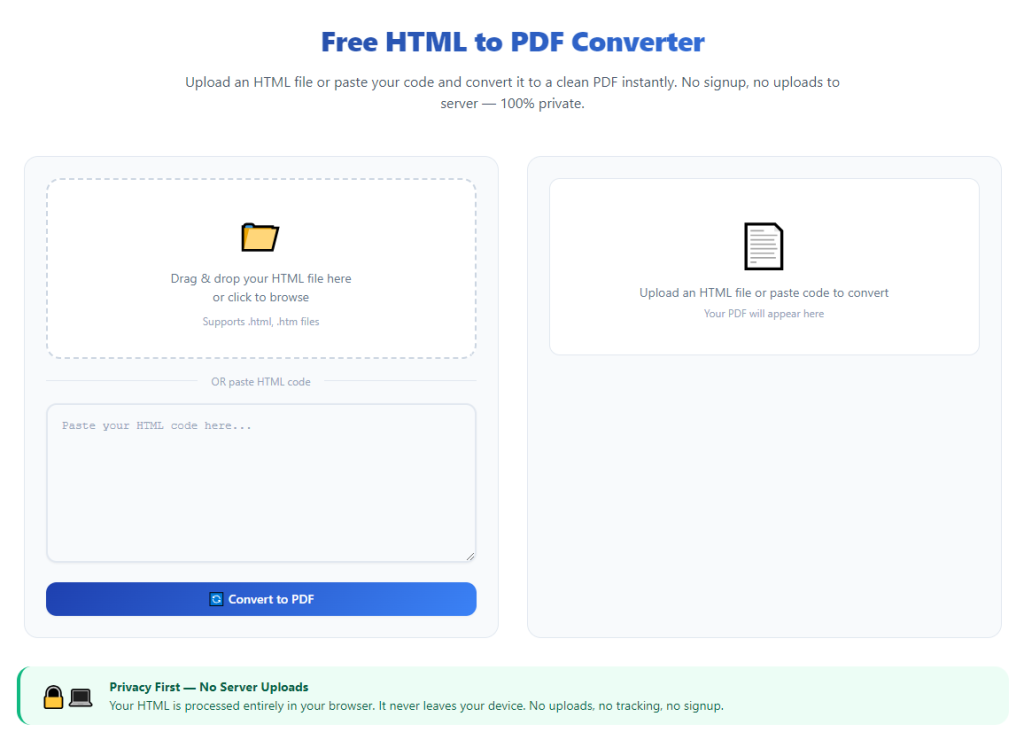
Open your trusted online HTML to PDF converter tool. Stick to clean, no-signup platforms that don’t spam you with ads or force account creation. You’ll see a clear URL input field designed for web page conversion.
Paste your copied web page URL into the converter’s input box. Take a quick second to confirm the pasted link matches your target page. It’s super easy to accidentally paste an old link by mistake.
Adjust your preferred export settings. This is where you customize your final PDF. You can switch between portrait or landscape orientation, adjust page margins, and set standard page sizes. I usually tweak margins slightly to eliminate extra blank space around web page content.
Enable full HTML structure rendering mode. This setting makes the tool scan the complete web page HTML and CSS styling, rather than just surface-level text. This single setting fixes almost all layout breakage issues.
Initiate the web page conversion process. The tool will begin scanning the full HTML code, images, and styling elements of your web page. Wait just a few seconds for the process to finish—most conversions only take a moment.
Preview your generated PDF before downloading. This step is non-negotiable for clean results. I always flip through a few pages to check for cut-off content, missing images, or misaligned sections. If anything looks off, I adjust my settings and re-convert quickly.
Once the preview looks perfect, download your finished PDF file. Save it directly to your device or cloud storage. The final file will match your live web page perfectly, with clean formatting, intact images, and zero messy distortions.
I always do a quick post-download save in my default PDF reader. This locks in all formatting permanently, so the file stays consistent no matter where you open or share it later.
Most Common Web Page Conversion Mistakes (I’ve Made All of These)
Even if you know how to use HTML to PDF converter for web pages, small careless errors can ruin your final file. These are the most frequent issues I see, and every single one is totally avoidable.
The biggest mistake is skipping the preview step. I used to download immediately after conversion, and I’d end up with PDFs full of hidden errors. Partial image loading, tiny layout shifts, and hidden blank sections only show up after a quick preview check.
Using dynamic, unfinished web pages for conversion is another big issue. If the page is still updating, loading new content, or shifting layout, your PDF will capture those inconsistencies and look messy.
Ignoring custom setting adjustments hurts file quality too. Default converter settings don’t always match web page dimensions. Leaving margins too wide or orientation mismatched creates unnecessary blank space and awkward content cropping.
Relying on low-quality converters is a common trap. Many tools claim to support web page HTML conversion but only scan basic text. They strip CSS styling, delete images, and ruin responsive layouts entirely.
Converting password-locked or restricted web pages leads to incomplete exports. Some pages block external tool access to full HTML code, resulting in partial or blank PDFs. Always ensure your target page is fully public and accessible first.
Saving multiple versions and mixing up files is another silly mistake I’ve made. I’ve shared unpolished test versions before instead of my final clean PDF. Labeling files clearly fixes this issue instantly.
Real-World Uses for Web Page HTML to PDF Conversion
This conversion skill is way more useful than most people think. I use it constantly for school, work, personal archiving, and client tasks, and it saves me so much time every single week.
For students, it’s perfect for saving study guides, online articles, and class resource pages. Converting web pages to clean PDFs lets you access study material offline, annotate content, and submit polished digital assignments without broken formatting.
Web designers and developers use this workflow daily. I regularly convert finished web page mockups and live project pages into PDFs for client reviews. Clean, styled PDFs let clients view full page designs without needing to access live website links.
Business professionals rely on this tool for documentation. Saving web-based reports, dashboards, policy pages, and industry articles as static PDFs creates reliable offline records for team sharing and future reference.
Freelancers use these conversions for portfolio work. Turning live web project samples into downloadable PDF previews makes client pitches cleaner and more professional, with no broken layouts or missing design details.
Personal archiving is another great use. I save favorite recipes, travel guides, tutorial articles, and reference pages as PDFs. This way, I never lose access to useful content even if the original web page gets updated or removed later on.
Quick Pro Tips for Perfect Web Page PDF Exports Every Time
These little personal tricks don’t sound like much, but they’ve completely eliminated almost all my conversion errors over the years. They’re simple, casual habits that make a huge difference.
Always clean up your web page view before converting. Hide ads, close popups, and collapse unnecessary sidebars. This ensures your PDF only includes the core content you want to save.
Adjust your converter settings based on page type. Long article pages work best with portrait orientation, while data tables and wide web dashboards look far better in landscape mode.
Never rush the loading process. Waiting an extra two or three seconds for full page load prevents missing images and broken styling in your final export.
Keep a dedicated folder for all your converted web page PDFs. It keeps clean finished files separate from test exports and prevents messy file mix-ups.
Stick to one trusted converter tool consistently. Using the same platform every time helps you learn its settings and avoid unexpected quality fluctuations between different tools.
Final Thoughts
Saving web pages as PDFs doesn’t have to be a frustrating, messy process. Default browser tools are limited and unreliable, and cheap random converters always compromise quality with broken layouts or unwanted watermarks.
Learning how to use HTML to PDF converter for web pages completely changes your document workflow. It lets you capture any live web page as a clean, perfectly styled, high-quality PDF with minimal effort. You retain every original design detail, avoid common formatting errors, and create professional files for school, work, client use, or personal archiving.
Once you get comfortable with this simple workflow and master the small prep and setting tips I’ve shared, you’ll never struggle with messy web page conversions again. It’s a tiny skill that makes daily digital work far smoother, faster, and way less stressful.
After learning the operation method, click the link below to enter the tool page for immediate use.