If you run any kind of website, blog, or small business online platform, you’ve definitely run into this common headache. You have tons of finished PDF content—guides, reports, service pages, blog drafts, and informational documents—that you want to publish directly on your site.
But getting that polished PDF content onto your website cleanly? It’s way harder than it sounds, at least with random basic tools. I can’t tell you how many hours I’ve wasted trying to copy PDF text manually, fixing broken formatting, or cleaning up janky converted code that completely ruins my site’s look.
Most people don’t realize there’s a simple, straightforward workflow for this exact task. Learning how to use PDF to HTML converter for website content properly changes everything. It lets you turn any finalized PDF document into clean, editable, publish-ready website content without rebuilding pages from scratch.
I’m not here to give you generic, robotic instructions you can find on every tool blog online. This guide is built entirely on my own messy trial and error, bad conversions, broken site pages, and hard-learned fixes. I’ve messed up website content conversion more times than I can count, and I’ve refined this process to be as simple and error-proof as possible.
I’ll walk you through why regular conversions fail, exactly how to use a dedicated converter for website content, the mistakes most new users make, and the small personal tricks that keep your site content clean, consistent, and professional every single time.
Why Regular PDF Conversions Ruin Your Website Content
Let’s start with the honest truth. Most generic PDF to HTML converters are not built for website publishing at all. They’re built for quick, basic file conversion, and that’s it. Using them for live site content always leads to problems.
The first issue I always run into is broken formatting that looks unprofessional on live pages. Your PDF might have clean paragraphs, structured headings, aligned images, and organized bullet points. Run it through a basic converter, and suddenly text is misaligned, images float randomly, and headings lose their hierarchy entirely.
I’ve made the mistake of pushing these rushed conversions live before. The result? My website content looked disjointed, unpolished, and straight-up unprofessional. Visitors could instantly tell the content was converted poorly, and it hurt the overall trust of the page.
Another huge problem is messy, bloated code that slows down your site. Basic converters add unnecessary lines of code, broken styling tags, and redundant formatting that web browsers have to process. This leads to slower page load speeds, which hurts user experience and overall site performance.
A lot of casual conversions also strip critical structural elements. Tables, infographic placements, custom text spacing, and branded color schemes just disappear. You end up with plain, boring text that doesn’t match your original PDF design or your website’s branding at all.
Worst of all, many users don’t realize these issues until after they publish the content live. Then you’re stuck manually editing every single paragraph, reinserting images, and fixing broken layout elements one by one. It defeats the whole purpose of using a converter to save time.
This is exactly why learning how to use PDF to HTML converter for website content the right way is so important. Specialized conversion workflows prioritize web compatibility, clean code, and consistent layout—something generic tools never focus on.
Why Use a Dedicated PDF to HTML Converter for Website Content
You might be wondering why you can’t just copy and paste text from your PDF directly onto your website. Trust me, I’ve tried that shortcut plenty of times, and it’s always more trouble than it’s worth.
Copy-pasting PDFs carries over hidden formatting junk, weird spacing errors, invisible text codes, and inconsistent font styles. Even if it looks clean on your end, it will display differently across browsers and devices. It’s never a clean fix for professional website content.
When you learn how to use PDF to HTML converter for website content correctly, you get so many unique benefits manual work can never match. First off, you retain your original content structure fully. Headings, subheadings, paragraph breaks, bullet lists, and data tables all stay intact for web publishing.
Your images and media elements stay perfectly positioned too. I’ve spent hours repositioning images after bad copy-paste jobs, and dedicated conversion tools eliminate that work entirely. Every visual element stays exactly where you placed it in the original PDF draft.
You also get browser-compatible clean code. Unlike generic converters that spit out messy code, website-focused PDF to HTML tools generate streamlined code that works across all browsers, loads fast, and is easy to edit later on. You can tweak text, swap images, or adjust styling anytime without breaking the whole page.
It’s also an incredible time-saver for bulk content work. If you have multiple PDF guides, service documents, or blog resources you want to add to your site, converting them in bulk is way faster than rebuilding each page manually. I’ve updated entire resource libraries in minutes with this method.
Another underrated benefit is consistent branding. When you convert properly, your font styles, color accents, and layout structure stay uniform across every page on your site. No more random mismatched content that sticks out and ruins your site’s clean design flow.
Key Features to Prioritize for Website Content Conversion
Not every PDF to HTML converter works well for website content. I’ve tested dozens of tools that claim to be web-friendly, but most still output broken code or distorted layouts. After years of testing, these are the features you absolutely need for clean site content.
First, look for tools that generate clean, minified web-ready code. Avoid any converter that adds excessive redundant tags or messy styling. Clean code keeps your site fast, lightweight, and easy for developers or site editors to adjust later.
Full structural retention is non-negotiable. The tool must preserve heading levels, paragraph spacing, list formatting, and table structure. These elements are foundational for readable, professional website content, and losing them breaks your entire page flow.
Image optimization for web display is another must-have feature. Some converters export oversized uncompressed images that slow down your site. Quality tools resize and optimize visuals during conversion without losing image clarity.
Cross-browser compatibility matters more than people think. Your converted HTML content needs to display correctly on Chrome, Safari, Edge, and mobile browsers. Poor conversion tools create layout shifts that only show up on certain devices.
Simple editable output is crucial too. The final HTML should be easy to customize. You want to be able to change colors, adjust spacing, or embed links without digging through confusing blocks of messy code.
Common Real-World Website Content Use Cases
This conversion workflow applies to so many different types of website content. It’s not just for one-off blog posts. I use this process weekly for all kinds of site updates and content additions.
Blog and long-form article repurposing is my most frequent use case. I often draft detailed guides and tutorials in PDF format for internal review. Once finalized, I convert them straight to HTML for my website. It lets me skip rewriting entire articles and ensures consistent formatting.
Service pages and business informational content work perfectly too. Many small businesses create polished PDF service brochures and pricing guides. Converting these files to clean HTML turns static PDFs into interactive, indexable website content that search engines can crawl easily.
Resource libraries and educational content are another big one. If your website hosts study guides, FAQs, instructional documents, or downloadable resources, converting PDFs to HTML lets you display content directly on-page instead of forcing users to download files to read them.
Portfolio and project content converts beautifully as well. Designers, writers, and freelancers often compile portfolio work in PDF layouts. Converting these files to web-ready HTML creates clean, professional portfolio pages with zero layout errors.
Company policy and internal documentation pages also benefit greatly. Instead of uploading static PDF files for team members or customers to download, converted HTML content makes policies and guidelines easy to browse and read directly on your site.
Step-by-Step Guide: How to use PDF to HTML converter for website content
This is the exact step-by-step process I follow every single time I convert PDF files for live website content. It’s beginner-friendly, no advanced tech skills required, and it avoids every mistake I’ve made in the past.
First, finalize your PDF file completely before conversion. This is such a simple step, but so many people skip it. Fix typos, adjust spacing, align images, and confirm your layout is perfect. Editing a PDF is way easier than fixing broken HTML website content later on.
Open your trusted web-focused PDF to HTML converter. Stick to tools built specifically for website content conversion, not generic file converters. These tools are calibrated to output web-safe code and layout structure.
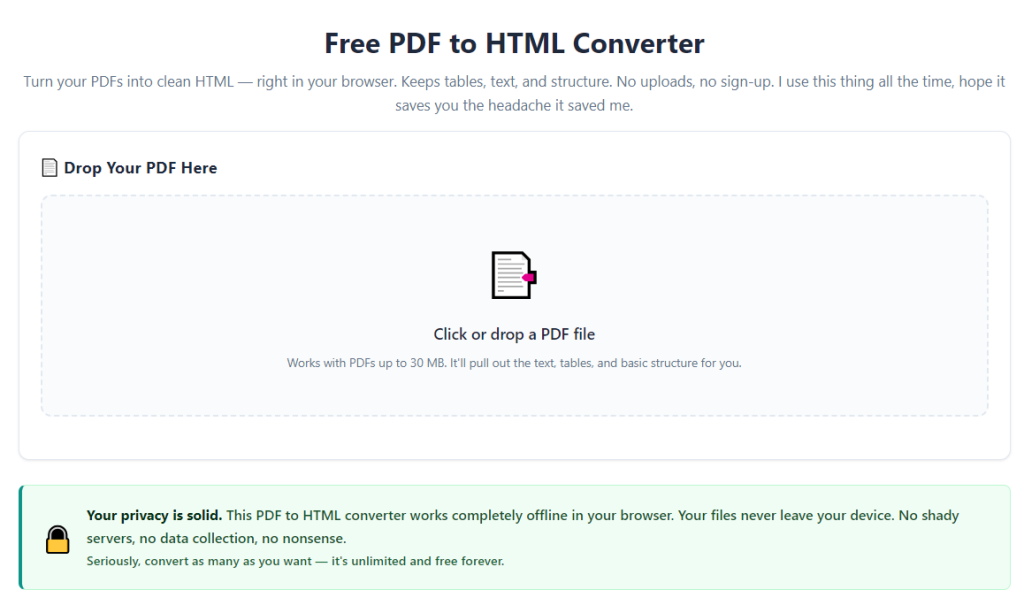
Upload your finalized PDF file. You can use drag-and-drop or standard file selection. Always double-check you’ve uploaded the latest final version, not an old draft with outdated content. I’ve accidentally converted old drafts before, and it costs extra time to fix.
Adjust web-specific settings if available. Most quality converters let you optimize images, clean up redundant code, and preserve page structure for web display. I always enable code cleanup and web optimization to keep my site lightweight and fast.
Start the conversion process and wait a few seconds. Web-focused conversions are fast, even for multi-page, content-heavy PDF files. The tool will scan your entire document and rebuild it into clean, browser-friendly HTML.
Preview your converted content thoroughly. Don’t skip this step! I always scroll through the full page to check for shifted images, broken tables, weird spacing, or missing styling. Rare minor glitches happen occasionally, and previewing catches them before you publish.
Make small quick tweaks if needed. If any element looks slightly off, adjust your original PDF and re-convert. It’s always better to fix issues at the PDF stage than to edit messy HTML code afterward.
Download your final clean HTML file. Once downloaded, do a quick test open in multiple browsers to confirm consistent display. This ensures mobile and desktop users see the same clean layout on your live website.
Upload the HTML content to your website platform. From here, you can embed the content directly, customize it to match your site theme, and publish it live with full confidence in its quality and structure.
Common Mistakes That Ruin Your Website Content Conversion
I’ve made every single one of these mistakes early on, and each one led to messy, unprofessional website content that I had to go back and fix. These are the most frequent errors new users run into.
Using generic non-web converters is the biggest mistake. Tools built for basic file conversion don’t account for web standards. They output bloated code and broken layouts that look terrible on live sites.
Publishing without previewing first is super common. A conversion might look fine on your converter preview, but display differently on actual browsers. Skipping cross-browser testing leads to broken live pages.
Converting unfinished, unpolished PDFs creates endless extra work. If your source file has typos, misaligned images, or messy spacing, those flaws carry straight over to your website content. Always finalize first, convert second.
Ignoring image optimization slows down your site drastically. Uncompressed high-res images from PDFs bloat your web page size, hurting load speeds and user experience. Always enable web image optimization during conversion.
Overlooking mobile layout compatibility is another easy error. Some conversions look perfect on desktop but break completely on mobile screens. A quick mobile preview fixes this issue instantly.
Personal Pro Tips for Perfect Website Content Conversions
These are small daily habits I’ve built to make my PDF to website content conversions flawless every single time. They’re tiny adjustments, but they eliminate almost all post-publishing issues.
Always finalize and proofread your PDF one last time before converting. This simple step cuts down 99% of post-conversion editing work.
Bookmark your reliable web-focused converter tool. Having instant access means you never settle for low-quality generic tools for important site content updates.
Keep a dedicated folder for all PDF files meant for website conversion. Separating these files from personal PDFs keeps your content organized and avoids accidental wrong-file conversions.
After conversion, do a quick speed check on your live page. Clean optimized HTML will keep load times fast, which benefits both user experience and search visibility.
Standardize your PDF formatting before conversion. Using consistent fonts, spacing, and heading structures in your source PDFs creates uniform, professional website content every time.
Final Thoughts
Updating and building website content doesn’t have to be a slow, frustrating process. So many site owners waste hours rewriting content or fixing broken conversions just because they don’t know the proper workflow.
Learning how to use PDF to HTML converter for website content completely transforms your content creation process. It lets you repurpose existing polished PDF documents into clean, editable, web-optimized content without rebuilding pages from scratch.
When done correctly, this method preserves your original layout, keeps your code clean and lightweight, maintains your brand consistency, and saves you massive amounts of time on manual editing and page building.
Once you get used to this simple, reliable workflow, you’ll never go back to manual copy-pasting or risky generic conversion tools. It’s one of those small website management upgrades that makes your entire content library cleaner, faster, and far more professional overall.
After learning the operation method, click the link below to enter the tool page for immediate use.