Whether you snap casual phone snapshots, product photography shots, travel scenery, or social media graphics, tilted photos are an incredibly common frustration. A single unlevel frame can make even the most stunning subject look messy, unpolished, and unprofessional at a glance.
Most people rely on basic device editing functions that lack precise adjustment controls. Phone gallery editors often only offer rigid 90-degree turns, with no way to fine-tune subtle slants that throw off an entire image’s balance.
Even experienced content creators struggle to manually align crooked shots without dedicated controls. Trying to guess the perfect angle by eye wastes valuable time and often leaves small tilts that ruin the final visual.
A dedicated image rotate & flip tool eliminates all these frustrations entirely. Mastering how to use image rotate & flip tool to fix tilted photos gives you full control over every frame, letting you straighten uneven shots and mirror visuals in seconds with professional-grade precision.
This in-depth hands-on tutorial breaks down why unedited tilted photos hurt your content quality, key advantages of rotation and flipping editing tools, must-have tool features, real-world photo use cases, and a full step-by-step workflow anyone can follow to perfect slanted images every time.
Why Tilted Photos Hurt Your Visual Content Performance
A slightly crooked photo might feel like a minor flaw, but uneven framing creates multiple subtle problems that drag down how audiences perceive your work, no matter what niche you create content for.
Distracts viewers from your main subject
When a horizon line, table surface, or architectural edge sits at an off-kilter angle, the human eye automatically fixates on the imbalance. Viewers stop focusing on your product, portrait, or landscape to notice the sloppy framing error instead.
Looks unpolished for professional sharing
Brands, small business owners, social media influencers, and print creators all rely on consistent clean visuals. Tilted product shots or event photos come off as rushed, careless, and low-effort to potential customers or followers.
Ruins symmetry in artistic photography
Many popular photo styles—minimalist flat lays, symmetrical architecture shots, portrait mirror compositions—depend on perfect horizontal and vertical alignment. Even a tiny tilt breaks the carefully planned artistic balance you wanted to capture.
Basic device editors lack precision controls
Standard phone or desktop gallery tools only deliver fixed 90, 180, or 270-degree rotation presets. They offer zero fine adjustment for the minor 1–10 degree slants that cause most tilted photo issues.
Manual editing guesswork wastes hours of workflow time
Without a dedicated adjustment grid and slider controls, creators repeatedly rotate, save, and recheck images to hit the right level plane. This repetitive back-and-forth adds unnecessary delays to your photo editing routine.
Core Benefits When You Master How to Use Image Rotate & Flip Tool to Fix Tilted Photos
Learning the full functionality of a reliable rotate and flip image tool streamlines your editing process and drastically elevates the quality of every photo you share or store long-term.
Precise micro-angle correction for subtle tilts
Top-tier editing tools include smooth drag sliders that adjust rotation by fractions of a single degree. This level of control lets you fix barely noticeable slants that basic gallery editors cannot touch at all.
Separate flip and rotate functions for full visual flexibility
Rotate controls adjust the photo’s horizontal and vertical alignment to fix tilts, while flip tools mirror the image horizontally or vertically for mirrored composition shots. Combining both features expands your creative options far beyond simple straightening.
Built-in alignment guides for perfect level framing
Quality rotate & flip editors add overlay grid lines, horizon markers, and vertical axis guides. These visual references make it trivial to line up roads, walls, water lines, and furniture edges into perfectly straight positions.
Works for every photo format and file size
No matter if you edit small phone snapshots, high-resolution raw photography files, PNG graphics, or printed JPG scans, the tool accepts all standard image types with no compression loss during rotation and flipping adjustments.
Cuts photo editing time down drastically
Instead of cycling through clunky device editor menus to fix tilted photos, you load your image, adjust rotation, apply flips as needed, and export the finished shot within a handful of clicks. This speeds up bulk photo editing sessions significantly.
Preserves original image quality through all edits
Cheap editing software often blurs or pixelates photos after rotation. Professional rotate flip tools recalculate pixel positioning cleanly, so your straightened tilted photos stay sharp and crisp after every adjustment.
Supports bulk photo editing workflows
Many robust rotate flip editors let you upload multiple tilted photos at once, apply matching rotation or flip settings, and export all corrected images in one batch. This is ideal for creators who process dozens of snapshots per day.
Must-Have Features in a Quality Image Rotate & Flip Tool for Fixing Tilted Photos
Not every online or desktop photo editor delivers the controls you need to clean up slanted frames properly. When selecting a tool to learn how to use image rotate & flip tool to fix tilted photos, prioritize these critical user-focused features.
Smooth fine-tune rotation slider
Avoid tools limited to fixed degree jumps. A continuous drag slider lets you dial in exact fractional angles to fix subtle tilts without overcorrecting your photo’s natural framing.
Dual horizontal and vertical flip toggles
Separate buttons for horizontal mirror flip and vertical flip give full creative control. Horizontal flips fix reversed text or logos in product shots, while vertical flips create reflection-style artistic visuals.
Transparent alignment grid overlay
Toggleable grid lines split the photo into equal quadrants. Line up natural horizontal features like shorelines or window sills against grid bars to erase tilt entirely with zero guesswork.
One-click auto-straighten preset
An automatic alignment scan instantly detects uneven horizons and surface lines, applying a pre-calibrated rotation adjustment to fix tilted photos with a single tap for fast quick edits.
Real-time live preview window
Every rotation or flip adjustment updates the image on screen immediately. You see exactly how the final photo will look before saving changes, eliminating repeated export and re-edit cycles.
Non-destructive editing layers
The tool keeps your original unaltered photo stored separately. If you over-rotate or flip an image incorrectly, you can reset all adjustments instantly without reuploading the original tilted snapshot.
Custom output resolution and format options
After straightening tilted photos, export files as JPG, PNG, or lossless formats, and set custom pixel dimensions to match social media, print, website, or portfolio upload requirements.
Simple drag-and-drop image upload
Skip complicated file import menus. A drag-and-drop canvas lets you drop any tilted photo straight into the tool workspace to start rotation and flip edits instantly.
Common Real-World Use Cases for Rotate & Flip Photo Editing Tools
The skills you learn when mastering how to use image rotate & flip tool to fix tilted photos apply to nearly every category of digital photography and graphic design work.
Casual mobile travel and lifestyle snapshots
Most vacation and daily phone photos end up slightly tilted from unsteady hand positioning. Quick rotation adjustments level mountain horizons, beach shorelines, and city street shots for clean social media feeds.
E-commerce product flat lay photography
Flat lay product images rely on perfectly parallel table edges and symmetrical item placement. Rotate controls straighten uneven surfaces, while horizontal flips fix reversed branding text on packaged goods.
Real estate and architectural photography
Property listings and building portfolios demand straight vertical wall lines and level floor planes. Even minor tilts make rooms look distorted; fine rotation sliders align every structural element neatly.
Portrait and selfie mirror composition
Horizontal flip functions reverse selfie camera mirroring to match how your features appear to others, while small rotation tweaks fix tilted head positioning in close-up portrait shots.
Printed scanned documents and art scans
Scanned receipts, hand-drawn sketches, and physical artwork often load into editors at uneven angles. Precise rotation straightens scan edges without warping text or illustration details.
Social media graphic and meme creation
Custom quote graphics, promotional banners, and meme collages frequently need minor rotation adjustments for balanced layout, plus vertical flips to create mirrored artistic visual effects.
Food and food blog photography
Restaurant and homemade dish flat lays require level plate and table framing. Rotate tools eliminate slanted table edges that distract viewers from plated meals and drink presentations.
Step-by-Step Complete Workflow: How to Use Image Rotate & Flip Tool to Fix Tilted Photos
Follow this simple, repeatable editing process to correct any tilted photo, combine rotation and flip adjustments, and export polished, balanced visuals every single time.
Step 1: Gather all tilted photos ready for editing
Collect every slanted snapshot you plan to adjust and store them in a single easy-to-find folder. Separate images that only need rotation straightening from shots that also require mirror flip effects for creative composition.
Take a quick mental note of key horizontal or vertical reference lines in each photo—such as walls, water horizons, table edges—to use as alignment markers during editing.
Step 2: Open your preferred image rotate & flip editing tool
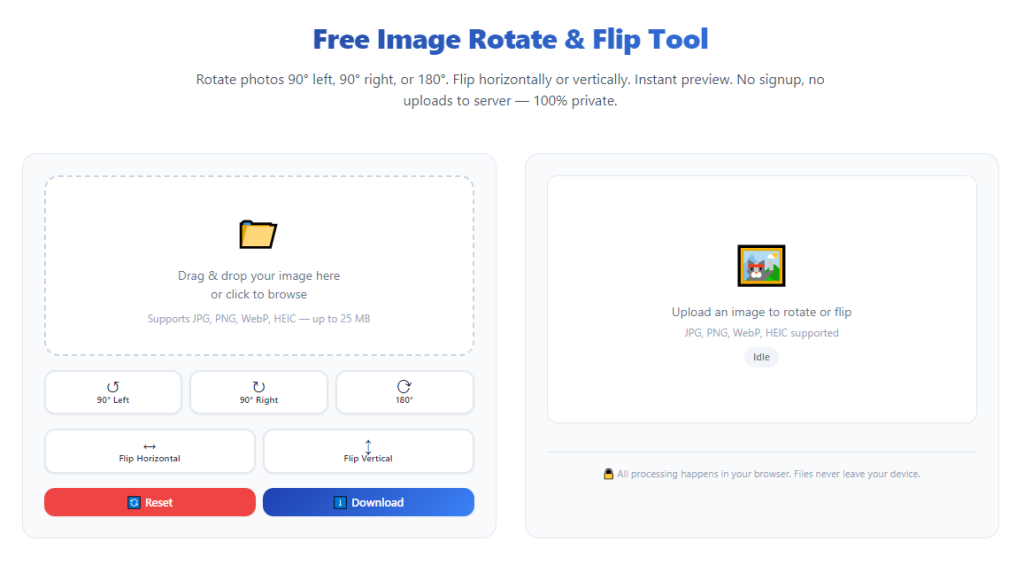
Launch the editor in your browser or desktop application. The main workspace will feature an empty upload canvas, rotation adjustment sliders, flip control buttons, and alignment grid toggle options front and center.
Spend ten seconds familiarizing yourself with the core controls: rotation slider, auto-straighten button, horizontal flip toggle, vertical flip toggle, and grid overlay switch before uploading your first tilted photo.
Step 3: Upload your tilted image via drag-and-drop or file select
Drag your crooked photo file directly onto the editor’s blank canvas area, or use the upload file button to browse and select your image from local storage. Wait one to two seconds for the full-resolution photo to load fully on screen.
Confirm the entire image displays without cropping before moving to rotation adjustments, so you can judge tilt across the full frame of the shot.
Step 4: Activate the alignment grid overlay for precise straightening
Click the grid toggle button to overlay thin horizontal and vertical guide lines across your tilted photo. These lines act as a measuring tool to spot uneven edges you would miss viewing the image alone.
Shift your focus to the most prominent horizontal feature in the frame—like a shoreline or countertop—and note how far off-kilter it sits relative to the grid’s horizontal bars.
Step 5: Fix photo tilt with manual rotation slider or auto-straighten
Choose one of two simple methods to level your tilted image:
- Auto-straighten quick fix: Tap the auto alignment button. The tool’s algorithm scans all horizontal and vertical lines and applies a calibrated rotation to erase tilt automatically. Use this for fast low-effort edits.
- Manual fine-tune rotation: Click and drag the rotation slider left or right in tiny increments. Pause after each small shift to check if your reference lines match the grid perfectly. This method works best for photos with subtle, hard-to-detect slants.
Keep adjusting until every key horizontal and vertical element in the photo sits perfectly parallel to the grid overlay lines. Avoid over-rotating, which will create a new opposite tilt on the opposite side of the frame.
Step 6: Apply flip adjustments if your creative shot requires mirroring
If your photo needs a horizontal or vertical mirror effect after fixing tilt, locate the two dedicated flip control buttons and apply as needed:
- Horizontal flip: Mirrors the photo left to right. Use this to fix reversed printed text, logos, or mirror-style portrait compositions.
- Vertical flip: Mirrors the image top to bottom, ideal for reflection artistic shots with water or glass surface effects.
Only apply flip edits after fully straightening tilt, as flipping a still-slanted photo will compound uneven framing and create harder-to-fix visual imbalance.
Step 7: Review the full corrected photo for alignment consistency
Turn off the grid overlay temporarily to view your fully rotated and flipped photo without guide lines. Scan the entire frame from corner to corner to double-check no subtle tilt remains along walls, surfaces, or horizon lines.
If you spot minor unevenness, reactivate the grid and make tiny micro-adjustments with the rotation slider to refine alignment further.
Step 8: Reset adjustments if rotation or flip results look off
If you overcorrect the tilt or apply an unwanted flip effect, locate the reset edits button to revert the photo back to its original tilted state. You can restart rotation and flip adjustments from scratch without reuploading the raw image file.
This non-destructive reset feature eliminates the need to reload your photo multiple times during trial-and-error alignment edits.
Step 9: Export your fully corrected, untilted photo
Once you are satisfied with rotation and flip results, open the export settings panel within the tool. Choose your preferred file format, resolution quality, and storage save location for the finished image.
Adjust compression quality sliders as needed: select maximum quality for print or portfolio photos, or balanced medium compression for social media web uploads to reduce file size without visible blur.
Click the export or download button to save your newly straightened photo to your local device storage.
Step 10: Repeat the workflow for all remaining tilted photos
If you have multiple crooked snapshots to process, clear the current canvas and repeat the upload, rotate, flip, review, export steps for every image in your editing batch.
For bulk editing supported tools, upload all tilted photos at once, apply identical rotation presets across every frame, and export all corrected images in a single batch download to save repetitive work.
Common Mistakes to Avoid When Using Image Rotate & Flip Tool to Fix Tilted Photos
Even with a fully featured editor, these frequent user errors leave tilted photos looking unpolished or distorted after editing. Watch for these missteps during every rotation and flip session.
Skipping the alignment grid overlay before adjusting tilt
Judging tilt purely by eye almost always leaves minor unevenness. The grid overlay provides objective reference lines that human vision cannot replicate alone, so always enable guides for precision edits.
Over-rotating the photo to overcompensate small slants
Many new editors drag the rotation slider too far in the opposite direction of the tilt. This creates a new reverse slant that looks just as unprofessional as the original crooked frame. Make tiny incremental slider movements only.
Applying flip adjustments before straightening tilt
Flipping an uneven photo mirrors the existing tilt across the frame, doubling visual imbalance. Always complete all rotation straightening work first, then add mirror flip effects as a final creative tweak.
Ignoring lossless export quality settings
Selecting low compression export options after careful rotation edits softens image sharpness. If you plan to print or upload high-quality portfolio content, always max out resolution and quality sliders during export.
Relying solely on auto-straighten for complex layered photos
Busy images with multiple conflicting horizontal lines—such as busy city skylines or cluttered table flat lays—can confuse auto alignment algorithms. Pair auto-straighten with manual slider tweaks for full accuracy.
Forgetting to reset edits before uploading a new photo
Carrying over rotation or flip settings from the last edited image will distort your next tilted snapshot. Hit the reset button to clear all adjustments before loading a brand new photo onto the canvas.
Neglecting vertical alignment for architectural and portrait shots
Most creators only focus on horizontal horizon lines during rotation. Vertical elements like door frames, wall corners, and standing portrait subjects also require straight vertical alignment for balanced visuals.
Pro Expert Tips to Maximize Results When You Learn How to Use Image Rotate & Flip Tool to Fix Tilted Photos
These professional editing hacks streamline your workflow and deliver flawless straight photos every time you use rotation and flip editing tools for slanted snapshots.
- Bookmark your preferred rotate flip editing tool for one-click access before every photo editing session, eliminating search and load delays mid-workflow.
- Set a personal editing rule: always activate the alignment grid as the very first step after uploading any tilted photo to the canvas.
- For real estate and architectural shots, zoom into the image edges while adjusting rotation to catch tiny vertical wall tilts hidden in full-frame previews.
- Save standard rotation preset values you use repeatedly for your niche photos, so you can dial in matching alignment across all your content batches quickly.
- Combine minor rotation straightening with light crop edits after export to trim uneven blank borders created by correcting heavy photo tilts.
- Use horizontal flip sparingly for portrait shots; only apply mirroring when logos or text appear reversed, as flipped facial features can look unnatural to viewers.
- Process all photos from a single shooting session together in one editing batch to keep rotation alignment consistent across your full gallery set.
- Compare the original tilted photo side-by-side with your rotated edited version to confirm all distracting slants are fully eliminated before exporting final files.
Final Thoughts
Tilted, uneven photos remain one of the simplest visual flaws to fix with accessible digital editing tools, yet countless creators skip proper rotation adjustments due to confusion about how editor controls work.
Basic device gallery editors lack the fine precision needed to erase subtle slants, and manual guesswork without alignment guides produces inconsistent, unpolished results for every type of photography project.
Once you fully understand how to use image rotate & flip tool to fix tilted photos, you gain complete control over every frame you capture. The combination of micro rotation sliders, alignment grids, auto-straighten presets, and dual flip toggles turns messy crooked snapshots into balanced, professional-quality visuals in minimal editing time.
This straightforward workflow works equally well for hobbyist casual photographers, small business product creators, real estate editors, food bloggers, graphic designers, and social media content creators of all skill levels. No advanced editing background or expensive professional software is required to master these simple rotation and flip functions.
By following the step-by-step editing process, avoiding common alignment mistakes, and applying the pro editing tips outlined above, you can permanently eliminate tilted, unlevel photos from your galleries, feeds, and published content for consistently clean, eye-catching visual results every time you shoot and edit new imagery.
After learning the operation method, click the link below to enter the tool page for immediate use.